
Building a gaming PC taught me that the motherboard is one of the easiest components to overspend on. It’s tempting to buy the most expensive chipset, assuming it’ll deliver better gaming performance, but that’s rarely how it works.
After comparing different AM5 boards and researching what actually affects gaming, I found that compatibility, VRM quality, and expansion options matter far more than flashy features.
By the end of this guide, you’ll know exactly which motherboard features matter, which ones don’t, and how to avoid spending money where it won’t improve gaming performance.
Quick Picks at a Glance
| Build Type | Chipset Tier | Best For |
|---|---|---|
| Budget / value gaming build | B650 | Standard gaming rigs where PCIe 5.0 and USB4 aren’t priorities |
| 2026 mainstream default | B850 | Most new AM5 builds are mandatory Gen 5 M.2, USB4, Wi-Fi 7 |
| Extra connectivity, same CPU performance | X870 | Builders who want guaranteed PCIe 5.0 GPU slot + USB4 |
| Max expansion / enthusiast | X870E | Multi-GPU, heavy multitasking, top-tier I/O |
What Actually Makes the Best Motherboard for Gaming?
Before comparing specific boards, it helps to separate what a motherboard actually controls from what it doesn’t. A lot of “best motherboard for gaming” advice conflates the two, which is how people end up overpaying.

What Specs Matter Most When Choosing a Gaming Motherboard?
The specs that matter are CPU socket/chipset compatibility, VRM (power delivery) quality, RAM speed and slot count, and PCIe/M.2 slot configuration. These determine what your CPU and GPU can actually do — everything else is a secondary feature.
Best for prioritizing:
- CPU socket and chipset match — this is non-negotiable, not a preference
- VRM phase count and heatsink size, especially for CPUs over 125W sustained
- Enough M.2 slots at the PCIe generation your SSD actually uses
Caveats:
- RGB lighting, aesthetic shrouds, and extra fan headers don’t affect performance
- A bigger number in the chipset name (X870 vs B650) doesn’t mean a faster gaming PC
Does the Motherboard Itself Affect Gaming FPS?
No. With the same CPU and GPU installed, a budget B650 board and a premium X870E board produce the same frame rates. Independent testing consistently shows the chipset has no measurable impact on in-game performance.
Best for understanding this:
- Frame rates come from the CPU and GPU, full stop
- The chipset controls USB, SATA, and spare PCIe lanes — none of that sits in the rendering path
- Spending more on a board buys connectivity and future headroom, not speed
AM5 Motherboard Guide: Sockets, Chipsets, and Longevity
If you’re building or upgrading an AMD gaming PC in 2026, you’re buying into the AM5 platform. Here’s what that actually means for chipset choice and how long the board will stay relevant.
What is the AM5 Socket and Which CPUs Does it Support?
AM5 is AMD’s current desktop socket, and it supports three CPU generations so far: Ryzen 7000, the Ryzen 8000 APUs, and Ryzen 9000. Any AM5 board — regardless of chipset tier — can run any of these CPUs, provided its BIOS has been updated for that generation.
Best for:
- Anyone buying now who wants to upgrade the CPU later without replacing the board
- Builders coming from AM4 who want the same drop-in-upgrade behavior AMD is known for
Caveats:
- Always check the board maker’s CPU support list before buying an older board for a newer chip
- A BIOS update is sometimes required out of the box for newer CPUs on older boards
What are the AM5 Chipset Tiers, and What do They Unlock?
AM5 currently spans nine consumer chipsets, from budget A620 boards up to the flagship X870E, plus the 2026-era B850 in between. The tier mainly changes I/O—PCIe 5.0 lane count, USB4 support, and SATA/USB port totals—not gaming performance.
| Chipset | PCIe 5.0 (GPU slot) | PCIe 5.0 (Primary M.2) | USB4 | Best For |
|---|---|---|---|---|
| B650 | No | Optional, board-dependent | Not standard | Value builds, PCIe 4.0 is enough |
| B850 | No | Mandatory | Standard | 2026 mainstream default for new AM5 builds |
| X870 | Guaranteed | Mandatory | Mandatory (40Gbps) | Extra connectivity without full X870E cost |
| X870E | Guaranteed, most lanes | Mandatory | Mandatory | Enthusiast builds, multi-GPU, max expansion |
According to MSI’s own chipset comparison, X870 boards support up to 24 PCIe 5.0 lanes versus only 8 on the previous-generation X670 — a real jump in I/O headroom, even though it won’t show up in a benchmark.
If you’re evaluating a specific previous-generation high-end board, my hands-on review of the MSI X670E is a good real-world reference point for what that top tier actually delivers in practice.
How Long will AM5 be Supported?
AMD has extended its AM5 support commitment through 2029, up from an earlier 2027 target. That covers the upcoming Zen 6 generation and likely Zen 7 after it, all on the same socket.
Ideal for:
- Buyers who want a board that still takes a meaningfully faster CPU in a few years
- Anyone weighing AM5 against a platform that’s about to require a new socket
Problems:
- Drop-in support still depends on the board’s BIOS chip storage and manufacturer update policy
- Buy for what fits your budget now—don’t overspend today purely for a CPU that isn’t released yet
B650 vs X870: Which Chipset Should You Actually Choose?
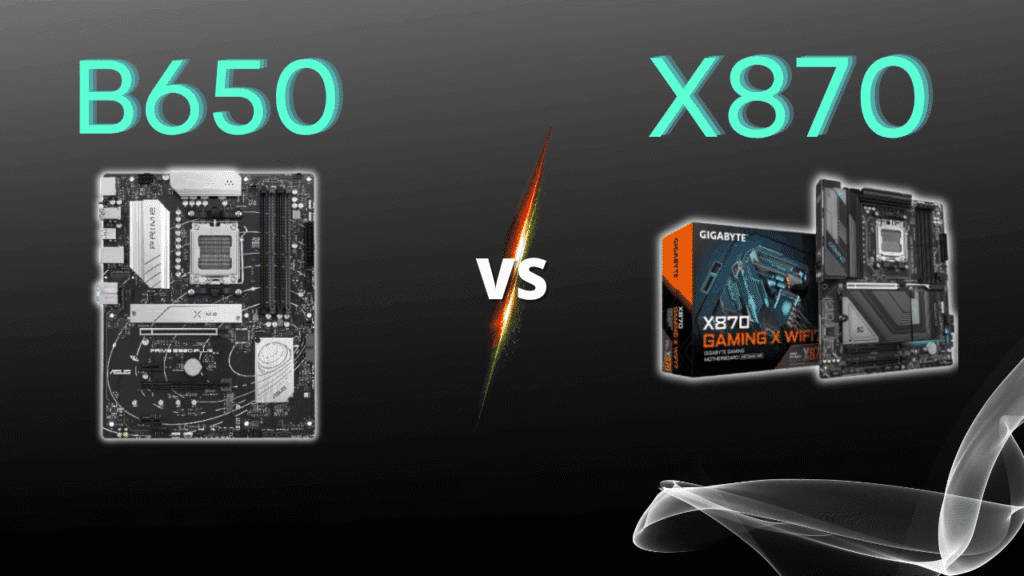
This is the comparison most gaming builders actually search for, since B650 and X870 sit at opposite ends of the practical AM5 range without going all the way to A620 or X870E.
What’s the Real Difference Between B650 and X870?
X870 guarantees a PCIe 5.0 GPU slot and mandatory 40Gbps USB4, while B650 caps out at PCIe 4.0 and treats USB4 as optional. Neither difference changes how fast your games run — it changes what you can plug in and how future storage/GPU upgrades will perform.
Best for B650:
- Builders prioritizing GPU budget over I/O headroom
- Anyone not using USB4 peripherals or planning a PCIe 5.0 GPU soon
Best for X870:
- Builders who want guaranteed Gen 5 bandwidth without hunting for the right B850 SKU
- Anyone using USB4 docks, external Gen 5 storage, or fast capture devices
Is X870 Worth Paying More for as a Gamer?
Only if you’ll actually use the extra connectivity—otherwise, that budget is better spent on the GPU or CPU. Since chipset tier doesn’t move frame rates, the money only pays off if USB4 or a guaranteed PCIe 5.0 GPU slot solves a real need you have.
Best for:
- Content creators or streamers layering in fast external storage or capture gear
- Builders pairing a high-end CPU, like the Ryzen 9800X3D, with premium I/O to match
Caveats:
- If you’re deciding between CPUs first, our Ryzen 7600X vs 9600X comparison is worth reading before you lock in a chipset tier
- A cheaper board plus a better GPU almost always beats a pricier board plus a weaker GPU for gaming
How Much Should You Spend on a Gaming Motherboard?
Motherboards are important, but they’re rarely the component that deserves the biggest share of your gaming PC budget. Once a board has the features your build actually needs, spending more usually adds extra connectivity and expansion—not higher frame rates. For most gamers, it’s better to invest the savings in a faster GPU or CPU.
How Much of My Gaming PC Budget Should go Toward the Motherboard?
For most gaming builds, spending 10–15% of your total PC budget on the motherboard strikes the best balance between features and value. A quality mid-range board provides reliable power delivery, modern connectivity, and room for future upgrades without taking money away from the components that have the biggest impact on gaming performance.
Best for:
- Under $1,000 builds: A620 or B650 boards with the features you actually need
- $1,000–$2,000 builds: B650 or B850 boards offer the best balance of value and future upgrade potential
- High-end gaming builds: X870 makes sense if you’ll benefit from PCIe 5.0 expansion, USB4, or additional connectivity
Caveats:
- Spending more on a motherboard doesn’t increase gaming FPS with the same CPU and GPU
- If choosing between a better motherboard and a better graphics card, the GPU almost always delivers the larger gaming performance improvement
What Motherboard Do I Need? Matching the Board to Your Build
Once you understand the chipset landscape, the actual buying decision comes down to matching the board to your CPU, case, and storage plans — not chasing the highest-numbered chipset.

How do I Match a Motherboard to My CPU?
Confirm the socket matches your CPU (AM5 for current Ryzen, the correct LGA socket for Intel), then confirm the board’s BIOS supports your specific CPU generation. Socket match is mandatory; chipset tier is a connectivity choice layered on top of that.
Best for:
- First-time builders — check socket and BIOS support before anything else
- Upgraders reusing an older board with a newer CPU
Caveats:
- A BIOS flash may be needed before a newer CPU will even boot on an older board
- Some budget chipsets restrict CPU overclocking — check this if that matters to you
What Form Factor is Right for My Sase?
ATX is the standard full-size option with the most slots and VRM room; Micro-ATX trims that down for smaller cases; Mini-ITX fits small-form-factor builds but limits you to one PCIe slot and two RAM slots. Pick the largest size your case supports unless space is the priority.
Best for:
- ATX: most gaming builds, best VRM headroom and expansion
- Micro-ATX: compact builds that still want 2+ M.2 slots and 4 RAM slots
- Mini-ITX: small-form-factor or living-room builds where footprint matters more than expansion
Caveats:
- Compact boards sometimes cut VRM quality to hit a lower price — check power delivery specs more carefully on Micro-ATX and Mini-ITX
- Always confirm your case’s supported form factors before ordering a board
How much RAM and How Many M.2 Slots Should I Get?
Most gaming builds are well served by 32GB of DDR5 across two sticks, though four DIMM slots leave room to add more later.
For storage, match your M.2 slot’s PCIe generation to your SSD so you’re not paying for Gen 5 speed you can’t use or bottlenecking a fast drive on an older slot.
Best for:
- Two sticks of DDR5 now, with two spare slots for a future upgrade
- At least one Gen 4 M.2 slot for your primary drive
- Gen 5 only matters if your SSD supports it
Caveats:
- Running memory in matched pairs (same speed, same kit) avoids stability issues
Is PCIe 5.0 Worth it for Gaming?
For most gamers, PCIe 4.0 remains more than fast enough for today’s graphics cards and NVMe SSDs. Choosing a motherboard with PCIe 5.0 makes the most sense if you’re building a PC that you plan to upgrade over the next several years or if you intend to use next-generation Gen 5 SSDs as they become more affordable.
Best for:
- Builders who want a platform with more upgrade headroom for future GPUs and SSDs
- New AM5 builds where PCIe 5.0 support comes standard, such as many B850 and X870 motherboards
Caveats:
- PCIe 5.0 doesn’t improve gaming frame rates compared to PCIe 4.0 with current hardware
- Don’t choose a more expensive motherboard solely for PCIe 5.0 if it means reducing your CPU or GPU budget
Check our PCIe SSD guide before assuming a Gen 5 slot is worth paying extra for.
Common Motherboard Buying Mistakes to Avoid
A few patterns show up repeatedly in builder forums and reviews, and most of them cost money without improving anything.
Mistakes to watch for:
- Buying the highest chipset tier assuming it improves gaming performance—it doesn’t
- Underspending on VRM for a high-power CPU, leading to thermal throttling under sustained load
- Ignoring case compatibility and ending up with a board that physically doesn’t fit
- Paying for RGB, extra fan headers, or aesthetic shrouds that don’t affect how the PC runs
- Skipping the BIOS-compatibility check for a specific CPU generation on an older board
Upgrade Suggestion For the Future
- B650 → B850: Move to B850 when you want newer platform features such as mandatory PCIe 5.0 M.2 support and USB4.
- B850 → X870: Upgrade when you need guaranteed PCIe 5.0 GPU support, USB4, or additional high-speed connectivity.
- X870 → X870E: Only make this jump if you need maximum PCIe lanes, extensive storage, or enthusiast-level expansion.
- Stay on your current board: If your motherboard already supports your CPU, has adequate VRM, enough M.2 slots and the connectivity you need, there is little reason to replace it purely for gaming performance.
Gamers Also Ask About Gaming Motherboards
Do I need X870 or is B650 enough for gaming?
B650 is enough for gaming performance — chipset tier doesn’t change frame rates. Choose X870 only if you need guaranteed PCIe 5.0 GPU support or mandatory USB4.
Does a more expensive motherboard mean better gaming performance?
No. Extra cost buys VRM headroom, more ports, and aesthetics — not frame rate. Put spare budget toward the GPU or CPU instead for a bigger gaming impact.
Is DDR5 required for a new gaming PC motherboard?
Yes, on AM5 and current-generation Intel platforms, DDR5 is standard. DDR4 boards still exist but are limited to older or budget-tier chipsets.
How long will an AM5 motherboard remain compatible with new CPUs?
AMD has committed to supporting AM5 through 2029, covering the upcoming Zen 6 generation and likely Zen 7 after it on the same socket.
What’s more important for gaming: motherboard or GPU?
The GPU (and CPU) determine frame rates. The motherboard provides power delivery, connectivity, and expansion — it doesn’t add gaming performance on its own.
Final Answer on Choosing The Right Motherboard
Choosing the right motherboard for a gaming PC comes down to three things that matter — CPU socket match, adequate VRM for your CPU’s power draw, and enough RAM/M.2 slots for your build — and several things that don’t, like chipset badge or RGB. On AM5, B650 or B850 covers most gaming builds without overpaying, while X870 and X870E earn their price only if you’ll genuinely use the extra USB4 and PCIe 5.0 bandwidth.
If you’re building a gaming PC today, start with your CPU and GPU budget—not the motherboard. Once those are chosen, select the least expensive board that provides the VRM quality, expansion, and features you actually need. That’s where the best value usually comes from.
