

I like using HDR in games because it can make bright scenes, shadows, and colors look more realistic. However, keeping HDR enabled all the time may not be ideal for everyone. Depending on your monitor, regular desktop content can look different when HDR is turned on.
Fortunately, you can use Windows settings and in-game options to manage HDR for gaming. In this article, I will explain how to enable HDR for games on a PC or laptop and what to do if it does not work as expected.
What Is HDR and How Does It Work in Games?
HDR stands for High Dynamic Range. It allows a display to show a wider range of brightness and colors than standard dynamic range (SDR). In supported games, this can make bright areas look more vivid while keeping details visible in darker scenes.
For example, sunlight, explosions, and glowing objects may look brighter, while shadows can retain more detail. However, the results depend on your display and the game’s HDR implementation. Simply turning on HDR does not guarantee better visuals on every monitor.
Requirements for Using HDR in Games
Before enabling HDR, make sure your gaming PC or laptop meets these requirements:
- HDR-compatible display: Your monitor or laptop screen must support HDR.
- Supported Windows version: Windows 11 supports HDR features such as Auto HDR. Some HDR features are also available in supported versions of Windows 10.
- Compatible graphics hardware: Your graphics card or integrated GPU must support the required HDR features.
- Supported game: For native HDR, the game must include HDR support. Auto HDR can provide an HDR-like presentation for certain supported SDR games.
- Compatible connection: If you use an external monitor, your HDMI or DisplayPort connection must support the required HDR features.
- Updated drivers: Install the latest compatible graphics drivers to avoid potential display issues.
You can check your display’s HDR support under Settings > System > Display > HDR in Windows. If the HDR settings are missing or unavailable, your display, connection, or graphics hardware may not support the required features.
How to Enable HDR Only for Games on PC?
Windows does not offer a universal switch that automatically enables HDR for every game and turns it off when you exit.
However, you can enable HDR through Windows, use Auto HDR for compatible games, or turn it on through a game’s own settings. The right method depends on the game and your display.
Method 1: Enable HDR Through Windows Settings
This method enables HDR at the Windows display level. It can help games that require Windows HDR to be enabled before they can use it.
- Press Windows + I to open Settings.
- Go to System > Display.
- Select your HDR-compatible monitor if you have multiple displays.
- Turn on Use HDR, if the option is available.
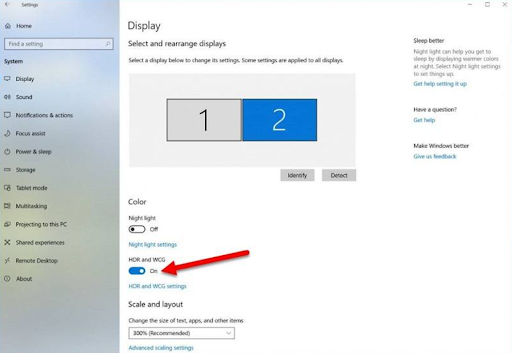
- Launch your game and check its graphics or display settings for an HDR option.
HDR will remain enabled in Windows until you turn it off or use a supported automatic switching method. This setting alone does not restrict HDR to games.
Method 2: Enable Auto HDR for Supported Games
Auto HDR is a Windows 11 feature that can improve the HDR presentation of certain games originally designed for SDR. It is useful when a game does not have native HDR support.
Follow these steps:
- Open Settings > System > Display.
- Select your HDR-compatible display.
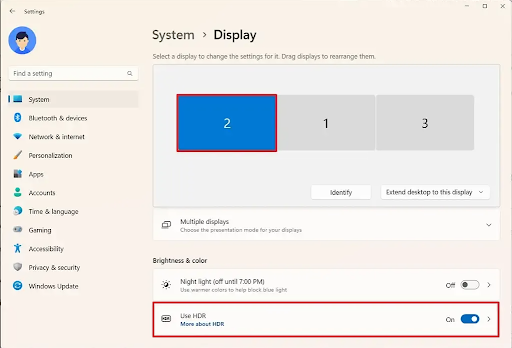
- Turn on Use HDR if it is not already enabled.
- After turning it on, further settings will appear.
- Turn on Auto HDR, if the option is available.
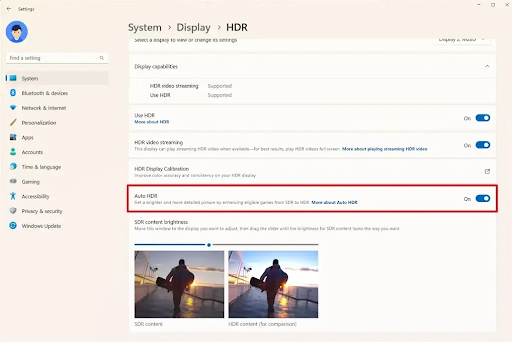
Auto HDR works with supported games and compatible hardware. It does not work with every game, and it is not the same as native HDR. If a game already has its own HDR mode, use the game’s settings to configure native HDR.
Method 3: Enable HDR Through the Game’s Settings
Some games include their own HDR option. This can be the most convenient way to manage HDR when you only want to use it for a particular game, although some games still require HDR to be enabled in Windows first.
- Launch the game.
- Open its Settings menu.
- Go to Graphics, Video, or Display.
- Look for an HDR option and enable it.
- Adjust HDR brightness or calibration settings if the game provides them.
- Save the changes and restart the game if required.
The exact steps vary by game. If the HDR option is missing, check whether the game supports HDR and whether Windows HDR needs to be enabled first.
How to Enable HDR on a Laptop?
You can enable HDR on a laptop if its built-in display supports it. The steps are similar to those on a desktop PC.
- Press Windows + I to open Settings.
- Go to System.
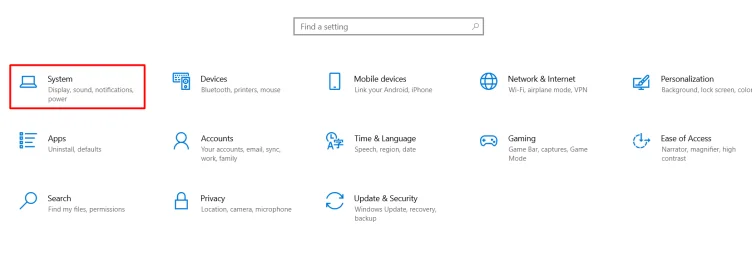
- Open Display.
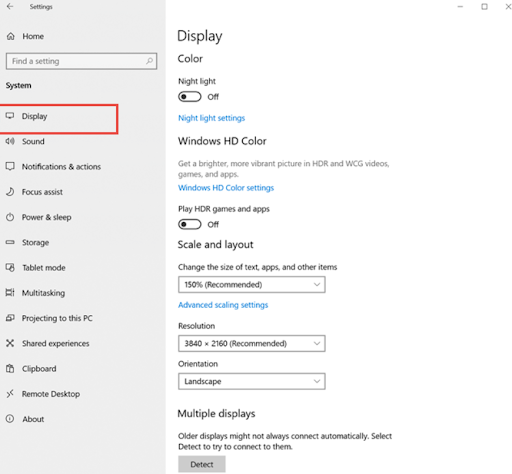
- Open the HDR settings.
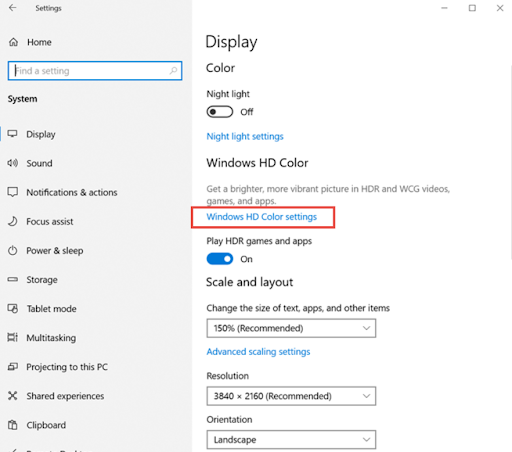
- Turn on Use HDR if the option is available.
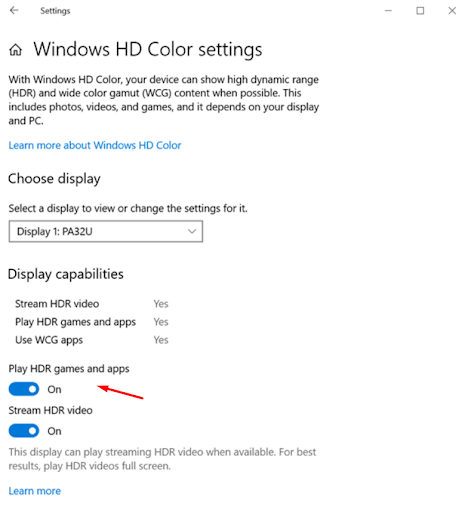
- If supported, enable Auto HDR for compatible games.
- Open your game and enable its native HDR option if available.
If you connect an external HDR monitor to your laptop, select that monitor in Display settings and check its HDR options separately.
Keep in mind that not every laptop with a modern graphics card has an HDR-compatible screen. If the HDR option is unavailable, check your laptop’s specifications and display capabilities.
How to Fix HDR Not Working in Games?
If HDR is not working as expected, try a few basic fixes before changing advanced settings. The problem may be related to your display, Windows settings, game compatibility, or graphics drivers.
1. Check Your Display’s HDR Support
First, make sure your gaming monitor or laptop screen supports HDR. Follow these steps:
- Press Windows + I to open Settings.
- Go to System > Display.
- Select your display if you have multiple monitors.
- Open the HDR settings and check whether HDR options are available.
- You will see “No” under Display Capabilities if your monitor doesn’t support HDR.
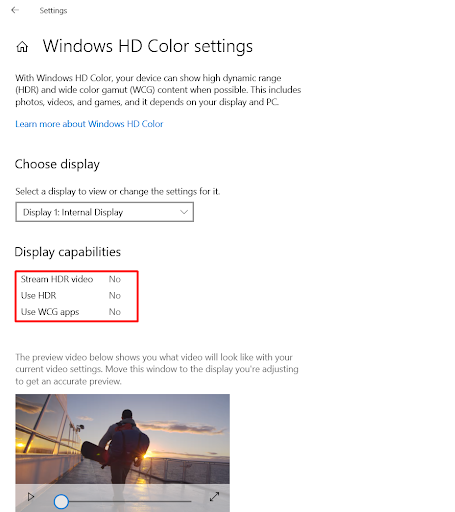
2. Check the Game’s HDR Settings
Even when your display supports HDR, the game may require you to enable it separately. Open the game’s Settings menu and look under Graphics, Video, or Display for an HDR option. Enable it if available and restart the game if required.
If you cannot find the option, check whether the game supports native HDR or is compatible with Auto HDR. Not every game supports these features.
4. Fix Washed-Out Colors
HDR can sometimes make desktop content or games look faded, too bright, or less colorful than expected. This may happen because of incorrect calibration or your display’s HDR capabilities.
- Open Settings > System > Display > HDR.
- Adjust the available HDR settings, including SDR content brightness if that option is available.
- Open your game’s HDR calibration settings and adjust the brightness values as instructed.
- Check your monitor’s picture mode and brightness settings.
- If the problem continues, turn HDR off temporarily to see whether the picture improves.
5. Check Your Display Connection
If you are using an external monitor, the cable or selected port may limit HDR support at your chosen resolution and refresh rate. Check whether your HDMI or DisplayPort cable and port support the required HDR features.
Also, open your monitor’s on-screen menu and enable HDR if it has a separate setting for it. If HDR is still unavailable, try another compatible port or cable. Laptop users should also check whether their specific video output supports HDR.
6. Update Your Graphics Drivers
Outdated graphics drivers can sometimes cause HDR compatibility or display problems. Updating them may help Windows and your games work correctly with your display.
Identify your graphics card or integrated GPU, then visit the official NVIDIA, AMD, or Intel website, depending on your hardware. Download and install the latest compatible driver for your device and Windows version. Restart your PC or laptop, then open your game again to check whether HDR works.
If you’re using NVIDIA and need help with uninstalling the drivers before installing the updated ones, read my guide on “How to Uninstall NVIDIA Drivers from Windows?” It will help you remove existing NVIDIA drivers before installing the updated ones.
Final Words
You can manage HDR for gaming through Windows Display settings, Auto HDR, and individual game settings. However, Windows does not offer a universal option to enable HDR only while any game is running.
If you want to avoid keeping HDR enabled on your desktop, check whether your game or display software supports automatic switching. Before changing any settings, make sure your display supports HDR and your game can use it.
People Also Ask
Windows 11 does not have a universal game-only HDR switch. You can enable HDR through Windows or a game’s settings, but automatic switching depends on the game and available software.
Yes, you can turn HDR off for specific games if they have an HDR option in their settings. However, if HDR is enabled through Windows, you may need to turn it off in Windows settings or use a compatible tool to manage it separately.
Yes, if the laptop’s built-in display supports HDR. You can check this under Windows Display settings.
HDR usually has little performance impact by itself, but the results depend on the game, hardware, and graphics settings.
This can happen because of display limitations, incorrect HDR calibration, or unsuitable brightness settings. Adjust Windows HDR settings and the game’s calibration options to improve the picture.
