

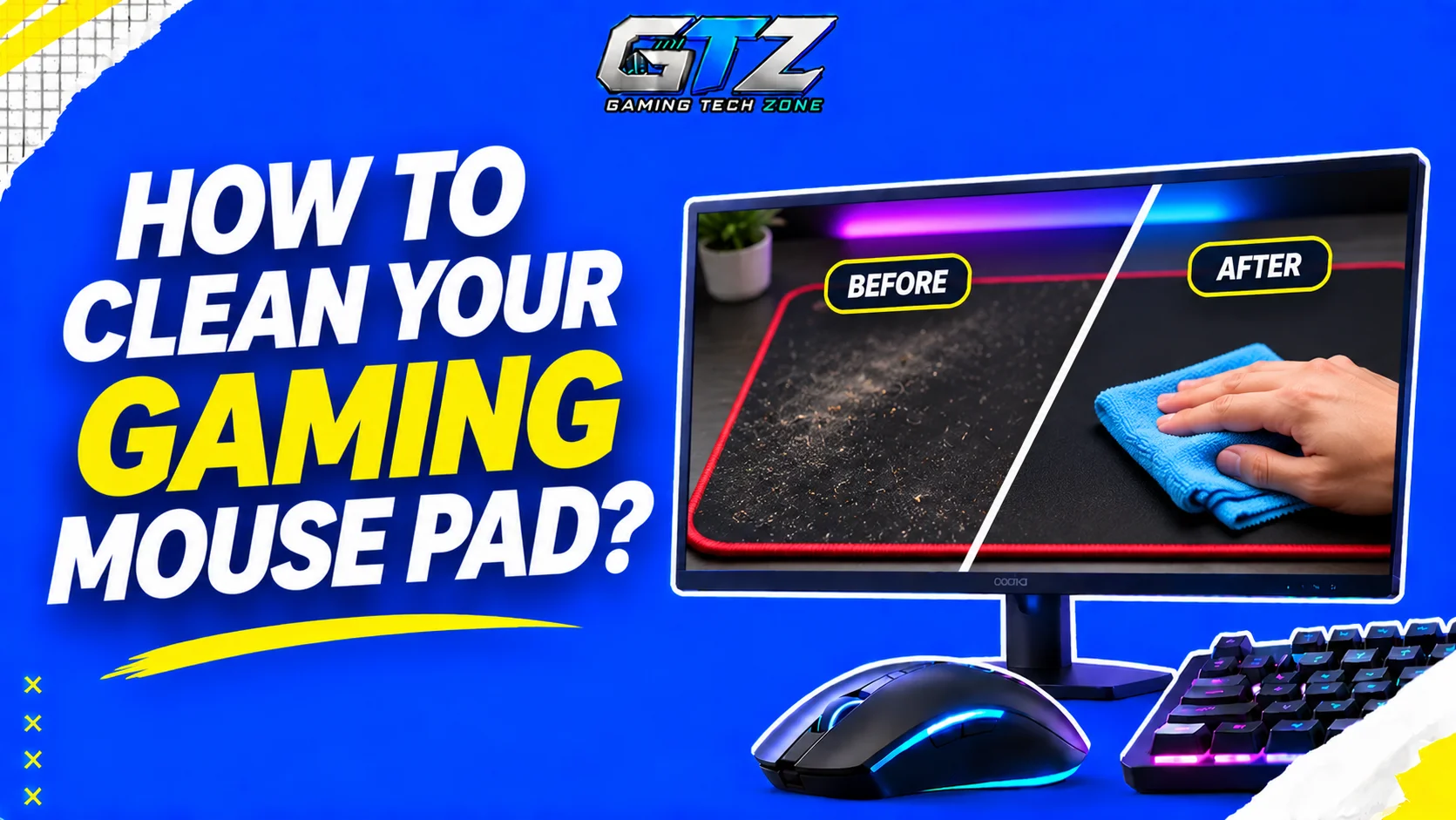
I use my gaming mouse pad almost every day, so it does not take long for dust, sweat, and dirt to build up on its surface. A dirty mouse pad can affect mouse movement and make gaming less comfortable.
However, cleaning it requires some care, especially if it has an RGB lighting system or a delicate surface. Using the wrong cleaning method can damage it. In this article, I will explain how to clean different types of gaming mouse pads safely.
Why Is Cleaning a Gaming Mouse Pad Difficult?
Cleaning a gaming mouse pad is not always as simple as wiping it with a wet cloth. The main challenge is that different mouse pads use different materials and designs.
For example, cloth mouse pads can absorb sweat and moisture, making them harder to clean. Hard mouse pads are easier to wipe, but their surface coatings may react poorly to certain cleaning products.
RGB mouse pads need even more care because they have electronic components and USB connections. Using too much water can damage these parts. You also need to dry your mouse pad properly before using it again. Otherwise, trapped moisture can cause unpleasant smells or even mold growth.
Check Your Mouse Pad’s Material and Cleaning Instructions
Before cleaning your mouse pad, check what material it uses and whether the manufacturer provides specific cleaning instructions.
Here are the most common types:
- Cloth Mouse Pads: These usually have a fabric surface and rubber base. You can generally clean them with mild soap and water.
- Hard Mouse Pads: These have plastic, metal, or other solid surfaces. A damp microfiber cloth is usually enough to clean them.
- RGB Mouse Pads: These include built-in lighting and electronic components. You should avoid soaking them or exposing their electrical parts to water.
If you still have the packaging or manual, check its cleaning instructions. You can also visit the manufacturer’s website for guidance.
How to Clean a Cloth Gaming Mouse Pad?
Cloth mouse pads can collect a lot of dirt because their fabric surface absorbs sweat, oils, and other particles. Follow these steps to clean yours:
- Remove Loose Dirt: Shake the mouse pad gently or use a soft brush to remove dust, crumbs, and other loose particles.
- Prepare a Cleaning Solution: Fill a basin with lukewarm water and add a small amount of mild soap.
- Wet the Mouse Pad: Place it in the water and let the surface get wet. Avoid using hot water.
- Scrub Gently: Use a soft sponge or microfiber cloth to clean the surface. Pay extra attention to stained areas, but avoid scrubbing too hard.
- Rinse it: Wash away the soap with clean water. Make sure no soap residue remains on the surface.
- Remove Excess Water: Gently press a clean towel against the mouse pad to absorb extra moisture.
Once you finish, leave it to dry completely before using it again.
How to Clean a Hard Gaming Mouse Pad?
Hard mouse pads are generally easier to clean because their surfaces do not absorb as much dirt and moisture as cloth pads. You can clean one with a microfiber cloth and a little water.
Follow these steps:
- Unplug the mouse pad if it has any attached cables or electronic components.
- Wipe away loose dust and dirt with a dry microfiber cloth.
- Dampen another microfiber cloth with water.
- Gently wipe the entire surface to remove fingerprints, sweat, and stains.
- If some dirt remains, use a small amount of mild soap on the damp cloth.
- Wipe the surface again with a clean, damp cloth to remove any soap residue.
- Let the mouse pad air-dry before using it.
Avoid using rough sponges or abrasive cleaning products. They can scratch the surface and affect how smoothly your gaming mouse moves.
How to Clean an RGB Gaming Mouse Pad?
RGB mouse pads require extra care because they contain lighting strips and electronic components. You should never submerge one in water or clean it like a regular cloth mouse pad.
Here is how to clean it safely:
- Disconnect the mouse pad from your gaming PC or power source.
- Remove loose dust using a dry microfiber cloth.
- Slightly dampen a clean microfiber cloth with water.
- Gently wipe the mouse pad’s surface to remove dirt and stains.
- Use a dry cloth to remove any remaining moisture.
- Leave the mouse pad to dry completely before reconnecting it.
Be especially careful around the USB port, lighting strip, and cable connections. Do not spray water or cleaning solutions directly onto the mouse pad.
Also, check the manufacturer’s instructions before cleaning. Some RGB mouse pads have removable surfaces or specific cleaning requirements.
Common Mouse Pad Cleaning Mistakes to Avoid
Cleaning your gaming mouse pad with the wrong products or methods can damage its surface. Here are some common mistakes to avoid:
- Using Hot Water: High temperatures can damage the adhesive, rubber base, or fabric of some mouse pads. Use lukewarm or cool water instead.
- Scrubbing Too Hard: Aggressive scrubbing can wear down the fabric or damage stitched edges. Always use a soft cloth or sponge.
- Using Harsh Chemicals: Bleach, strong detergents, and other harsh cleaners can damage the surface coating. Stick to mild soap unless the manufacturer recommends something else.
- Putting it in a Washing Machine: Machine washing can damage the stitching, rubber base, and surface coating. Hand-washing is generally safer for cloth mouse pads.
- Using it While Damp: A wet mouse pad can affect mouse movement and may develop an unpleasant smell. Always let it dry completely before using it.
How to Dry Your Gaming Mouse Pad Properly?
Drying your mouse pad properly is just as important as cleaning it. If moisture remains trapped in the fabric or rubber base, it can lead to unpleasant smells and mold.
Here are a few things you can do:
- Use a Clean Towel: Gently press a dry towel against the mouse pad to absorb excess water. Avoid twisting or squeezing it.
- Lay it Flat: Place the mouse pad on a clean, dry surface instead of hanging it. This helps prevent it from bending or losing its shape.
- Choose a Ventilated Area: Leave it somewhere with good airflow so moisture can evaporate naturally.
- Avoid Direct Heat: Do not use a hair dryer, heater, or direct sunlight to speed up drying. Excessive heat can damage the material or adhesive.
- Wait Until it is Completely Dry: Check both the top and bottom surfaces before placing it back on your desk.
Depending on its thickness and material, a cloth mouse pad may take several hours or even a full day to dry. Be patient and do not reconnect an RGB mouse pad until it is completely dry.
Final Words
Keeping your gaming mouse pad clean helps maintain a smooth surface for everyday use. The cleaning process depends on its material, so always check the manufacturer’s instructions before getting started.
Use mild cleaning products, avoid excessive water, and give your mouse pad enough time to dry. A little regular maintenance can prevent dirt from building up and help your mouse pad stay in good condition for longer.
People Also Ask
Yes, most regular cloth mouse pads can be cleaned with lukewarm water and mild soap. However, hard and RGB mouse pads usually need a damp cloth instead.
It is generally better to hand-wash your mouse pad because machine washing can damage its stitching, rubber base, or surface coating. Always check the manufacturer’s instructions first.
Yes, most cloth gaming mouse pads are washable with lukewarm water and mild soap. However, hard and RGB mouse pads should be cleaned with a damp microfiber cloth instead.
It is better to avoid alcohol unless the manufacturer specifically recommends it. Some cleaning products containing alcohol can damage the surface coating or material.
Yes, dust and dirt can interfere with your mouse sensor’s ability to track movement accurately. A clean surface also helps your mouse glide more smoothly.
