

I prefer using Bluetooth headphones while gaming because they let me move around freely without dealing with wires. However, connecting them to an Xbox Series X can be confusing because the console doesn’t support direct Bluetooth audio connections.
This doesn’t mean you can’t use your existing wireless headphones with it. There are a few workarounds that can help you connect them and enjoy game audio. In this article, I’ll explain how to connect Bluetooth headphones to Xbox Series X using different methods.
Can You Connect Bluetooth Headphones Directly to Xbox Series X?
No, you cannot connect Bluetooth headphones directly to an Xbox Series X. Unlike gaming PCs and smartphones, the console does not have built-in Bluetooth audio support.
Instead, Xbox uses its own wireless technology for compatible headsets. This means your Bluetooth headphones will not appear in the console’s list of available devices, even when they are in pairing mode.
However, you can still use them through your TV, a Bluetooth transmitter, or a PC. These methods let you listen to Xbox game audio without needing a dedicated Xbox wireless headset.
How to Connect Bluetooth Headphones to Xbox Series X?
There are several ways to use Bluetooth headphones with your Xbox Series X. The method you choose depends on the devices you already have and whether you also want to use the headphone microphone for voice chat.
Here are the different methods you can try.
1. Connect Bluetooth Headphones to Your TV
If your TV supports Bluetooth audio, you can pair your headphones with it instead of connecting them directly to the Xbox. The console’s game audio will play through the TV and then reach your headphones.
Follow these steps:
- Turn on your TV and open its Settings menu.
- Go to the Bluetooth or Audio Output settings. The exact location may vary depending on your TV brand.
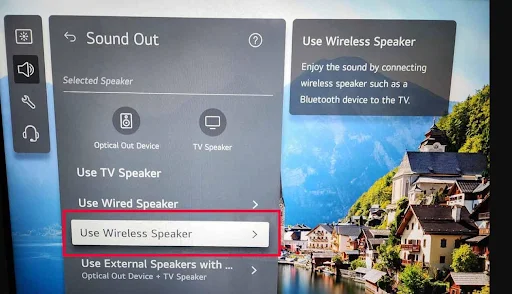
- Put your Bluetooth headphones into pairing mode.
- Select your headphones from the list of available Bluetooth devices.
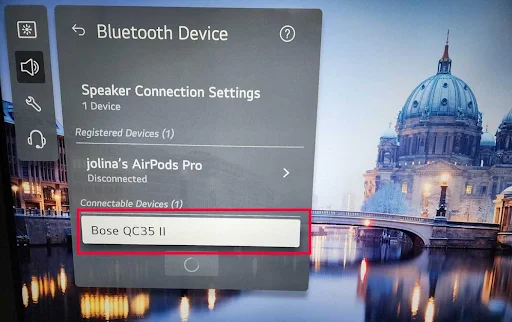
- Once connected, launch a game on your Xbox and check whether you can hear its audio through your headphones.
This method is useful if you want to play games without disturbing others. However, your TV may not support microphone input through Bluetooth, so you might not be able to use your headphones for Xbox party chat.
2. Use a Bluetooth Transmitter
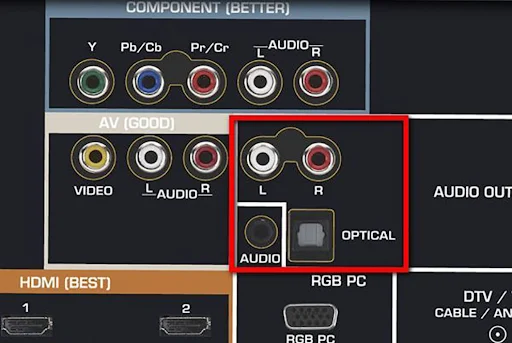
A Bluetooth transmitter lets you send audio from your Xbox setup to wireless headphones. You can connect one to your TV’s audio output or use a compatible transmitter that plugs into your Xbox controller’s 3.5 mm headphone jack.
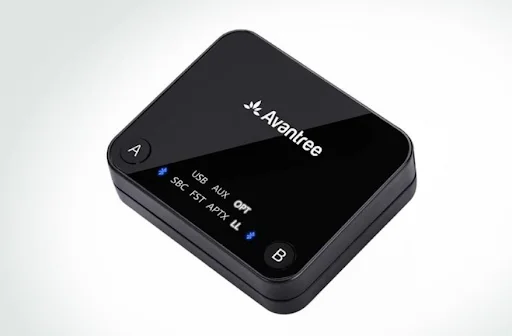
Here’s how to use one:
- Get a Bluetooth transmitter that supports the audio connection available on your TV or controller.
- Connect the transmitter to the appropriate audio output.
- Turn on the transmitter and put it into pairing mode.
- Put your Bluetooth headphones into pairing mode as well.
- Wait for both devices to pair. Check their indicator lights if they have them.
- Start a game on your Xbox and check whether the audio plays through your headphones.
Keep in mind that not every transmitter supports every audio connection. Also, this setup may introduce some audio delay, depending on the transmitter and headphones. Most basic transmitters only send audio to your headphones, so don’t expect their built-in microphone to work for Xbox voice chat.
3. Connect Bluetooth Headphones Through a PC
You can also use Xbox Remote Play to stream your console’s gameplay to a PC. Since your PC supports Bluetooth headphones, you can connect them to it and listen to your Xbox game audio.
Here’s how:
- On your Xbox Series X, open Settings and go to Devices & connections.
- Select Remote features and enable the Enable remote features option.
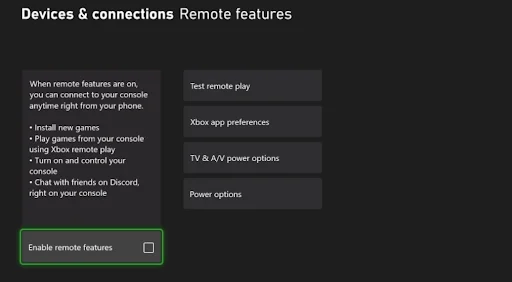
- Make sure your console is connected to the internet and ready for remote access.
- On your PC, open a supported browser and visit the Xbox Remote Play page.
- Sign in with the same Microsoft account you use on your Xbox.
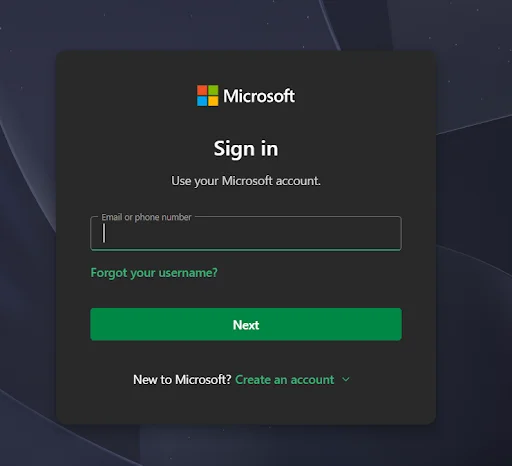
- Follow the instructions to connect to your console and start Remote Play.
- Pair your Bluetooth headphones with your PC through Windows Bluetooth settings.
Once connected, your Xbox gameplay will stream to your PC, and its audio will play through your headphones.
This method is useful if you already have a PC nearby. However, Remote Play relies on your network connection, so you may experience some additional audio or video delay.
4. Use Xbox-Compatible Wireless Headphones
If you want a more straightforward wireless experience, consider using headphones designed for Xbox consoles. Some gaming headsets use Xbox Wireless technology to connect directly to the console without requiring a Bluetooth connection.
You can connect a compatible headset using these steps:
- Turn on your Xbox Series X and wireless headset.
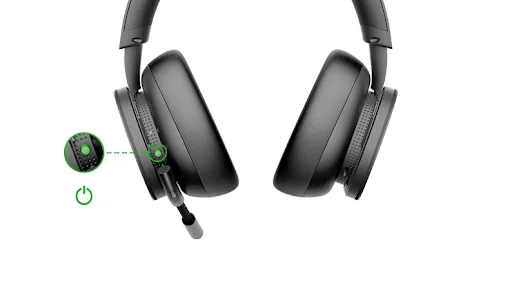
- Press the Pair button on your Xbox console.
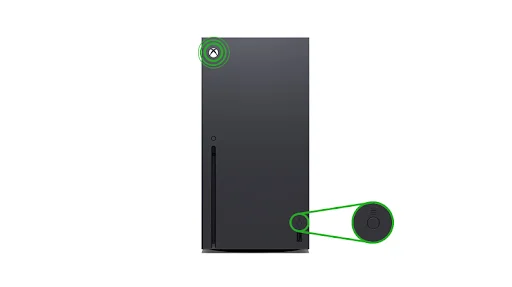
- Put your headset into pairing mode using its dedicated pairing button.
- Wait for the console and headset to establish a connection.
- Once paired, check the audio by launching a game.
Some Xbox-compatible headsets also support Bluetooth, allowing you to connect them to your phone or PC separately. However, make sure the headset specifically supports Xbox Series X before buying it. Standard Bluetooth support alone does not guarantee compatibility.
Final Words
Although Xbox Series X does not support direct Bluetooth audio connections, you can still use your existing headphones through a few workarounds. Connecting them to your TV or using a Bluetooth transmitter are practical options if you only need game audio.
If you also want microphone support and a reliable connection for multiplayer games, an Xbox-compatible wireless headset is a better choice. Besides, you can pick one from our collection of the best headsets for Xbox Series X to avoid any kind of such issues.
People Also Ask
Xbox uses its own wireless technology for gaming headsets instead of standard Bluetooth audio. This helps avoid potential audio delays and connection issues during gameplay.
You cannot pair AirPods directly with Xbox Series X because the console does not support Bluetooth audio. However, you can connect them to a Bluetooth-enabled TV or use a compatible Bluetooth transmitter.
Not every Bluetooth USB adapter works with Xbox Series X. The console does not support generic USB Bluetooth adapters for connecting ordinary Bluetooth headphones.
It depends on your connection method. Pairing headphones with your TV or using a basic Bluetooth transmitter usually only provides game audio, not microphone support. For reliable party chat, use an Xbox-compatible headset.
They can introduce some audio delay, depending on the Bluetooth transmitter, headphones, and connection method. This may be noticeable in competitive games where you need to react quickly to in-game sounds.
