


I always check a few BIOS settings when setting up a gaming PC because some default options can prevent hardware from running at its advertised speed. For example, your RAM may run slower than its rated speed, or your processor may not use its full boost clock.
Adjusting these settings can help you get better performance without upgrading your hardware. However, not every BIOS option is worth changing. In this article, I will explain the best BIOS settings for gaming and how they can help. So, let’s begin.
Why Are BIOS Settings Important for Gaming?
BIOS settings control how your PC’s hardware works before Windows starts. Some options can limit your RAM speed or prevent your processor from using its full boost speed. This can affect game performance, especially in games that rely heavily on the CPU.
Adjusting the right settings can help you get better performance from your existing hardware. However, the available options depend on your motherboard and processor. Also, some settings offer only small performance improvements, so do not expect a major FPS increase from every change.
Best BIOS Settings for Gaming on Gaming PCs
Your motherboard offers several BIOS settings that can help improve gaming performance. However, some options are more useful than others, and their benefits depend on your PC’s hardware. Here are the settings worth checking if you want to optimize your gaming PC to get the best performance.
1. Enable XMP or EXPO for RAM
By default, your RAM may run at a lower speed than its advertised rating. This happens because memory often starts with standard settings instead of its maximum supported speed.
You can fix this by enabling XMP or EXPO in your BIOS.
- XMP (Extreme Memory Profile): Used mainly with Intel-compatible memory and motherboards.
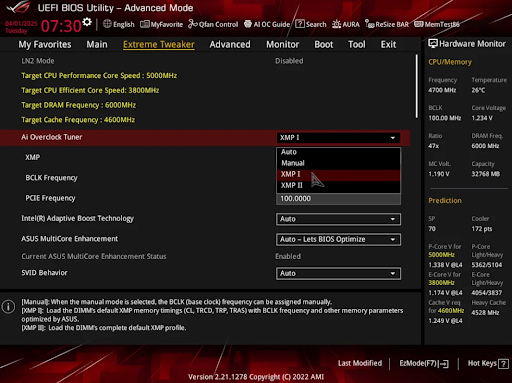
- EXPO (Extended Profiles for Overclocking): Designed for AMD Ryzen systems.
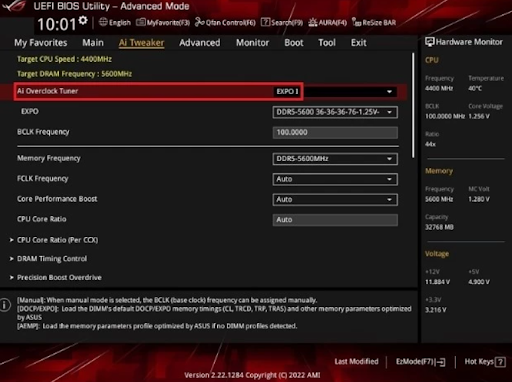
These profiles automatically apply the RAM’s advertised speed and timings. Faster RAM can improve gaming performance, particularly in CPU-intensive games. It can also help improve minimum FPS and reduce some frame-time drops.
Look for XMP or EXPO under the memory or overclocking section of your BIOS. Select the available profile and save your changes.
2. Enable Resizable BAR
Resizable BAR is a feature that allows your CPU to access more of your graphics card’s video memory (VRAM) at once. Without it, the processor may access VRAM in smaller portions.
Enabling this feature can improve gaming performance in some games. The actual results depend on your graphics card and the game you are playing.
To use Resizable BAR, your CPU, motherboard, and graphics card must support it. You will usually find this option under the PCIe or advanced settings section of your BIOS.
3. Enable Above 4G Decoding
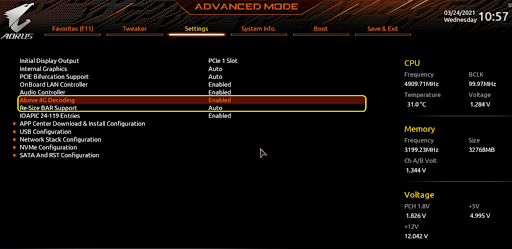
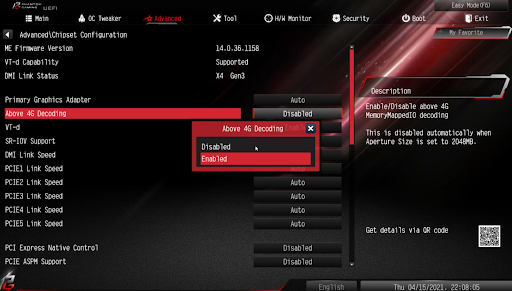
Above 4G Decoding is another BIOS setting related to your graphics card. It allows the system to allocate PCIe resources above the 4GB address space.
This setting is important because Resizable BAR generally requires Above 4G Decoding to work. If you want to enable Resizable BAR, you should check this option as well. You can usually find it under the PCIe, PCI Subsystem, or Advanced settings section of your BIOS.
Enable it before enabling Resizable BAR if your motherboard requires that order.
4. Enable CPU Turbo Boost or Precision Boost
Modern processors can automatically increase their clock speeds when they need extra performance. This helps them handle demanding tasks, including gaming.
Intel calls this feature Turbo Boost.
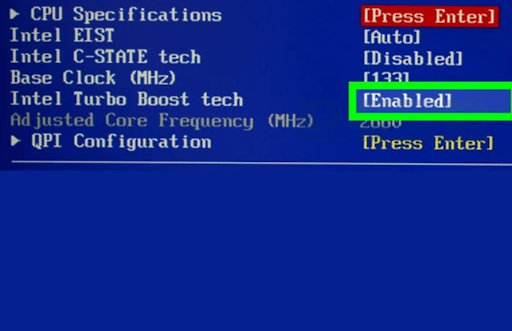
On the other hand, AMD uses Precision Boost.
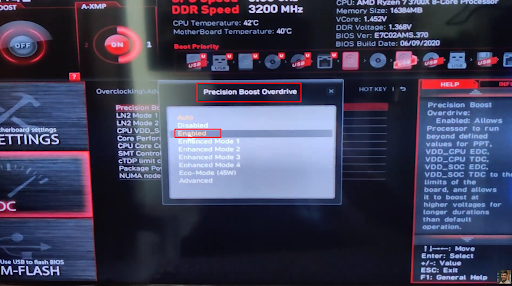
Both allow compatible processors to run above their base clock speeds when temperature and power limits allow it.
Make sure this feature is enabled in your BIOS. Otherwise, your processor may not reach its normal boost speeds during gaming.
You can usually find the option under CPU configuration or advanced processor settings. The exact name and location depend on your motherboard.
5. Enable CPU Core Performance Boost (AMD)
If you have an AMD Ryzen processor, such as the Ryzen 7 3700X, you may also find an option called CPU Core Performance Boost (CPB) in your BIOS.
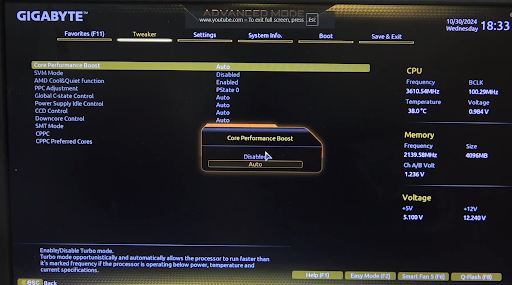
This feature allows your processor to increase its core clock speeds when needed. It works alongside AMD’s Precision Boost technology to improve performance during demanding workloads.
Make sure CPB is enabled if you want your Ryzen processor to use its automatic boost speeds. You can usually find it under the CPU configuration or AMD CBS settings.
6. Enable Multi-Core Enhancement (Intel)
Some Intel motherboards offer a feature called Multi-Core Enhancement (MCE). Depending on the motherboard, it may also be called Enhanced Turbo or have a similar name.
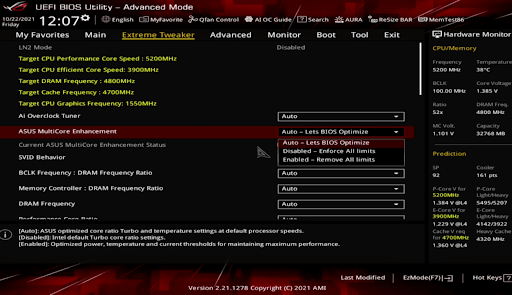
This feature can allow your processor to maintain higher clock speeds across multiple cores by adjusting its power limits. It can help improve performance in CPU-heavy games, although the actual benefits vary.
However, enabling MCE can also increase power consumption and CPU temperatures. It is not necessary for every gaming PC.
If your CPU cooling system can handle the extra heat, you can test this feature and compare the results. Otherwise, leaving it disabled or using Intel’s default power settings is a sensible choice.
7. Set PCIe Slot Speed to the Correct Generation
Your graphics card connects to the motherboard through a PCIe slot. Depending on your hardware, this connection may support PCIe 3.0, 4.0, or 5.0.
Most motherboards automatically select the appropriate PCIe generation. However, some BIOS versions let you change it manually.
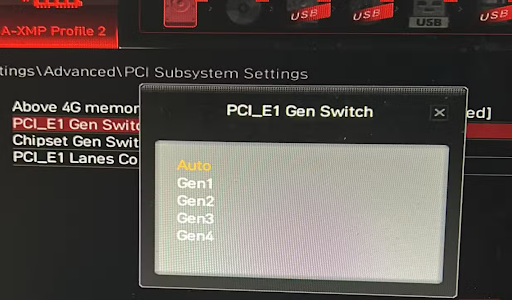
If you find this option, make sure the primary PCIe slot is set to a generation supported by both your motherboard and graphics card. For most users, leaving it on Auto is the best choice.
You generally do not need to change this setting unless you are troubleshooting a graphics card detection or compatibility issue.
Final Words
Changing a few BIOS settings can help your gaming PC get better performance from its existing hardware. Start with XMP or EXPO, Resizable BAR, and CPU boost features, as these are among the most useful options to check.
Also, remember that BIOS options vary between motherboards. Do not change settings you do not understand, and test your PC after making adjustments. If you experience crashes or stability problems, restore the previous settings.
