

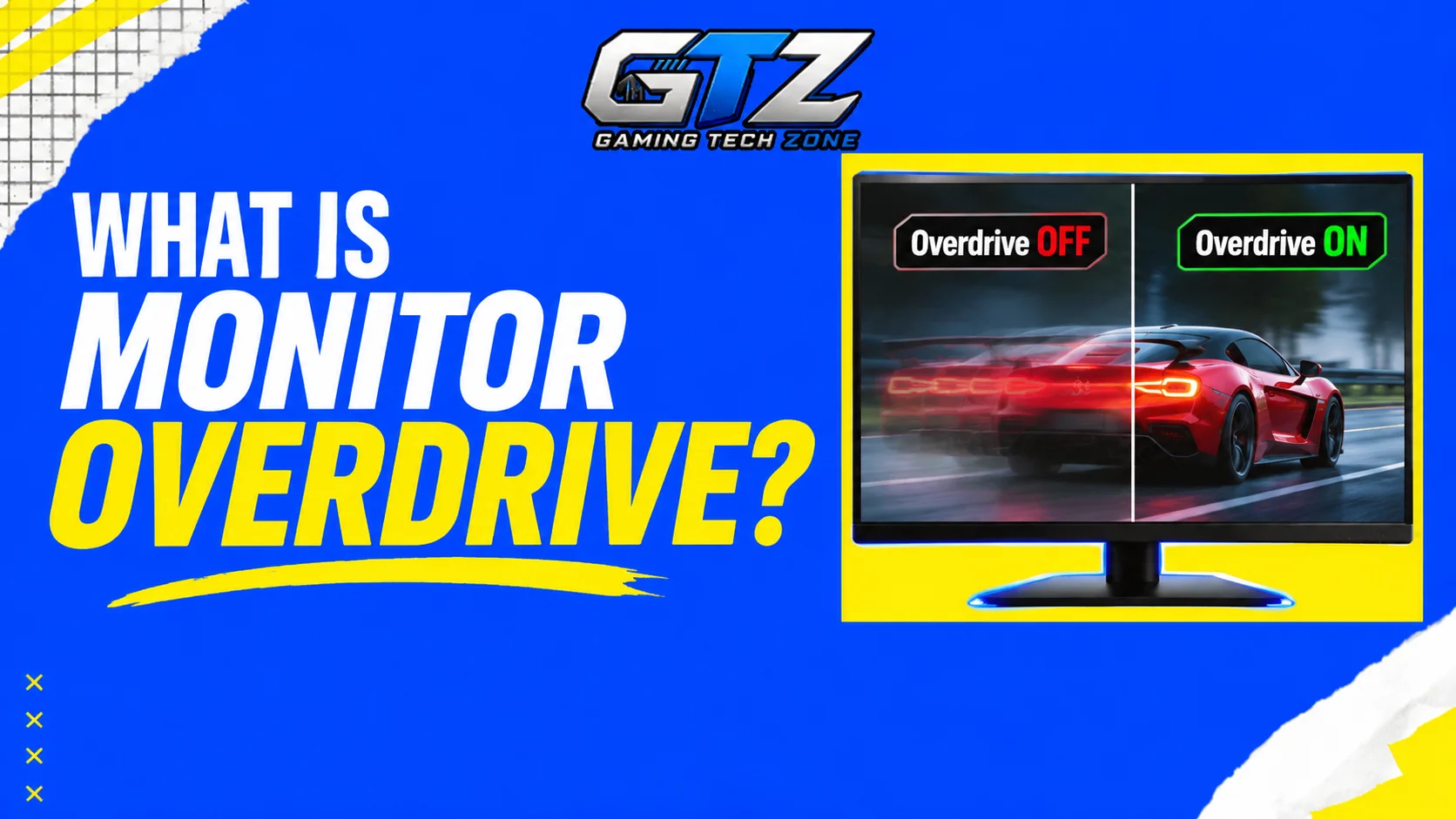
When I first explored my gaming monitor’s settings, I came across an option called Overdrive. I wanted to understand what it did and whether enabling it could improve my gaming experience. I found that it helps pixels change colors faster, which can reduce ghosting and make fast-moving objects clearer.
However, choosing the wrong level can introduce unwanted visual effects. If you want to get clearer motion without these issues, you need to understand how this feature works and which level to use.
So, in this article, I will explain monitor overdrive, its uses, and the best settings for gaming so that you can choose the right setting for your monitor.
Let’s start.
What Is Overdrive on a Monitor?
Monitor overdrive is a feature that helps pixels change colors faster. It applies extra voltage to pixels to speed up their transitions from one color to another.
This is useful because pixels do not change colors instantly. When a moving object appears on your screen, some pixels may take longer to update. This can leave a faint trail behind the object, which is known as ghosting.
Overdrive helps reduce this effect by speeding up pixel transitions. It is particularly useful in fast-paced games where objects move quickly across the screen.
Also, overdrive is related to pixel response time, not refresh rate. Refresh rate tells you how many times your monitor updates the image every second, while response time measures how quickly pixels change colors.
Why Should You Use Monitor Overdrive for Gaming?
Monitor overdrive can improve motion clarity, especially when playing games that involve fast movement. Here are some of its main benefits.
- Reduce Ghosting: Overdrive helps pixels change colors faster, reducing the trails that can appear behind moving objects.
- Improve Motion Clarity: It can make moving objects look clearer, making it easier to follow action on the screen.
- Track Moving Targets: In competitive games, clearer movement can make it easier to follow opponents and targets.
- Improve Fast-Paced Gaming: It can be useful in FPS, racing, and beat ‘em up games where quick movements are common.
However, overdrive does not improve your FPS or make your monitor’s refresh rate higher. It only affects how quickly pixels respond to changes on the screen. So, if your FPS is low, changing the overdrive setting will not fix the problem.
You should read my “Why Is My FPS So Low?” article to understand the possible causes and how to fix them to improve FPS.
Different Monitor Overdrive Settings Explained
Most gaming monitors offer multiple overdrive levels. Their names can vary depending on the manufacturer, but they generally work in a similar way.
Here is what the common settings mean.
Off
This setting disables overdrive, so your monitor uses its normal pixel response behaviour. You may notice more ghosting, particularly when playing games with fast-moving objects.
However, some monitors already have good pixel response times without overdrive. In such cases, keeping it off may provide a better image.
Low or Normal
This applies a small amount of overdrive to speed up pixel transitions. It can reduce ghosting without introducing many unwanted visual effects.
It is a good starting point if you are unsure which setting to use.
Medium or Fast
This setting applies stronger overdrive to improve pixel response times further. It can provide a good balance between reducing ghosting and avoiding other visual problems. However, the results depend on your monitor. Some models perform better at this level, while others may show signs of overshoot.
High or Extreme
This is usually the strongest overdrive setting available. It pushes pixels to change colours as quickly as possible.
While this may reduce normal ghosting, it can introduce inverse ghosting. This creates bright or dark trails around moving objects, which can be distracting during gameplay.
For this reason, the highest setting is not always the best choice.
What Is the Best Overdrive Setting for Gaming?
There is no single overdrive setting that works best for every monitor. It depends on your monitor’s response time, refresh rate, and how well its overdrive feature is implemented.
However, Low or Medium is usually a good starting point. These settings can reduce ghosting without introducing too many visual artefacts.
Here are a few things to keep in mind when choosing your setting:
- Start with Normal or Medium: Try these settings first and check how moving objects look during gameplay.
- Avoid Extreme Settings: Higher overdrive levels can cause inverse ghosting, even if they reduce normal ghosting.
- Consider Your Refresh Rate: Some monitors perform differently at 60Hz, 144Hz, and 240Hz. A setting that works well at one refresh rate may not work as well at another.
- Test Different Levels: Switch between the available settings and look for the one that provides the clearest movement without unwanted trails.
Also, some gaming monitors have an adaptive overdrive feature. It automatically adjusts the overdrive level based on the current refresh rate. If your monitor supports it, this can be useful when your FPS changes frequently.
How to Enable Overdrive on Your Monitor?
You can usually enable monitor overdrive through the on-screen display (OSD) menu. The exact steps may vary depending on your monitor’s brand and model.
Follow these general steps:
- Press the physical buttons or joystick on your monitor to open its OSD menu.
- Navigate to the Gaming, Picture, or Display section.
- Look for an option called Overdrive, OD, Response Time, or something similar.
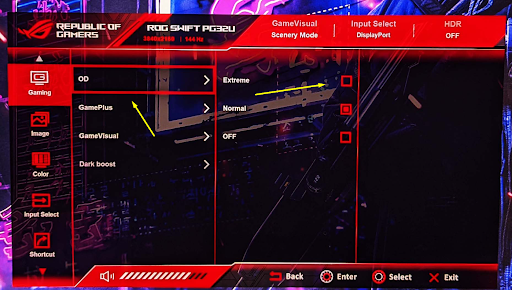
- Select your preferred level, such as Normal, Fast, or Extreme.
- Exit the menu and check how the image looks while playing a game.
If you cannot find the option, check your monitor’s manual. Some manufacturers use different names for the same feature.
Monitor Overdrive vs Motion Blur Reduction: What’s the Difference?
Monitor overdrive and motion blur reduction both aim to improve motion clarity, but they work differently.
Overdrive speeds up pixel transitions by applying extra voltage. Motion blur reduction, on the other hand, usually uses backlight strobing to reduce the time each image remains visible on the screen.
Here are their main differences:
- Overdrive: Reduces ghosting by helping pixels change colours faster.
- Motion Blur Reduction: Uses backlight strobing to make moving objects appear clearer.
- Brightness: Motion blur reduction can make the screen darker because the backlight switches off briefly between flashes.
- Visual Effects: Overdrive can cause inverse ghosting, while motion blur reduction may introduce flickering.
Some gaming monitors support both features. However, you should check your monitor’s manual because certain models do not allow you to use them together.
Direct Comparison
| Feature | Monitor Overdrive | Motion Blur Reduction |
| Purpose | Reduces ghosting | Reduces perceived motion blur |
| How It Works | Speeds up pixel transitions using extra voltage | Uses backlight strobing |
| Brightness | Usually has little effect on brightness | Can reduce screen brightness |
| Possible Issues | May cause inverse ghosting | May cause flickering |
| Main Benefit | Clearer pixel transitions | Clearer moving objects |
How to Test Your Monitor’s Overdrive Settings?
You do not have to rely on guesswork when choosing an overdrive level. You can test different settings and compare their results.
One simple way is to use the UFO Test website. It displays moving objects that help you check your monitor’s motion clarity.
Follow these steps:
- Open the UFO Test website in your browser.
- Make sure your monitor is running at its usual refresh rate.
- Change the overdrive level through your monitor’s OSD menu.
- Observe the moving objects and look for trails behind them.
- Repeat the test with other overdrive levels to compare the results.
Pay attention to two things:
- Normal Ghosting: Look for faint trails behind moving objects. This means pixels may be taking too long to change colours.
- Inverse Ghosting: Look for bright or dark outlines around moving objects. This usually indicates that overdrive is too aggressive.
Choose the setting that provides the clearest movement without noticeable ghosting or inverse ghosting.
Final Thoughts
Monitor overdrive helps pixels change colours faster, reducing ghosting and improving motion clarity during gaming. However, choosing the highest setting does not always give you the best results.
It can introduce inverse ghosting and make moving objects look worse. Start with a Normal or Medium setting and test different levels at your monitor’s usual refresh rate. This will help you find a balance between clear movement and unwanted visual effects.
