
VR gaming isn’t plug-and-play — at least not yet. If you’ve tried launching a headset only to get stuttering, blurry visuals, or a controller that refuses to track, the problem is almost never the headset itself. It’s the setup. This guide walks through exactly how to set up a gaming PC for VR—from verifying hardware requirements and connecting your headset to configuring software and optimizing your play space.
By the end, you’ll know what’s required, what’s optional, and where most people quietly go wrong.
Quick Answer
To set up your gaming PC for VR, you need at minimum an RTX 3070 (or AMD RX 6700 XT), a 6-core CPU, 16GB of RAM, and at least one USB 3.0 port. Connect your headset, install the correct VR runtime (SteamVR or Meta PC app), run the room setup wizard, and configure your render resolution to target a stable 90 fps. That’s the core process—the sections below explain each step in detail.
Set Up VR For Gaming PC Step-by-Step
These are the steps for VR gaming on a PC.
Step 1: Verify Your PC Actually Meets VR Requirements
Before unboxing anything, check your hardware. VR is one of the most demanding workloads a gaming PC handles — you’re essentially rendering two high-refresh displays simultaneously, with extra processing for head tracking and motion compensation.
Minimum vs Recommended VR PC Specs (2026)
| Component | Minimum | Recommended |
|---|---|---|
| GPU | RTX 3060 / RX 6700 | RTX 4070 / RX 7800 XT |
| CPU | Intel i5-10600K / Ryzen 5 5600X | i7-13700K / Ryzen 7 7700X |
| RAM | 16GB DDR4 | 32GB DDR5 |
| Storage | HDD (not ideal) | NVMe SSD |
| USB Ports | 1× USB 3.0 | 2× USB 3.0 + USB-C |
| OS | Windows 10 64-bit | Windows 11 64-bit |
In practice, the GPU is your biggest bottleneck. An RTX 3060 can run VR, but you’ll need to reduce rendering resolution and won’t max out newer titles. An RTX 4070 gives you real headroom for supersampling—a technique that renders above native resolution and sharpens the image significantly, at a GPU cost. That’s the difference between “VR works” and “VR is genuinely impressive.”
Step 2: Choose and Connect Your VR Headset
This step is very important for setting up a PC for VR.
Wired vs Wireless PC VR Connection
Two headsets dominate PC VR right now: Meta Quest 3 and Valve Index. Each uses a different connection method, and choosing the wrong one for your setup causes unnecessary headaches.
Meta Quest 3 + Air Link (wireless):
- Needs a strong 5 GHz Wi-Fi 6 router, ideally with your PC connected via Ethernet—not Wi-Fi
- Latency typically runs 30–50 ms, barely noticeable in slower-paced games
- The most flexible setup, but signal interference or distance from your router can cause sudden quality drops
Meta Quest 3 + USB-C Link Cable (wired):
- Near-zero latency, more reliable encode quality
- Use a USB 3.2 cable, not USB 2.0 — this matters far more than most guides mention. USB 2.0 throttles bandwidth, which increases visual compression artifacts noticeably
- Ideal if you’re in a small room or your router is far from your play space
Valve Index (fully wired):
- Connects via DisplayPort 1.2 and two USB 3.0 ports
- Requires two base stations mounted at diagonal corners of your play space for lighthouse tracking
- Best-in-class tracking precision, but the setup is more involved
One thing to check before buying anything: look at your GPU’s available output ports. Some RTX 4000 series cards ship with only one DisplayPort, which can conflict if you’re running multiple monitors alongside a wired VR headset.
Step 3: Install and Configure the VR Runtime Software
Install the dedicated app for each headset.
SteamVR vs Meta PC App
- SteamVR is the standard runtime for Valve Index and most PC VR headsets. Install it through Steam. It also supports OpenXR, which most modern VR games use natively.
- Meta PC App (formerly the Oculus PC App) handles Quest headsets and must be running before launching any game, even non-Meta titles via Air Link.
Don’t let both runtimes run simultaneously—this causes tracking conflicts and stuttering that look like hardware problems. Go into each app’s settings and designate one as the default OpenXR runtime.
After installing, run the room setup wizard. This step calibrates floor height, tracking boundaries, and play space dimensions. Skipping it leads to incorrect height perception (objects floating or sunk into the floor) and persistent guardian boundary errors mid-game.
Step 4: Configure Your PC for Smooth VR Performance
VR demands stable frame delivery—not just high average FPS. A sudden drop from 90fps to 60fps triggers reprojection, which introduces visible motion ghosting and is a common cause of VR-induced nausea. Here’s how to reduce that risk:
GPU driver settings:
- Set your power mode to “Prefer Maximum Performance” in NVIDIA Control Panel or AMD Radeon Software
- Disable in-game VSync — VR runtimes handle frame timing themselves
- Update to the latest stable driver, but wait a week after major release dates. Day-one drivers occasionally introduce VR-specific regressions
Windows system settings:
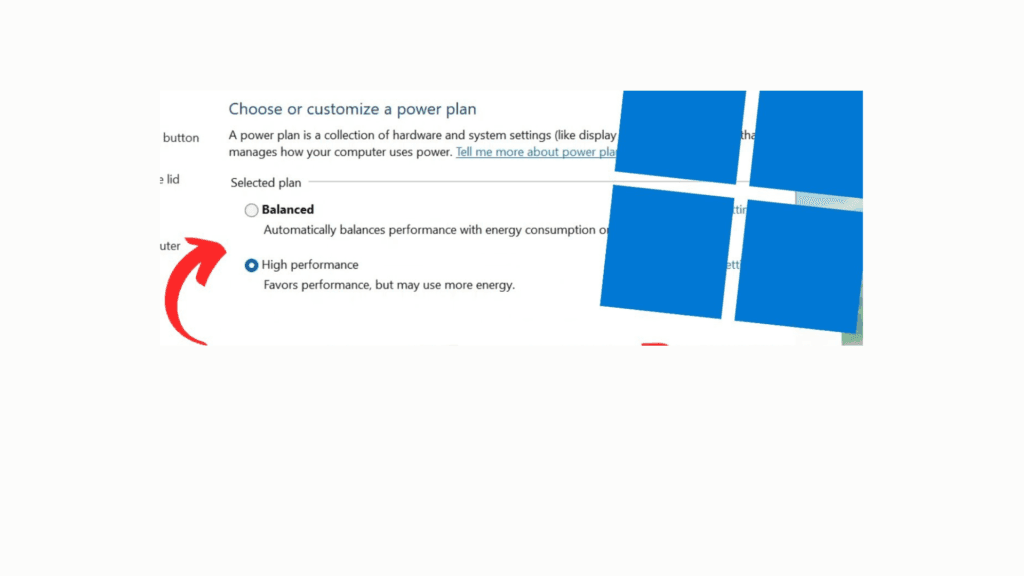
- Switch your power plan to “High Performance” or “Ultimate Performance.”
- Disable Xbox Game Bar and background recording (Settings → Gaming → Xbox Game Bar)
- Close GPU-heavy browser tabs before launching—even a YouTube tab running hardware acceleration competes for VRAM
For deeper Windows-level changes that directly carry over to VR stability, the Windows 11 gaming optimization guide covers background service management and registry tweaks that reduce system latency.
VR render resolution settings: Most runtimes let you set a resolution multiplier. At 1.0× (default), you render at the headset’s native resolution. Pushing to 1.2×–1.5× (supersampling) sharpens the image significantly—text becomes readable, and edges look cleaner—but at real GPU cost. Start at 1.0× and only increase once your baseline frame rate is stable.
If you’re targeting 120 Hz VR (available on Quest 3 and Valve Index), verify your GPU can hold 120 fps at your chosen resolution before enabling it. For guidance on tuning your system around a target refresh rate, the best PC settings for 120 Hz is directly applicable here. Running 90Hz on a stable budget gives a better experience than an unstable 120Hz.
Step 5: Set Up Your Physical Play Space
This step gets skipped in most guides, but it directly affects both tracking quality and safety.
Space requirements:
- Stationary (seated or standing): as little as 1m × 1m is fine
- Room-scale VR: minimum 2m × 1.5m; 3m × 3m opens up most full room-scale games
- Outside-in tracking (Valve Index) requires base stations mounted at 2m+ height, angled down 30–45°
Lighting considerations:
- Meta Quest 3 uses inside-out camera tracking, which handles most indoor environments well
- Avoid direct sunlight through windows—infrared saturation from sunlight confuses the tracking cameras and causes controller drift
Cable management (wired setups):
- Use a ceiling pulley or bungee cord system—the cable is the most common tripping hazard in wired VR
- Route the cable behind you and up, not in front of you across the floor
Common Misconceptions for How To Set Up Gaming PC For VR
“Any gaming PC can run VR.” Not quite. A PC running 4K games at 60fps can still struggle with VR if the CPU creates a bottleneck or RAM runs below 16GB. VR rendering has different performance characteristics than flat gaming — it’s more sensitive to 1% lows and latency spikes than to peak GPU throughput.
- “More USB ports means better VR performance.” USB port count affects headset compatibility, not performance. What matters is the USB version—all VR devices need USB 3.0 or higher. A USB 2.0 port provides too little bandwidth and will limit the headset’s data connection.
- “You need a dedicated VR room.” Stationary and 360° modes work well for most popular VR games. Full room-scale is a bonus experience, not a baseline requirement.
- “Wireless VR is always worse than wired. “ With Wi-Fi 6 and improved encode algorithms, wireless VR quality is very close to wired for most use cases. The gap has narrowed substantially since 2022—the main remaining advantage of wired is absolute consistency, not image quality.
Wired vs Wireless VR: Quick Comparison
| Features | Wired (USB/DP) | Wireless (Wi-Fi 6) |
|---|---|---|
| Latency | ~1–5 ms | 30–50 ms |
| Image quality | Highest | Near-equivalent with Wi-Fi 6 |
| Setup complexity | Medium–High | Low–Medium |
| Freedom of movement | Limited by cable | Full |
| Reliability | Very high | Depends on router/signal |
Quick VR Setup Checklist
- GPU meets minimum requirement
- USB 3.0 port available (no hub)
- SteamVR or Meta PC App installed
- Room setup calibrated
- Stable 90Hz selected
- Render scale set to 1.0x initially
People Also Ask For
An RTX 3070 or RX 6700 XT is the practical minimum for a comfortable experience in current-gen titles. For newer games or supersampling, target an RTX 4070 or RX 7900 GRE.
Yes, if it has a dedicated GPU (RTX 3070 or better), a USB 3.0 port, and sufficient cooling. Thermal throttling under sustained VR load is a real concern on laptops, though. For specific guidance, laptop VR optimization settings cover the differences in detail.
Yes, and Windows 11 is the preferred OS. It handles USB controller management more reliably and has improved OpenXR support compared to Windows 10. The default settings still leave performance on the table, so configure the power plan and background services before you dive in.
16GB is the minimum. 32GB is recommended if you also run Discord, a browser, or streaming software in the background while in VR.
The three most common causes: insufficient GPU performance for the target frame rate, USB bandwidth issues (use a direct motherboard USB port — not a hub), or a runtime conflict between SteamVR and the Meta PC App running simultaneously. Check each one in order before adjusting hardware.
Final Verdict on How to Set Up Gaming PC for VR
Setting up a gaming PC for VR comes down to three things done right: hardware that meets the real requirements (not just the minimum spec list), software configured to deliver stable frame timing, and a physical space that lets you move without cables or furniture becoming hazards.
Get those three right and VR delivers on its promise. Miss any of them and you’ll spend more time troubleshooting than gaming.
Once your VR setup is solid, the logical next step is making sure your whole system is tuned from the ground up—best gaming pc optimization settings gives you the full picture for both VR and everything else you play.
