

Your laptop’s default settings aren’t designed for peak performance — they’re designed for battery life and safe temperatures. If your machine feels slower than it should, laptop tuning is almost certainly the answer.
This guide answers a specific question: what is laptop tuning, and how do you actually do it? By the end, you’ll know exactly which hardware and software settings to change, why each one matters, and what order to tackle them.
If you haven’t already covered the broader fundamentals, our full guide on PC optimization guide is the best starting point before going deeper here.
Quick Answer
Laptop tuning is the process of adjusting power settings, GPU configurations, thermal management, and software behavior to extract maximum performance from a laptop. It doesn’t require hardware upgrades — the right settings alone can deliver 15–30% better frame rates and noticeably faster everyday responsiveness.
What Is Laptop Tuning and Why Laptop Tuning Differs from Desktop Optimization
Laptop tuning is the process of optimizing a laptop’s hardware and software settings to improve performance, reduce thermal throttling, and increase responsiveness. Common tuning methods include adjusting power plans, configuring GPU settings, improving cooling, managing startup programs, and updating drivers.
Desktops can push high wattage indefinitely. Laptops can’t. They have a small chassis, a shared battery, and a cooling system under constant pressure. This is why thermal throttling is the single biggest hidden enemy of laptop performance.
When a laptop overheats, it automatically reduces CPU and GPU clock speeds to protect itself. The result is stuttering, frame drops, and sluggishness—even on premium hardware. Tuning a laptop means working intelligently within those thermal limits, not ignoring them.
The Four Core Areas of Laptop Tuning
These are a few crucial actions to improve laptop performance.
1. CPU and Power Plan Optimization
Windows ships with a “Balanced” power plan that dynamically throttles CPU speed to save battery. Switching to High Performance or Ultimate Performance mode keeps clock speeds consistent — something that matters especially in CPU-sensitive games.
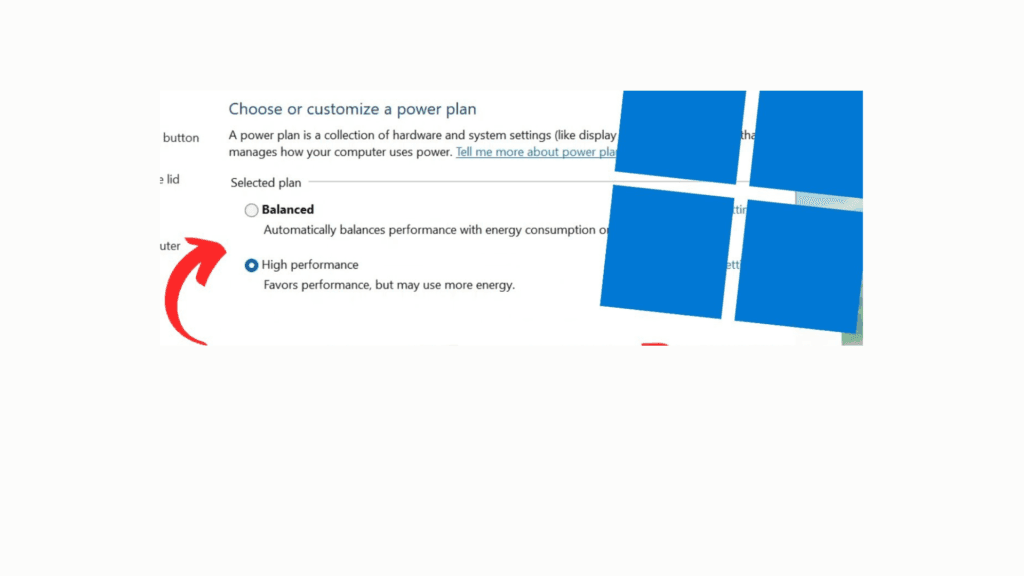
To enable it: Control Panel → Power Options → Show additional plans → Ultimate Performance.
In practice, this single change reduces CPU-related stutter by 15–30% in competitive titles. The trade-off is faster battery drain, but that’s a fair deal when you’re plugged in.
Beyond Windows settings, most modern gaming laptops include a manufacturer performance mode—such as ASUS Armoury Crate, Lenovo Vantage, or MSI Dragon Center — that unlocks higher TDP limits the OS can’t access on its own. Always check this first.
2. GPU Settings and Driver Tuning
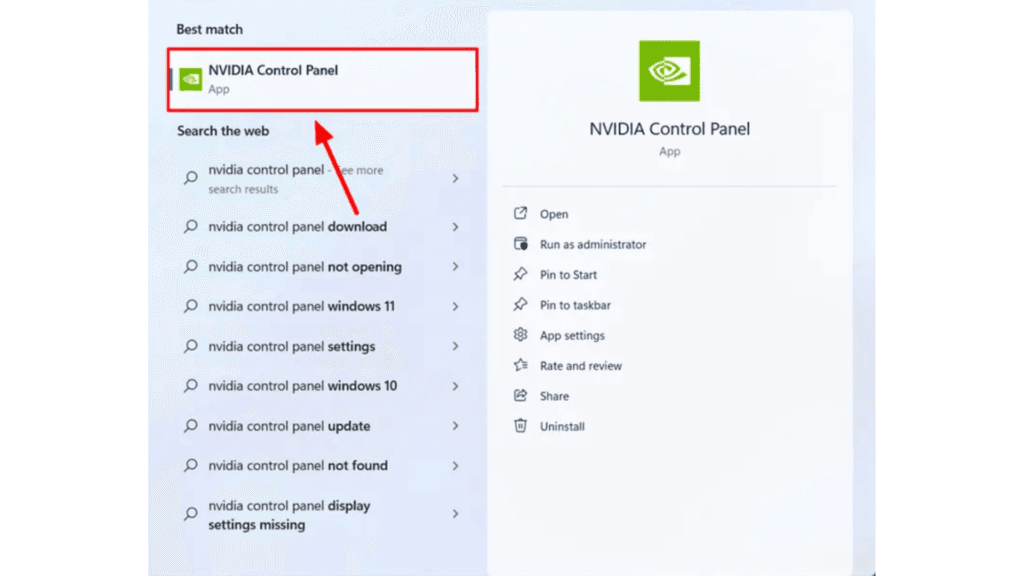
Your GPU has performance headroom that’s disabled by default. In NVIDIA Control Panel (or AMD Adrenalin for Radeon users), set the power management mode to “Prefer Maximum Performance.” This prevents the GPU from downclocking while waiting for a workload to spike.
For display-focused tuning—especially if you’re targeting high-refresh gaming—our guide on gaming PC 120 Hz optimization covers refresh-rate-specific settings that apply to both laptops and desktops.
Running demanding visual workloads? Our breakdown of best 4K settings for laptops goes deep on resolution-specific GPU settings worth combining with these baseline adjustments.
3. Thermal Management and Cooling
This is the most underrated part of laptop performance tuning. A well-cooled mid-range laptop will often outperform a high-end laptop that’s thermally throttled.
Key steps to improve laptop cooling:
- Clean vents every 6–12 months using compressed air
- Use a laptop cooling pad—this consistently lowers GPU temps by 5–10°C in testing
- Repaste the CPU and GPU if the machine is 2+ years old—thermal paste degrades over time and causes unnecessary throttling
- Customize fan curves using HWiNFO64 or your manufacturer’s software
Undervolting is another powerful but underused technique. Tools like Intel XTU or ThrottleStop let you reduce CPU voltage without reducing clock speed, meaning less heat for the same output. An -80mV to -100mV offset is a safe and common starting point for most Intel processors.
Note: Intel restricted undervolting on 11th and 12th Gen CPUs via Plundervolt mitigations, but software-level adjustments through Throttle Stop still, work on many models—check your specific CPU before assuming it’s locked out.
4. RAM and Storage Tweaks
Dual-channel RAM improves memory bandwidth by roughly 30–50% over single-channel. Many laptops ship with a single memory stick to cut manufacturing costs — adding a matching second stick is one of the highest-return hardware changes available.
For storage, make sure your NVMe SSD has updated firmware. Outdated firmware is a real performance drag that most users never check. Run the manufacturer’s SSD utility (Samsung Magician, Crucial Storage Executive, etc.) and update if available.
Software-Side Tuning: Windows 11 Settings That Matter
Hardware changes alone won’t fully optimize a laptop. The OS layer matters just as much.
High-impact Windows 11 software adjustments:
- Disable Xbox Game Bar — Settings → Gaming → Xbox Game Bar (consumes background CPU and memory)
- Enable Hardware-Accelerated GPU Scheduling (HAGS) — Settings → Display → Graphics settings; reduces CPU overhead on DX12 titles
- Set refresh rate manually — Windows sometimes defaults to 60Hz even on 144Hz panels; fix via Display Settings → Advanced display
- Audit startup programs — Task Manager → Startup tab; disable anything you don’t actively need
Our dedicated article on optimizing Windows 11 for gaming covers this in more depth, including registry-level PC tweaks that go beyond what the Settings UI exposes.
If you’re using your laptop for cloud streaming or remote play, these software steps are especially critical—see our guide on best laptop settings for cloud gaming for platform-specific latency and bandwidth settings.
Common Misconceptions About Laptop Tuning
“Maximum performance mode is always the best choice.” Not quite. Running max power constantly generates more heat, which can trigger throttling during long sessions. A stable 80°C with consistent clocks often outperforms a system spiking to 95°C and throttling every few minutes.
“Undervolting is risky and voids warranties.” Undervolting reduces voltage stress on the chip — it’s generally safer than running stock settings with poor cooling. Most manufacturers tolerate it, and many gaming laptops have it built into their own software.
“Laptop tuning just means changing in-game graphics settings.” In-game settings affect how hard the GPU works. Laptop tuning affects the foundation the hardware runs on. Poor tuning means even the best in-game settings can’t compensate for thermal throttling and power limits.
Power Mode Comparison
| Mode | Performance Level | Battery Impact | Best Use Case |
|---|---|---|---|
| Balanced (Default) | Moderate | Minimal drain | Light tasks, travel |
| High Performance | Good | Noticeable drain | Plugged-in gaming |
| Ultimate Performance | Strong | Heavy drain | Demanding workloads |
| Manufacturer Turbo/Boost | Maximum (unlocked TDP) | Heaviest drain | Intensive gaming sessions |
People Also Ask For
In CPU-bound games, switching the power plan and disabling background processes alone can improve frame rates by 10–25%. Combined with GPU driver tuning and better thermals, gains can be significantly higher.
Yes — Windows 11 natively supports power plans, HAGS, and Game Mode, which cover most of the basics. Third-party tools like ThrottleStop or HWiNFO64 unlock deeper options but aren’t strictly required.
After major Windows updates, new driver installations, or whenever you notice unexpected performance drops. Every 3–6 months is a sensible cadence for a full review.
Standard tuning — power plans, GPU settings, vent cleaning — is completely safe. Undervolting is also widely considered safe. Overclocking a laptop GPU carries more risk due to limited thermal headroom and is generally not recommended without careful monitoring.
Yes — especially in modern titles. Moving from single-channel to dual-channel RAM is often more impactful than a mid-tier GPU upgrade, and it’s one of the cheapest upgrades available on laptops with accessible RAM slots.
Final Verdict on Laptop Tuning
Laptop tuning isn’t about forcing your hardware past its limits — it’s about removing the artificial restrictions that prevent it from hitting its designed performance ceiling. Start with the power plan, dial in GPU settings, address thermals, and trim your Windows install.
Once these fundamentals are solid, explore broader PC tweaks to tighten input latency, network performance, and system responsiveness across your full gaming setup. Each improvement stacks, and the cumulative result is a machine that performs like it should from day one.
