
You bought a 120Hz monitor and plugged it in, and your games still feel exactly the same. That’s more common than you’d think—and the fix is almost never the hardware. Knowing how to optimize your gaming PC for 120Hz means touching three separate settings layers, not just one.
The core problem: Windows and your GPU driver default to 60Hz after every fresh install or new monitor connection, even when your display supports twice that.
This guide walks through every step — from the cable behind your monitor to the buried options in your GPU control panel. By the end, you’ll know exactly what was capping your refresh rate and how to unlock it.
Quick Answer
120 Hz: To run your gaming PC at 120 Hz, use a DisplayPort or HDMI 2.0+ cable, open Windows Display Settings → Advanced display settings, and manually set the refresh rate to 120 Hz. Then confirm it in NVIDIA Control Panel or AMD Radeon Software. Finally, either uncap your in-game frame rate or set a soft cap at 118 FPS. All three steps are required.
Step 1: Check Your Cable and Port First
Most people skip this, and it breaks everything else downstream.
Not all cables can carry 120Hz at every resolution. A standard HDMI 1.4 cable silently caps you at 60Hz at 1080p and above — no error message, no warning. Here’s how cable bandwidth actually breaks down:
| Cable / Standard | Max Resolution @ 120Hz |
|---|---|
| HDMI 1.4 | 1080p only (and barely) |
| HDMI 2.0 | 1080p / 1440p |
| HDMI 2.1 | 4K and above |
| DisplayPort 1.2 | 1440p (up to 144Hz) |
| DisplayPort 1.4 | 4K (up to 144Hz) |
For most 1080p and 1440p gaming setups, DisplayPort 1.2 or HDMI 2.0 is the minimum. If you’re planning to push into higher resolutions later, understanding the bandwidth ceilings here is exactly what separates a good display setup from a great one—the same logic applies when optimizing your gaming PC for 8K gaming.
Also check which port on your GPU you’re using. Some cards route specific DisplayPort outputs through different bandwidth channels. Using a secondary port can quietly drop you to 60Hz.
Step 2: Enable 120Hz in Windows 11 Display Settings
Windows won’t do this automatically. You have to set it manually every time you swap monitors or reinstall.
- Right-click the desktop → Display settings
- Scroll down → Advanced display settings
- Under “Choose a refresh rate,” select 120Hz
- Confirm the prompt within 15 seconds
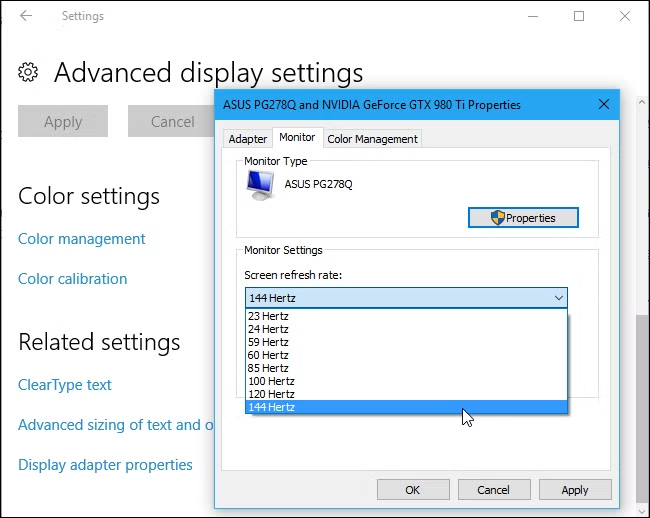
If 120Hz doesn’t appear in the dropdown, the issue is almost always the cable or port — not the monitor or GPU.
One underrated setting while you’re here: enable variable refresh rate under Display → Graphics settings. This pairs well with 120Hz and reduces tearing without the input lag penalty of standard V-Sync.
This is part of a broader set of optimizing Windows 11 for gaming changes that work together—display settings don’t exist in isolation.
Step 3: Set 120Hz in Your GPU Driver
Windows display settings and GPU driver settings are separate. Both need to match.
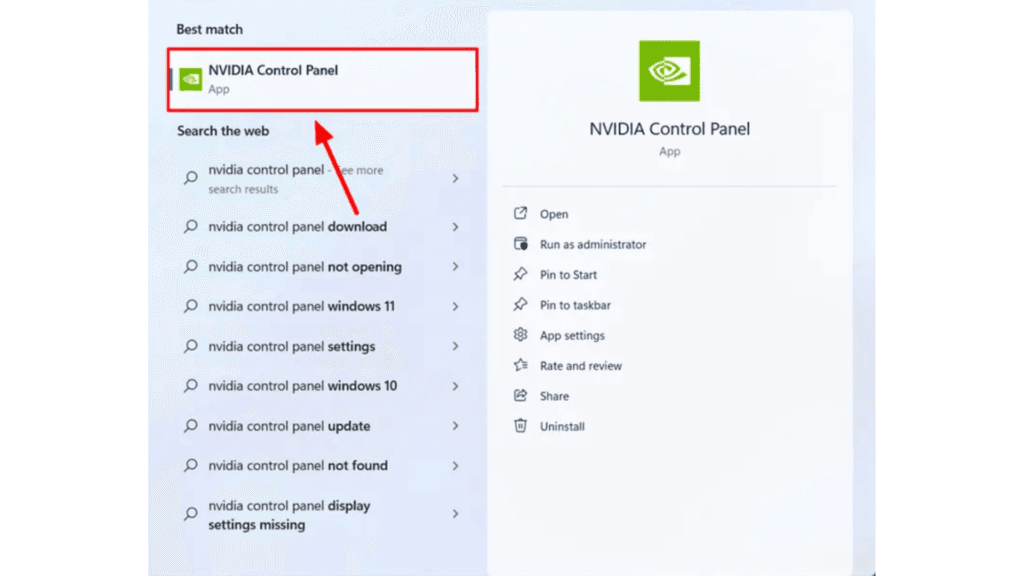
NVIDIA Control Panel:
- Open NVIDIA Control Panel → Display → Change resolution
- Select your monitor → set refresh rate to 120Hz
- Click Apply
AMD Radeon Software:
- Open AMD Radeon Software → Display tab
- Set Refresh Rate to 120Hz → Apply
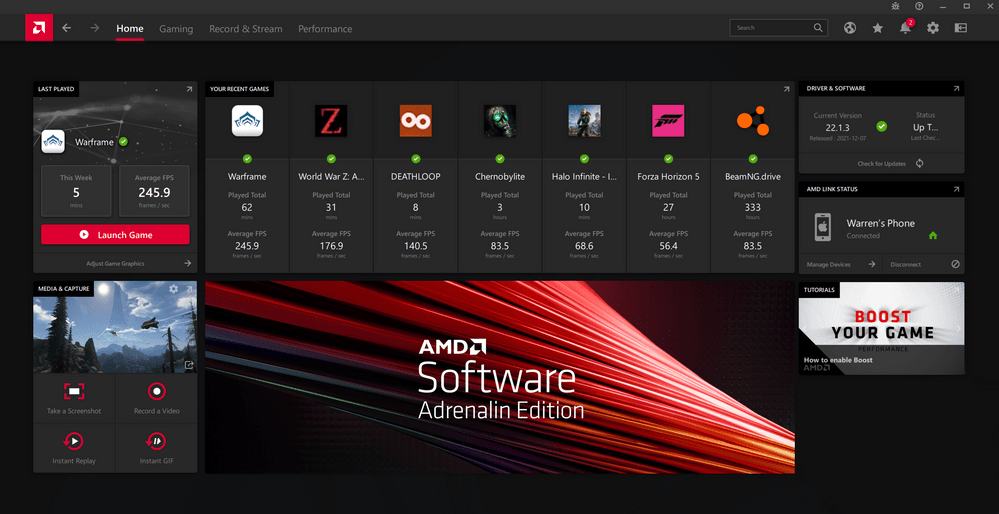
While you’re in the GPU panel, also confirm color depth is set to 8-bit full RGB. Higher color bit depth consumes bandwidth and can silently force a lower refresh rate on some display configurations. These are exactly the kind of tweaks for PC that matter for display performance and get overlooked.
Step 4: Configure In-Game Settings to Match
A 120Hz monitor is only useful if your GPU is pushing 120+ frames per second.
- Uncap your frame rate in most games unless you have a reason not to
- Use a soft cap at 118 FPS (not 120) when pairing with NVIDIA Reflex or AMD Anti-Lag—this prevents frame queue buildup
- Disable in-game V-Sync and use G-Sync or FreeSync instead—both work at 120Hz and eliminate the input lag V-Sync introduces
- Match your in-game rendering resolution to your native display resolution
If your GPU can’t consistently hit 120 FPS at your settings, the deeper guide on best PC optimization settings covers CPU, GPU, and RAM-level tuning that feeds directly into your frame output.
Common Misconceptions About 120Hz Gaming
“My monitor is 120Hz, so it’s already running at 120Hz.” Not automatically. Windows always defaults to 60Hz after a new connection or OS install. You must change it manually.
“Any HDMI cable supports high refresh rates.” Only HDMI 2.0 and above do, reliably. Older cables fail silently — the monitor just runs at 60Hz with no warning.
“I need exactly 120 FPS to benefit from 120Hz.” Even at 90–100 FPS, a 120Hz display produces lower input latency and smoother motion than 60Hz. You get the full benefit above 120 FPS, but there’s a meaningful improvement well before that.
“V-Sync is fine at 120Hz.” It’s still adding input lag — just slightly less than at 60Hz. At 120Hz, use G-Sync or FreeSync. That’s what adaptive sync exists for.
People Also Ask For
Almost always a cable bandwidth issue. Swap to DisplayPort 1.2+ or HDMI 2.0+ and check which GPU port you’re connected to.
Yes, measurably. Each frame displays for 8.3ms at 120Hz vs 16.7ms at 60Hz. That halves motion blur and reduces perceived input lag — both directly affect reaction time in fast-paced games.
DisplayPort, generally. It handles higher bandwidth, works more reliably with adaptive sync (G-Sync/FreeSync), and supports daisy-chaining. Use HDMI 2.0+ only when DisplayPort isn’t available.
Most cards from the GTX 1000 / RX 500 series onward can output 120Hz. The bottleneck is almost always the cable or port, not the GPU itself.
Yes. Higher resolution needs more bandwidth. At 1440p, HDMI 2.0 works. At 4K, you need HDMI 2.1 or DisplayPort 1.4.
Final Words on How To Optimize Gaming PC For 120Hz
How to optimize gaming pc for 120hz comes down to three things done correctly: the right cable, the correct Windows display settings, and matching configuration in your GPU driver. Most setups have at least one of these wrong—usually two.
Fix all three, and the difference is immediate: smoother motion, lower input lag, and genuinely more responsive gameplay.
