
Solid hardware doesn’t guarantee smooth gaming if Windows is quietly working against you. Optimizing Windows 11 for gaming means removing the background processes, power limits, and OS overhead that drain your frame rate.
This guide covers the settings that actually make a measurable difference — no registry edits, no guesswork. Think of it as the OS-focused layer of broader PC tweaks.
Quick Answer
To optimize Windows 11 for gaming, enable Game Mode, switch to the High Performance or Ultimate Performance power plan, turn on Hardware-Accelerated GPU Scheduling (HAGS), disable Xbox Game Bar, and trim unnecessary startup programs. These five changes reduce input latency, prevent CPU throttling, and free up GPU resources.
Windows 11 Gaming Optimization Settings to Change First
Not all Windows 11 gaming optimizations are equal. Some unlock 10–15 extra FPS. Others move the needle by 1–2%. Start with these.
Switch Your Power Plan
Windows 11 defaults to Balanced mode, which throttles your CPU during low-demand moments. During gameplay, that triggers micro-stutters as the processor ramps back up under sudden load. Switch to High Performance in Control Panel > Power Options.
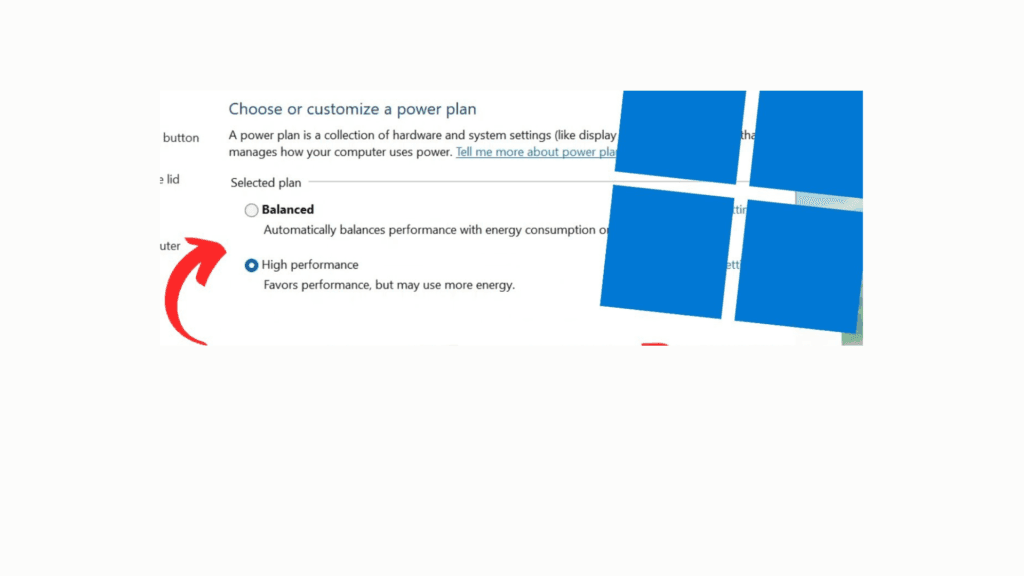
On a desktop, unlock Ultimate Performance through PowerShell (run as admin):
powercfg -duplicatescheme e9a42b02-d5df-448d-aa00-03f14749eb61
This keeps your CPU at peak clock speed continuously — no mid-game hesitation.
Enable Hardware-Accelerated GPU Scheduling (HAGS)
HAGS allows your GPU to manage its own memory scheduling directly, instead of routing tasks through the CPU. The result is lower frame latency — most noticeable in competitive titles where frame timing consistency matters more than raw FPS.
Enable it at Settings > System > Display > Graphics > Default Graphics Settings. Requires a DirectX 12-capable GPU (most cards after 2020) and up-to-date drivers. This setting is especially worthwhile if you’re pursuing optimization tips for laptop VR gaming, since VR is the most latency-sensitive gaming workload available.
Enable Game Mode
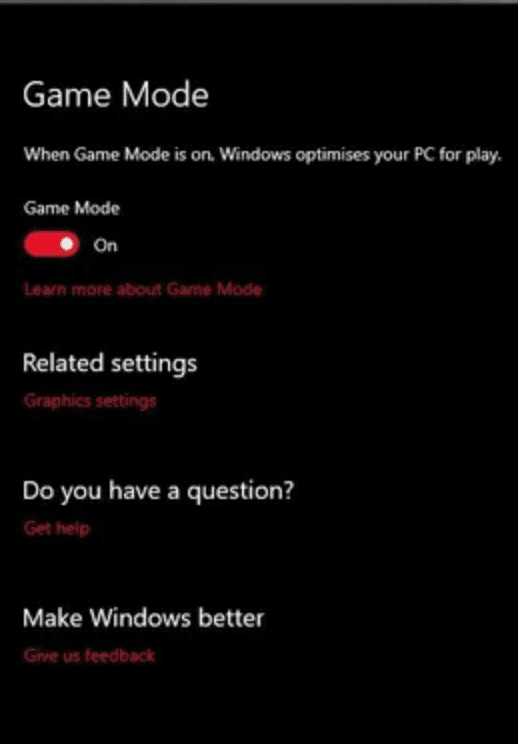
Settings > Gaming > Game Mode. This deprioritizes background tasks — like Windows Update downloads — while a game is running. It won’t rescue a struggling system on its own, but it reduces unexpected FPS dips on mid-range hardware.
Settings to Turn OFF
Applying these settings will also help your gaming be smoother.
Disable Xbox Game Bar
Game Bar runs a background overlay and intercepts system shortcuts even when you’re not using it. Disable it at Settings > Gaming > Xbox Game Bar. Most serious gamers replace it with a lightweight tool like MSI Afterburner for monitoring.
Trim Startup Programs
Open Task Manager > Startup Apps and disable non-essential programs: browser assistants, cloud sync clients, update utilities. On a 16 GB system, startup bloat can consume 1–2 GB of RAM before a game even launches—memory your game could be using instead.
Windows 11 Gaming Features Worth Keeping On
Most optimization guides focus on what to turn off. These two Windows 11-exclusive features deserve to stay enabled:
- DirectStorage: Routes asset loading directly from NVMe storage to the GPU, bypassing the CPU. Load times in supported titles drop noticeably. Works best with a PCIe 4.0+ drive.
- Auto HDR: Expands color range in non-HDR games on compatible displays with no performance penalty. If you’re building toward a high-resolution setup—as covered in optimizing a laptop for 4K—Auto HDR adds real visual depth without touching your frame rate.
Both are active by default. Leave them alone.
Common Misconceptions About Windows 11 Gaming Optimization
“Disabling memory integrity gives a big FPS boost.” Memory integrity (core isolation) protects against kernel-level exploits. Turning it off might yield a 1–3% gain in some titles — not worth the security trade-off on a daily-use PC.
“Windows 11 is slower for gaming than Windows 10.” Early versions had real regressions. The 24H2 update closed most gaps. Windows 11 now matches or beats Windows 10 in the majority of benchmarks and leads in games using DirectStorage or Shader Model 6.7.
People Also Ask For
Yes, but modestly. It stabilizes frame pacing by limiting background CPU competition. Mid-range systems benefit more than high-end rigs, where the difference is minimal.
Always. Outdated drivers are one of the most common causes of stutters and missed performance gains. Update via GeForce Experience (NVIDIA) or AMD Software: Adrenalin Edition before adjusting anything else.
Yes. Enable it under Settings > System > Display > Advanced Display. Your cable (HDMI 2.1 or DisplayPort 1.4+) and GPU must support the target refresh rate. For a complete display setup walkthrough, see the 120 Hz optimization guide.
Closing Sentences on Optimizing Windows 11 For Gaming
The biggest Windows 11 gaming gains come from a few targeted changes, not a 40-step process. Get the power plan right, enable HAGS, disable Game Bar, and clear startup clutter — that covers the majority of OS-level performance available.
For a complete system approach that goes beyond Windows settings, the full guide on best PC optimizing tips covers hardware, drivers, and in-game settings alongside these OS tweaks.
