

A good internet connection can make a big difference when playing online games. I have noticed this myself while playing eFootball. In this game, even a short lag spike can affect a pass, shot, or defensive move.
My internet speed was sometimes good enough, but the game could still feel unresponsive because of ping, network traffic, or an unstable connection.
The good thing is that you do not always need a faster internet plan to improve your gaming connection.
Simple changes to your network setup can help reduce lag and keep your connection more stable.
Quick Actions to Optimize Internet Speed for Gaming
- Use an Ethernet cable to get a more stable connection while gaming.
- Improve your Wi-Fi setup if a wired connection is not possible.
- Stop background downloads and other activities using your internet.
- Enable QoS on your router to prioritize gaming traffic.
- Choose a nearby game server to keep your ping lower.
How to Optimize the Internet for Gaming?
Optimizing your Internet for gaming can help reduce lag, lower ping, and make your connection more stable. Here are the 5 most effective methods to do so:
1. Use a Wired Ethernet Connection
A wired Ethernet connection is one of the simplest ways to improve internet stability for gaming. It connects your gaming PC or console directly to your router using a network cable.
Unlike Wi-Fi, Ethernet does not rely on wireless signals that can be affected by walls, distance, and interference from other devices. This can help reduce latency, packet loss, and sudden connection drops during online matches.
If your gaming device is close to your router, connect it using an Ethernet cable. Cat5e and Cat6 cables are both suitable for most home gaming setups. You do not need an expensive cable to get a stable connection.
If running a cable across your room is difficult, consider using a powerline adapter. It sends network data through your home’s electrical wiring. However, its performance depends on your home’s electrical setup.
2. Optimize Your Wi-Fi Connection
If you cannot use an Ethernet cable, optimizing your Wi-Fi connection can still improve your gaming experience. Your router’s placement, wireless band, and surrounding interference can affect connection quality.
Here are some ways to improve your Wi-Fi for gaming:
- Move Closer to the Router: Wi-Fi signals become weaker as you move farther away from the router. Keep your gaming device in the same room or as close to the router as possible.
- Use the 5 GHz Band: If your router supports dual-band Wi-Fi, connect your gaming device to the 5 GHz network. It generally offers faster speeds and less interference than 2.4 GHz, although its range is shorter.
- Avoid Physical Obstructions: Thick walls, metal objects, and large furniture can weaken wireless signals. Place your router in an open and elevated position.
- Change the Wi-Fi Channel: Nearby wireless networks can cause interference, especially on the 2.4 GHz band. Try a less crowded channel through your router’s settings.
If you are using a gaming laptop for cloud gaming, a stable Wi-Fi connection is especially important because the game is streamed from a remote server to your device. Optimizing your gaming laptop for cloud gaming can therefore include improving its Wi-Fi connection and reducing wireless interference.
You can also consider a newer router if your current one struggles to provide stable coverage. However, check your existing Wi-Fi setup before spending money on new equipment.
3. Stop Background Downloads and Network Activity
Other devices and applications using your internet connection can affect online gaming. Large downloads, streaming videos, cloud backups, and automatic updates may consume available bandwidth.
For example, if your PC is downloading a large game update while you are playing Minecraft online, the download may compete with your game for network resources. This can increase latency or cause lag, especially when your internet connection has limited bandwidth.
To avoid this problem, take a few simple steps:
- Pause game downloads and updates before starting an online match.
- Close applications that use the internet unnecessarily.
- Stop cloud backups and large file uploads during gaming sessions.
- Ask other household members to avoid bandwidth-heavy activities when your connection is struggling.
You can also check your router’s connected devices to see if other devices are consuming significant bandwidth.
Keep in mind that background activity does not always cause lag. If your internet plan has enough available bandwidth, several devices can use the connection without affecting your game. The problem is more noticeable when your network is already under heavy load.
4. Enable Quality of Service (QoS) on Your Router
Quality of Service (QoS) is a router feature that helps manage network traffic. It allows you to prioritize certain devices or types of internet activity over others.
For example, you can use QoS to give your gaming PC, gaming laptop, or console higher priority than a device streaming videos or downloading files.
This can help your game maintain a more stable connection when several devices are using the internet simultaneously.
To enable QoS:
- Open your router’s administration page using its IP address.
- Sign in with your router’s administrator credentials.
- Look for QoS, Traffic Prioritization, or a similar setting.
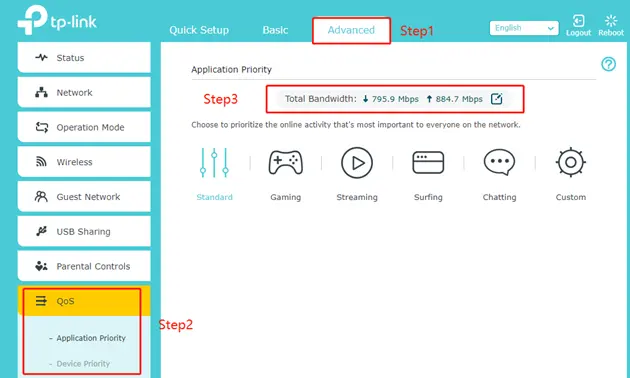
- Enable the feature and select your gaming device or gaming traffic for higher priority.
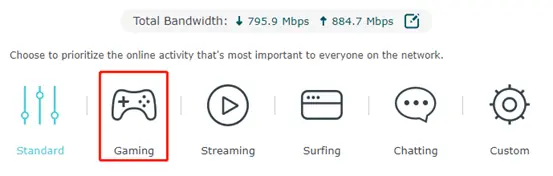
- Save the changes and test your connection during an online match.
The exact steps depend on your router’s model and software. Some newer routers also offer gaming-specific traffic prioritization features.
QoS does not increase your internet plan’s speed or reduce the physical distance between your device and the game server. Its main purpose is to manage network traffic when multiple devices compete for available bandwidth.
5. Choose the Nearest Game Server
The distance between your gaming device and the game server can affect your ping. When data has to travel a longer distance, it generally takes more time to reach its destination and return.
Many online games allow you to select a server region manually. Choosing a server closer to your location can help reduce latency and provide a more responsive gaming experience.
For example, if you are playing a multiplayer game from Austria, a server in a nearby region may offer lower ping than one located in North America. However, the actual results depend on your internet service provider’s routing and the game’s server locations.
Here are a few things to try:
- Select the nearest available server region in the game’s network settings.
- Check your ping before joining a match, if the game displays it.
- Test different nearby regions if your current server has high latency.
- Avoid switching to a distant server simply because it has more players or shorter matchmaking times.
Some games automatically select a server based on your location and connection quality. In that case, you may not have a manual server selection option.
How to Check If Your Internet Is Optimized for Gaming?
After applying these methods, test your internet connection to see if the changes have made a difference. Pay particular attention to ping, jitter, and packet loss rather than focusing only on download speed.
| Network Metric | What It Measures | What to Look For |
|---|---|---|
| Ping | Time taken for data to travel to a server and back | Lower ping is generally better |
| Jitter | Variation in ping over time | Low and consistent jitter |
| Packet Loss | Percentage of data packets that fail to reach their destination | Ideally 0% |
| Download Speed | How quickly your device receives data | Enough bandwidth for your gaming and other activities |
| Upload Speed | How quickly your device sends data | Enough capacity for your game and other online activities |
You can use an internet speed test to check your connection’s download speed, upload speed, and ping. For a more accurate picture of gaming performance, also check your connection while playing your usual online games.
If you still experience lag after making these changes, the issue may be related to your internet service provider, network congestion, or the game server itself.
My Final Thoughts
Optimizing your internet for gaming does not always require a faster internet plan or expensive networking equipment. Using an Ethernet connection, improving Wi-Fi coverage, stopping unnecessary downloads, enabling QoS, and selecting nearby game servers can all help improve your connection.
Start with the methods that match your current setup and test the results. If lag and high ping continue, investigate your ISP’s network performance or the game’s server conditions to identify the remaining problem.
People Also Ask
Most online games do not require extremely high internet speeds. A connection with around 10 to 25 Mbps download speed and 3 to 5 Mbps upload speed is generally sufficient for basic online gaming. However, higher speeds may be useful if other people are streaming or downloading files at the same time.
Not necessarily. Faster internet mainly improves how much data your connection can transfer in a given period. Ping is also affected by server distance, network routing, and congestion. Upgrading your internet plan may not reduce ping if your existing connection is already fast enough.
Ethernet is generally better for gaming because it provides a more stable connection with less wireless interference. Wi-Fi can still work well if you have a good router, strong signal, and limited network interference.
A VPN can sometimes reduce ping if it provides a better route to a game’s server. However, it often increases latency because your traffic passes through an additional server. Test your connection before and after enabling a VPN to see if it actually helps.
Fast internet does not guarantee a stable gaming connection. High ping, packet loss, network congestion, poor Wi-Fi signals, and distant game servers can all cause lag. Check these factors instead of relying only on your internet speed test results.
