
8K gaming sounds like science fiction — but in 2026, it’s something real enthusiasts are actively chasing. Whether you just picked up an 8K monitor or you’re planning around one, learning how to optimize a gaming PC for 8K gaming is more nuanced than simply throwing the best GPU at it.
The challenge isn’t only raw power. It’s understanding which settings to adjust, which technologies to lean on, and what compromises are genuinely worth making.
This guide breaks down exactly what changes between 4K and 8K, which hardware settings carry the most weight, and the practical steps that keep games smooth at this extreme resolution.
Quick Answer
How to optimize a gaming PC for 8k gaming requires a combination of top-tier GPU selection, DLSS 4 or FSR 4 upscaling, careful in-game setting adjustments, and a proper DisplayPort 2.1 or HDMI 2.1 connection. Because native 8K is nearly unplayable on any current hardware, the real goal is rendering at 4K or 6K internally and upscaling to 8K output — while fine-tuning shadows, anti-aliasing, and texture settings to maintain image quality without tanking frame rates.
Does Your Hardware Actually Support 8K Gaming?
Before tweaking any settings, a hardware check for how to optimize a gaming PC for 8K gaming is non-negotiable. 8K resolution — 7,680×4,320 pixels — pushes exactly four times as many pixels as 4K. That’s not a small jump. In practice, GPU load increases dramatically at this resolution, and VRAM quickly becomes the hard ceiling.
Recommended Components For 8K Gaming in 2026
- Flagship GPU: RTX 5090 or AMD RX 9000-series GPU
- VRAM: 16GB minimum, 24GB (preferred for long term 8k gaming)
- CPU: AMD Ryzen 7000/9000 or Intel Core Ultra processor
- RAM: 32GB DDR5 RAM
- Storage: PCIe 4.0 or PCIe 5.0 NVMe SSD
Best 8K Settings For Gaming
This is where the real optimization happens. Knowing which settings cost the most performance at 8K — and which ones are safe to dial back — is what separates smooth, playable gaming from a frustrating experience.
1. Use AI Upscaling Instead of Native 8K Rendering
AI upscaling is the most effective way to optimize 8K gaming performance. DLSS 4 and FSR 4 render games at a lower internal resolution and upscale them to 8K with minimal quality loss while significantly improving FPS.
Recommended upscaling settings for 8K gaming:
- Avoid native 8K rendering — It requires extreme GPU power with limited performance gains.
- DLSS 4 Quality Mode — Best choice for RTX GPUs with strong image quality and higher FPS.
- FSR 4 — Good alternative for AMD GPUs and wider compatibility.
- Enable Frame Generation — Further increases performance in supported games.
For readers also working through optimizing gaming laptops for 4K, the upscaling logic applies at that resolution too—though laptops carry additional thermal constraints that desktop 8K builds don’t face.
2. Adjust Graphics Settings for Better 8K Performance
At 8K, reducing demanding graphics settings can improve FPS with minimal visual impact. Lowering shadows, disabling unnecessary anti-aliasing, and using optimized ray tracing settings provide better performance.
Recommended graphics settings for 8K gaming:
- Disable MSAA or TAA — 8K resolution reduces the need for heavy anti-aliasing.
- Set shadows to High instead of Ultra — Can improve performance without major quality loss.
- Keep ray tracing at Medium or lower — Native 8K with full ray tracing is too demanding.
- Use DLSS 4 with Frame Generation — Recommended when enabling ray tracing effects.
3. Windows and System-Level Settings for 8K Performance
A properly optimized Windows setup reduces unnecessary overhead and helps maintain stable performance during demanding 8K gaming sessions. Adjusting GPU scheduling, power settings, and drivers can improve consistency.
Recommended Windows settings for 8K gaming:
- Enable Hardware-Accelerated GPU Scheduling (HAGS) — Reduces CPU overhead in the GPU pipeline.
- Use High Performance power mode — Helps the GPU maintain higher clock speeds.
- Disable unnecessary background apps and Xbox Game Bar — Reduces potential stutters.
- Keep GPU drivers updated — Ensures better game optimization and performance improvements.
Hardware Requirements for Smooth 8K Gaming Performance
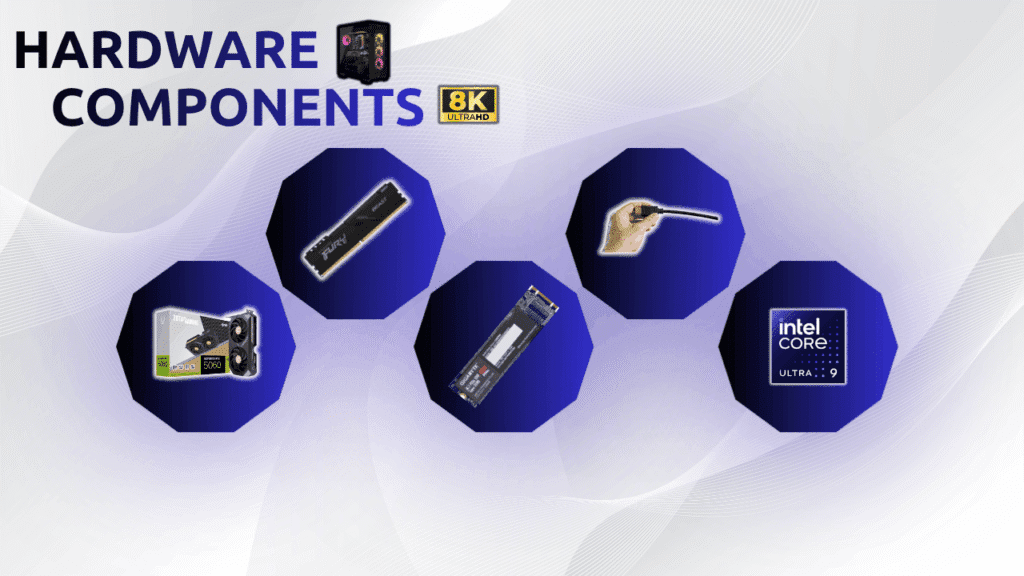
Building a PC for 8K gaming requires more than just a powerful graphics card. Each core component must work together to handle high-resolution workloads and maintain stable gaming performance.
1. GPU
For 8K gaming, the GPU is the main limitation. The RTX 5090 and AMD RX 9000-series flagship GPUs are the only realistic options, and upscaling is required for smooth performance.
Recommended GPU setup for 8K gaming:
- Avoid older GPUs, as they cannot handle modern 8K AAA gaming.
- RTX 5090 or RX 9000-series flagship GPU for high-end 8K gaming.
- DLSS 4 or FSR 4 enabled to improve frame rates.
2. VRAM
8K gaming uses a large amount of VRAM, especially with high-resolution textures. 16GB is the minimum recommended, while 24GB provides better future-proofing for demanding AAA games.
Recommended VRAM for 8K gaming:
- 16GB VRAM — Minimum for modern 8K gaming.
- 20GB+ VRAM — Better for high texture settings.
- 24GB VRAM — Ideal for long-term 8K gaming builds.
3. System RAM
For 8K gaming, 32GB of RAM is recommended, with DDR5 providing better performance and stability on modern systems. RAM speed is less important than GPU power, but slower memory can create minor performance limits.
Recommended RAM setup for 8K gaming:
- Avoid slower RAM kits — They can slightly reduce performance under heavy GPU loads.
- 32GB DDR5 RAM — Recommended minimum for modern 8K gaming.
- DDR5-6000 speed — A strong balance of performance and stability.
4. Fast NVMe SSD
Storage does not increase FPS, but a fast NVMe SSD improves game loading times and helps deliver high-resolution textures smoothly during 8K gaming.
Recommended storage setup for 8K gaming:
- Avoid HDDs for modern games: They can cause longer loading times and texture delays.
- PCIe 4.0 NVMe SSD: Recommended for fast game loading and smooth texture streaming.
- PCIe 5.0 NVMe SSD: Offers higher bandwidth for future-ready builds.
5. CPU
At 8K gaming, the CPU has less impact because most games are limited by GPU performance. A modern Ryzen 7000/9000 or Intel Core Ultra processor helps ensure the GPU runs without bottlenecks.
Recommended CPU setup for 8K gaming:
- PCIe 5.0 platform: Helps maximize compatibility with high-end GPUs.
- AMD Ryzen 7000/9000 series: Strong choice for high-end gaming builds.
- Intel Core Ultra processors: Suitable for modern 8K gaming systems.
6. HDMI 2.1 or DisplayPort 2.1
The right cable and port are essential for 8K gaming. HDMI 2.1 supports 8K at 60Hz, while DisplayPort 2.1 is better for 8K at higher refresh rates like 120Hz.
Recommended display connection for 8K gaming:
- Avoid DisplayPort 1.4: It may limit bandwidth, reduce color quality, or require compression.
- DisplayPort 2.1 (80 Gbps): Best choice for 8K at 120Hz.
- HDMI 2.1 (48 Gbps): Suitable for 8K at 60Hz.
The monitor itself plays the biggest role because at 8K resolution you need extreme color contrast to be able to enjoy the games. Here is our detailed guide on OLED vs IPS monitors.
Common Misconceptions About 8K Gaming
- “8K gaming requires native 8K rendering.” This is the most damaging misconception. Upscaling in 2026 delivers visually equivalent results at a fraction of the processing cost. Serious 8K gamers do not render natively.
- “Any GPU that outputs 8K can handle 8K gaming.” Display output capability and gaming performance are completely separate. A card that drives an 8K desktop at 60Hz will still drop to single-digit fps in a demanding game.
- “8K always pairs with high refresh rates.” At native 8K, 60Hz is the realistic ceiling on current hardware. High refresh rate 8K gaming—similar to the approach covered in optimizing gaming PCs for 120 Hz—is achievable mainly with aggressive upscaling and Frame Generation enabled.
People Also Ask For
The RTX 5090 and RX 9000-series flagships are the practical entry point for 8K gaming with upscaling enabled. Native 8K gaming at playable frame rates requires even more — and isn’t recommended as a general strategy.
16GB is the bare minimum. 24GB is the recommended target for comfortable headroom across modern AAA titles with high texture settings.
DLSS 4 has a slight image quality edge in supported titles. FSR 4 runs on both AMD and Nvidia hardware and is more broadly compatible. Both are dramatically better than native 8K rendering in terms of the performance-to-quality trade-off.
For 8K at 120Hz, yes. HDMI 2.1 handles 8K at 60Hz. DisplayPort 2.1 is required to push 8K at higher refresh rates.
Not practically in 2026. 8K gaming demands a top-tier GPU, fast DDR5 RAM, and a compatible display. The hardware floor is high, and there’s no meaningful budget path to playable 8K performance right now.
Final Words on How To Optimize Gaming PC For 8K Gaming
8K gaming in 2026 is achievable, but only with the right combination of hardware, upscaling technology, and smart setting adjustments. The biggest performance wins come from enabling DLSS 4 or FSR 4, dialing back shadow quality and ray tracing, and ensuring the display connection has the bandwidth to match. Native 8K rendering is a benchmark exercise — not a practical gaming strategy.
For the full foundation of gaming PC optimization, read our PC tweaks guide that makes any build perform at its ceiling before pushing into extreme resolution territory.
