
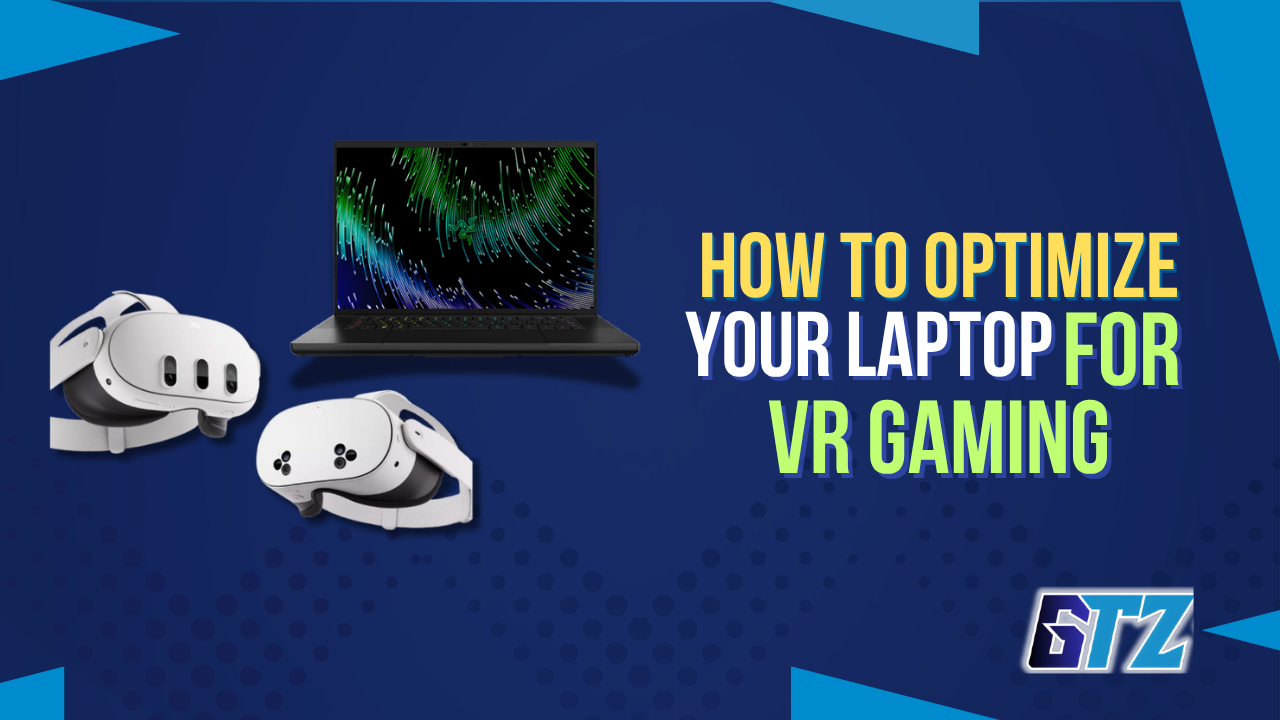
VR gaming is one of the most demanding tasks a laptop can face. Even a solid gaming machine can produce dropped frames, motion blur, and that uncomfortable nausea if the settings aren’t configured correctly. The hardware isn’t always the problem — the configuration usually is. This guide shows exactly how to optimize a gaming laptop for VR gaming using proven power, GPU, SteamVR, and thermal settings that improve frame-rate stability and reduce motion sickness.
This article covers every meaningful adjustment from power settings to GPU tuning to thermal management. Before diving into VR-specific changes, it also helps to understand the fundamentals in the complete guide to optimize your PC for gaming, since many of the same principles apply here.
By the end, you’ll know which settings move the needle and which ones to ignore.
Quick Answer
To optimize a gaming laptop for VR gaming: always run it plugged in on a High Performance power plan, set the GPU to maximum performance mode, lower SteamVR render resolution to 100% or below, enable Asynchronous Reprojection or motion smoothing, and keep thermals stable with a cooling pad. Together, these changes consistently turn an unstable VR session into a smooth one — without requiring any new hardware.
Does Your Laptop Actually Meet the VR Baseline?
Before tweaking anything, it’s worth confirming the hardware foundation. As of 2026, most tethered headsets—Meta Quest 3, Valve Index, and Pimax Crystal—require at minimum:
- GPU: Nvidia RTX 3060 Mobile or AMD RX 6700M
- CPU: Intel Core i7-12th Gen / AMD Ryzen 7 5800H or newer
- RAM: 16GB DDR5; 32GB for multitasking during VR sessions
- Connectivity: USB-C with DisplayPort Alt Mode, or USB 3.0 for Link-cable headsets
One important caveat: laptop GPUs share names with their desktop counterparts but typically perform 20–40% lower due to power and thermal constraints. An RTX 3080 laptop GPU is closer to a desktop RTX 3070 in actual VR workloads. For a direct comparison of what desktop hardware achieves, the guide on how to set up a gaming PC for VR is a useful reference.
Laptop Optimizing Settings For VR
Optimizing your gaming laptop for VR requires adjusting power, GPU, and thermal settings to maintain stable frame rates. These settings help reduce stutters, improve responsiveness, and deliver a smoother VR experience.
1. Windows Power Settings
This is where most people lose VR performance without realizing it. A gaming laptop running on battery power throttles both the CPU and GPU significantly—often causing substantial performance loss—to preserve battery life.
Always plug in before launching VR. Then apply the correct power plan:
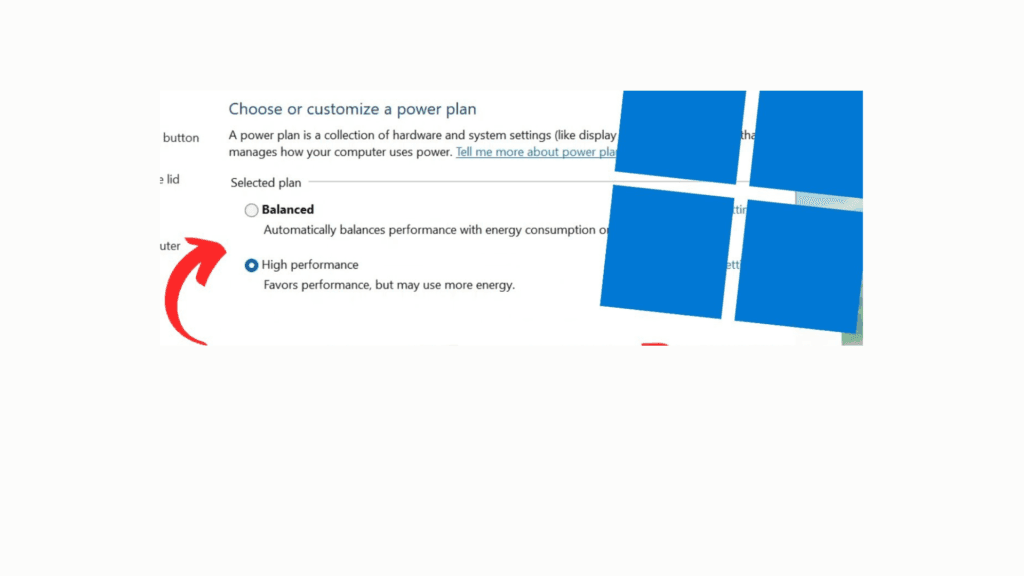
- Open Settings → System → Power & Sleep → Additional Power Settings
- Select High Performance—or Ultimate Performance if it’s available on your system
- Open your laptop’s manufacturer software—ASUS Armoury Crate, MSI Center, Lenovo Vantage, or Razer Synapse—and switch to Performance or Turbo mode
These manufacturer modes unlock the full TDP (thermal design power) ceiling, allowing the GPU to draw maximum wattage. Without this step, even a premium laptop delivers noticeably weaker VR performance. For additional OS-level adjustments that complement this, the guide on optimizing Windows 11 for gaming covers several relevant settings.
2. GPU Settings for VR
These are some important settings optimizing a gaming laptop for VR gaming.
For Nvidia Users:
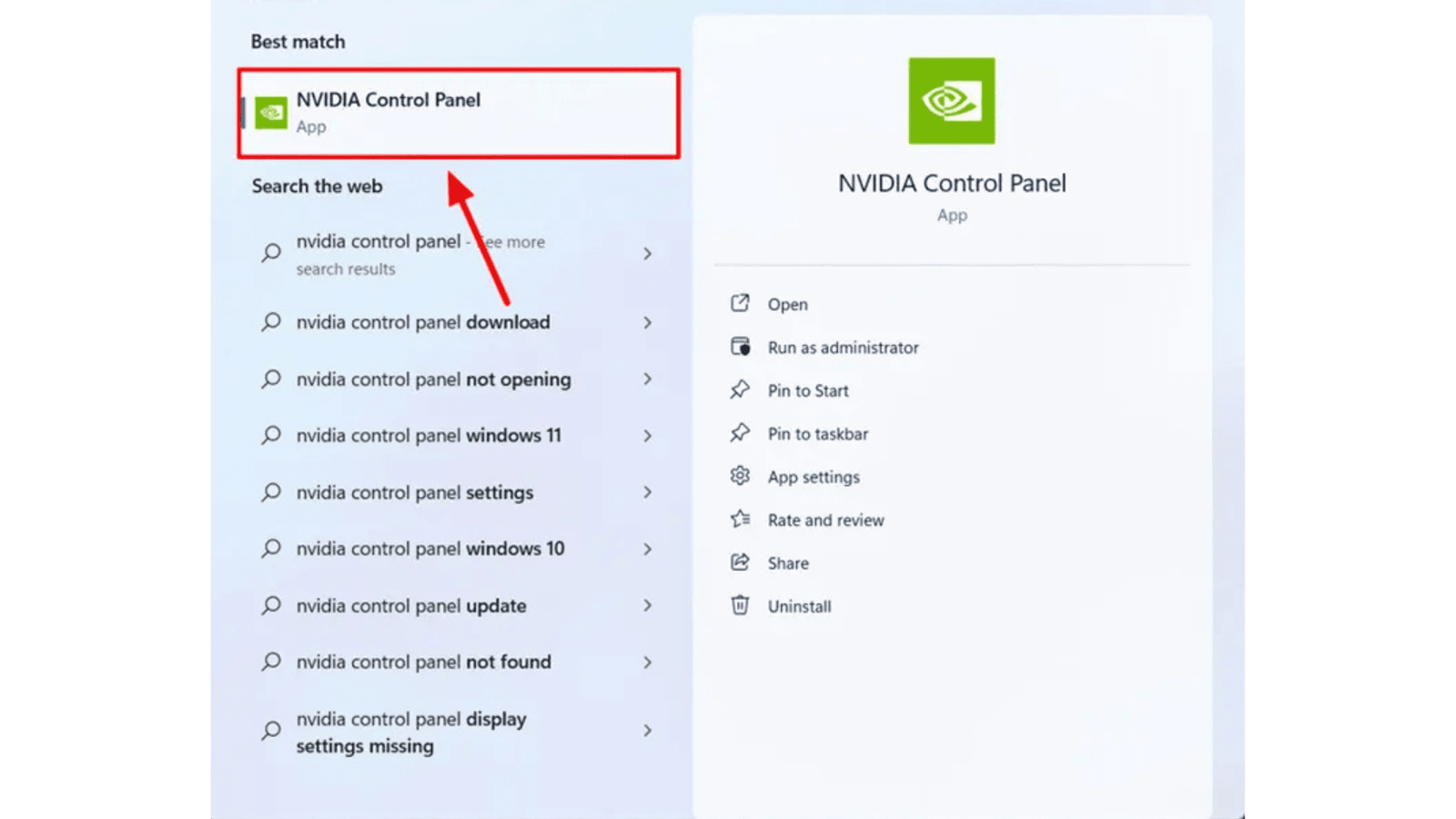
Open Nvidia Control Panel → Manage 3D Settings and adjust these specifically:
- Power Management Mode: Prefer Maximum Performance
- Low Latency Mode: Ultra (reduces input lag in VR)
- Texture Filtering Quality: Performance
- Vertical Sync: Off (VR software handles its own frame sync)
For AMD Users:
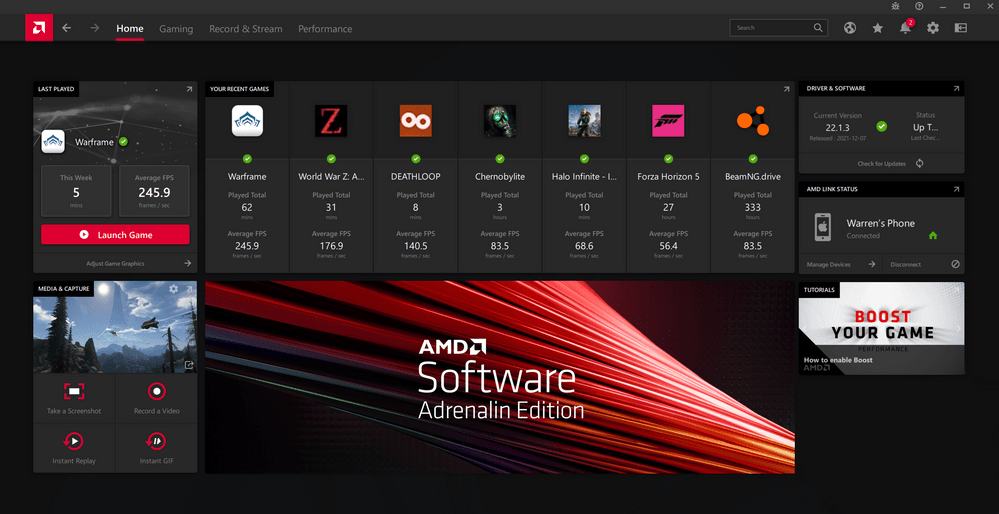
Open AMD Adrenalin and switch to the eSports performance profile. It favors low latency and consistent frame pacing over peak visual quality — exactly what VR needs.
DLSS and FSR in VR
Both Nvidia DLSS 3.5 and AMD FSR 3 have meaningful VR support in 2026. Enabling DLSS in SteamVR’s per-game video settings lets the GPU render at a lower internal resolution and upscale to the headset—it can recover significant performance in demanding titles like Asgard’s Wrath 2 or Lone Echo 2.
However, FSR introduces shimmering at lower quality presets in VR. Staying at Quality or Balanced is the better starting point. This same performance-versus-quality tradeoff appears frequently in GPU-heavy tasks, as covered in the guide on 4K Gaming Laptop Optimization.
3. Thermal Management: Keeping Performance Consistent
Thermal throttling is the silent performance killer in laptop VR. When the CPU or GPU hits its thermal ceiling, it automatically reduces clock speeds to cool down—causing sudden frame drops mid-session with no other obvious cause.
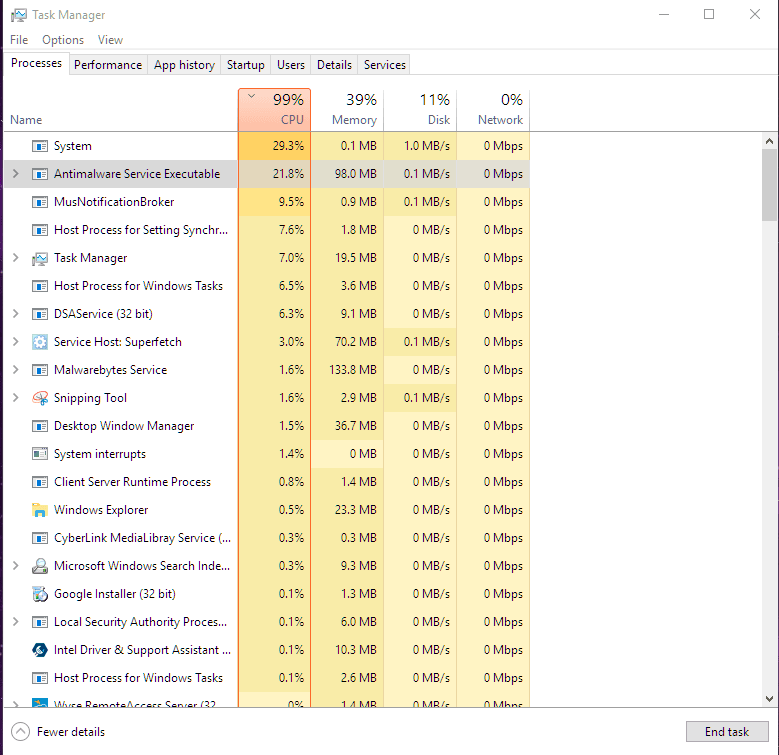
Practical steps to maintain thermal stability:
- Cooling Pad: Use an active cooling pad to improve airflow.
- Clean Vents: Remove dust every 3–4 months for better cooling.
- Surface Placement: Keep the laptop on a hard, flat surface.
- Monitor Temperatures: Keep GPU below 85°C and CPU below 90°C.
- Undervolting: Use Intel XTU or AMD Ryzen Master to reduce temperatures.
Thermal stability matters more in VR than in standard gaming because VR sessions are continuous — there are no menu screens or loading pauses to let the hardware recover.
SteamVR and Headset Software Settings
Adjusting SteamVR and headset settings helps balance image quality, frame rates, and motion stability. The right configuration reduces stutters and improves overall VR smoothness on gaming laptops.
1. Render Resolution (Supersampling)
- 100% Render Resolution: Recommended starting point in SteamVR to balance image quality and performance.
- 80% Render Resolution: Use if frame rates are unstable, as it reduces GPU load with minimal visual quality loss.
- Avoid Automatic Resolution: SteamVR may increase resolution up to 150%, which can overwhelm most gaming laptop GPUs.
- Lower Resolution When Needed: Reducing render resolution helps maintain smoother VR performance and prevents frame drops.
2. Reprojection and Motion Smoothing
Reprojection generates intermediate frames when the GPU can’t consistently hit the target refresh rate. It significantly reduces the judder that causes VR nausea.
- SteamVR: Enable “Motion Smoothing” under Video settings
- Meta Quest 3 via Air Link or Link cable: Enable Asynchronous SpaceWarp (ASW) in the Oculus Debug Tool
These work as a safety net — they don’t replace stable frame rates, but they prevent the sharp stutters that occur when frames are missed under load.
3. Target Refresh Rate
- 90Hz mode: Best starting point for gaming laptops, offering smoother and more stable VR performance.
- 120Hz mode: Requires around 33% more GPU power and is better suited for lighter VR games.
- Start with 90Hz: Confirm stable performance before increasing the refresh rate.
- Enable 120Hz carefully: Use it only when your laptop can maintain consistent frame rates.
Common Misconceptions About Laptop VR Optimization
- “Wireless VR is easier on the laptop.” Partially false. While Meta Quest 3 handles rendering independently in standalone mode, using Air Link or Steam Link still streams the full game from the laptop’s GPU. The laptop does all the heavy lifting — the wireless connection just replaces the cable.
- “More RAM dramatically improves VR performance.” Beyond 16GB, RAM rarely bottlenecks VR on its own. When the GPU is the limiting factor — which it almost always is — additional RAM won’t move the needle.
- “Closing background apps doesn’t help.” It does, meaningfully. Discord with video, open browser tabs, and streaming software all compete for VRAM and CPU threads. Closing unnecessary applications before a session consistently frees up headroom.
People Also Ask For
What are the minimum specs for VR on a gaming laptop in 2026? An RTX 3060 Mobile, 16GB of RAM, and a USB-C port with DisplayPort Alt Mode covers most current headsets at comfortable settings. Below that threshold, frame rate consistency becomes unreliable in GPU-heavy titles.
Can a gaming laptop run VR smoothly without a desktop? Yes, with proper configuration. A well-tuned RTX 4070 Laptop can match desktop RTX 3080 VR performance in many titles when run at full power mode with reprojection enabled and render resolution at 100%.
How much VRAM does VR require on a laptop? 8GB VRAM handles mid-tier VR at native headset resolution. Demanding titles at higher supersampling levels benefit noticeably from 12GB or more.
Does the connection method affect VR quality on a laptop? Yes. A wired USB-C Link cable to a Meta Quest 3 consistently outperforms Air Link in latency and image quality. Air Link is convenient but adds compression artifacts and typically adds measurable latency even over a strong Wi-Fi 6 connection.
Should VR games be installed on an SSD or HDD? Always an SSD. HDD read speeds in VR can cause asset-streaming stutters mid-session. NVMe SSDs offer the cleanest results.
Final Words on How To Optimize Gaming Laptop For VR Gaming
Optimizing a gaming laptop for VR gaming comes down to a handful of high-impact changes: full power mode, GPU performance settings, managed render resolution, enabled reprojection, and stable thermals. None of these require new hardware — they just require knowing where to look.
For those who use their laptop for other demanding scenarios alongside VR, the guide on optimizing a gaming laptop for cloud gaming covers a complementary set of settings that translate well across both use cases.
