
FPS—and cloud gaming has matured into something genuinely impressive. Xbox Cloud Gaming, GeForce NOW, and Amazon Luna now stream titles at up to 4K/60 fps—and, in some cases, 1080p/120 fps—directly to your laptop. Yet a poor experience rarely comes down to the platform. More often, it comes down to how the laptop and network are configured. This guide answers a question that trips up a lot of players: how to optimize a gaming laptop specifically for cloud gaming.
The answer is different from local game optimization, and that distinction matters. By the end, you’ll know which settings to change, in what order, and why each one helps.
Quick Answer
To optimize a gaming laptop for cloud gaming, fix your network connection first — use Ethernet or 5GHz/6GHz Wi-Fi, ensure at least 15 Mbps of stable bandwidth, and enable QoS on your router. Next, switch Windows to high-performance mode, close background apps, and set your display to match the platform’s output (typically 60 Hz or 120 Hz at 1080p). Unlike local gaming, the remote server renders every frame — your laptop only decodes the stream — so network stability and low latency matter far more than raw hardware specs.
Why Cloud Gaming Optimization Is Different?
When you play a game locally, your GPU renders every frame. When you stream from the cloud, a remote server handles all the rendering and sends the result as a compressed video feed. Your laptop’s job is to decode that feed and display it as fast as possible.
This shifts the priority from GPU power to network performance and CPU decoding efficiency. A mid-range laptop on a rock-solid Ethernet connection will outperform a high-end rig on a congested Wi-Fi network every time.
That’s also why standard advice—like the techniques covered in optimize your pc for Gaming—only partially applies here. Tweaks like overclocking the GPU or tuning VRAM settings won’t meaningfully improve a cloud gaming session. Cloud gaming optimization runs on a different checklist.
Settings to Optimize PC for Cloud Gaming Step-by-Step
Optimizing your PC for cloud gaming focuses on improving network stability, reducing latency, and ensuring smooth gameplay. These steps help create a more responsive experience without requiring high-end gaming hardware.
Step 1: Fix Your Network First
Network quality is the single most important variable in cloud gaming performance. Every other optimization is secondary.
Wired vs Wireless
Use Ethernet whenever possible for the lowest latency and most stable cloud gaming experience. If wired connection is unavailable, use 5 GHz or 6 GHz Wi-Fi (Wi-Fi 6E/7) and avoid congested 2.4 GHz networks.
Minimum bandwidth requirements by platform:
- GeForce NOW: 15 Mbps (1080p/60fps), 40 Mbps (4K/60fps)
- Xbox Cloud Gaming: 10 Mbps (1080p), 20 Mbps (1080p/60fps)
- Amazon Luna: 10 Mbps (1080p/60fps)
Stable bandwidth matters more than peak bandwidth. A 25 Mbps connection with low jitter consistently outperforms a 100 Mbps connection with high packet loss.
Router QoS Settings
Enable Quality of Service (QoS) on your router to prioritize your gaming laptop and prevent other devices from affecting cloud gaming performance.
Recommended QoS settings:
- Gaming Device Priority: Set your laptop as the highest-priority device.
- Bandwidth Management: Limit unnecessary traffic from other devices during gaming sessions.
- Application Priority: Prioritize gaming traffic if your router supports app-based QoS.
Step 2: Tune Windows 11 for Cloud Gaming
The right laptop tuning in Windows 11 directly reduces background CPU usage and keeps the stream decoder running smoothly throughout a session.
Switch to High Performance Power Plan
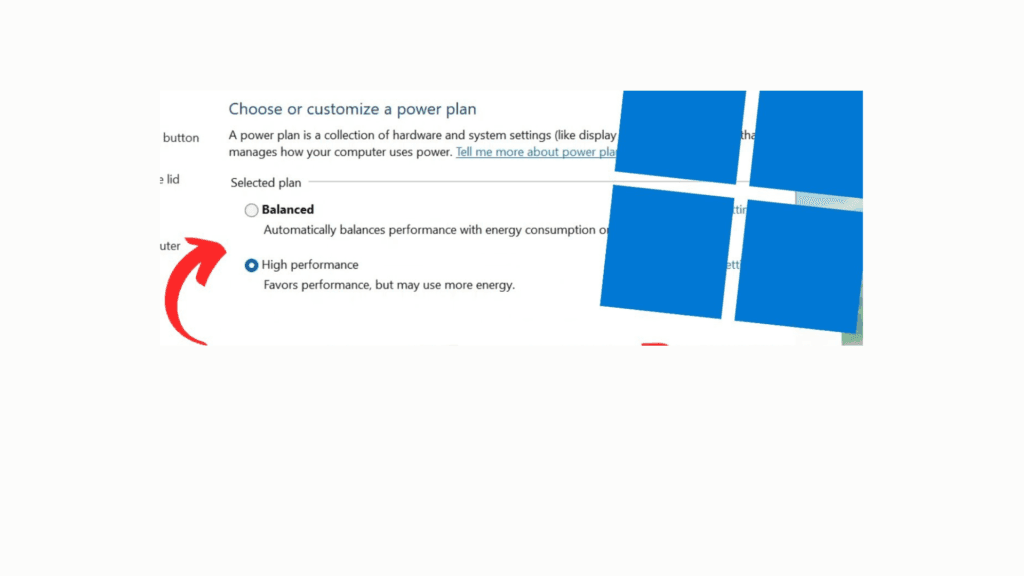
- Open Settings → System → Power & Sleep → Additional Power Settings
- Select High Performance or Ultimate Performance (if available)
- Alternatively, plug in the laptop and enable your manufacturer’s performance mode — Armory Crate on ASUS, Dragon Center on MSI, or Vantage on Lenovo
Running on battery in Balanced mode throttles the CPU, which causes frame drops during video decoding even when the GPU isn’t doing heavy rendering work. Always plug in for cloud gaming sessions.
Close Background Applications
Close unnecessary background apps before cloud gaming sessions to reduce bandwidth usage and improve system performance.
Steps to optimize background activity:
- Close Browser Tabs: Shut down unused tabs and applications running in the background.
- Pause Cloud Sync: Temporarily stop OneDrive, Google Drive, and other sync services.
- Pause Updates: Go to Settings → Windows Update → Pause Updates to prevent downloads during gaming.
- Stop Unnecessary Services: Disable active update services and background processes that consume resources.
Optimizing Windows 11 for gaming covers this process in full depth, but the key principle for cloud gaming is freeing up both network capacity and CPU headroom for the stream decoder—not just the game itself.
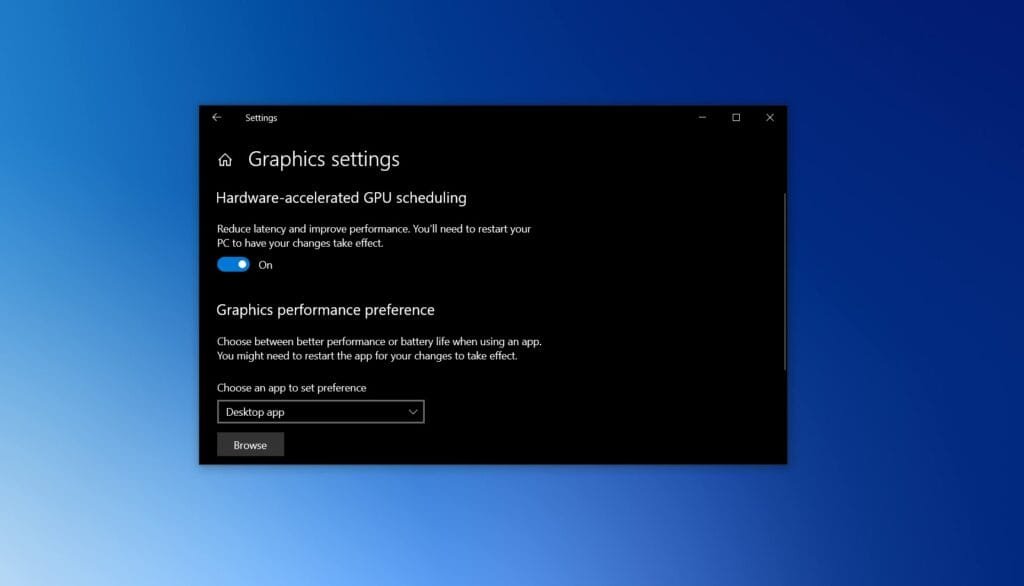
Enable Hardware-Accelerated GPU Scheduling (HAGS)
Go to Settings → System → Display → Graphics → Default Graphics Settings and toggle on Hardware-Accelerated GPU Scheduling. This reduces CPU overhead for GPU-related tasks and can shave a few milliseconds off decode latency. It’s a small gain, but combined with everything else, it adds up.
Step 3: Configure Your Display Settings
Display configuration affects how the decoded stream actually renders on screen. A few quick PC tweaks here make a noticeable difference in sharpness and smoothness.
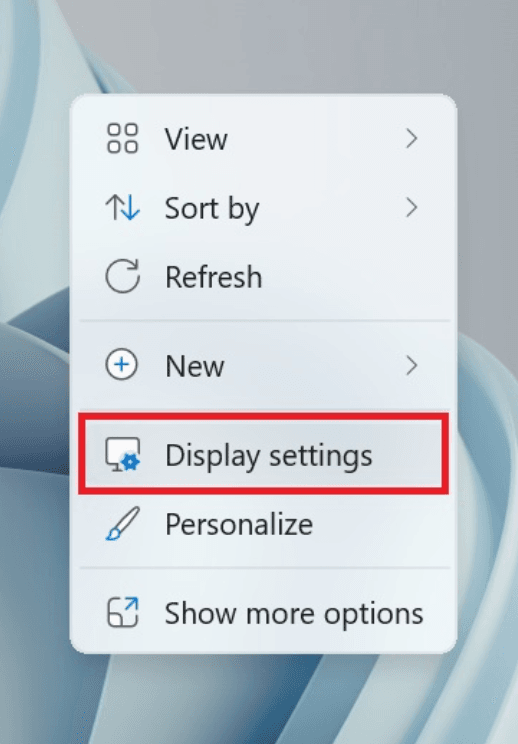
- Match Refresh Rate: Set your display refresh rate to match the stream FPS (60 Hz for 60 fps streams).
- Use Full RGB Range: Enable full RGB output for better colors and fewer dark-area artifacts.
- Disable Enhancements: Turn off laptop sharpening and color filters to reduce processing delay.
For 4K streaming specifically, optimizing a gaming laptop for 4K covers the additional display-side adjustments that matter at that resolution.
Step 4: In-App Settings for Cloud Platforms
Each cloud gaming client has quality controls that directly affect latency and stream stability. Start conservative and scale up.
| Platform | Resolution | Frame Rate | Key Setting |
|---|---|---|---|
| GeForce NOW | 1080p → 4K | 60fps → 120fps | Enable NVIDIA Reflex in supported titles |
| Xbox Cloud Gaming | Auto or 1080p | 60fps (120fps where supported) | Keep stream quality on “Auto” initially |
| Amazon Luna | 1080p → 4K | 60fps | Enable Low Latency Mode in settings |
Begin at 1080p/60fps, confirm the connection is stable, then upgrade to higher settings if latency stays acceptable. Chasing 4K or 120fps on a borderline connection creates more problems than it solves. Smooth at 1080p beats stuttery at 4K.
Common Misconceptions
- “A more powerful GPU improves cloud gaming performance.” The GPU’s only role in cloud gaming is decoding the incoming video stream—a task modern integrated graphics handle comfortably. A faster GPU won’t compensate for network instability.
- “More bandwidth always means a better experience.” Bandwidth ceiling matters less than consistency. A 30 Mbps connection with 5 ms of jitter will outperform a 200 Mbps connection with 40 ms of jitter in almost every scenario.
- “Lowering in-game graphics settings reduces lag.” In cloud gaming, the game runs on a remote server. Changing in-game graphics affects what the server renders, but it doesn’t meaningfully reduce your network load. Latency is driven by the stream quality setting in the client app—not the in-game options menu.
People Also Ask For
Most platforms recommend at least 15 Mbps for smooth 1080p/60fps. For 4K or 120fps streams, target 35–50 Mbps with low jitter. Speed matters less than consistency — run a jitter test, not just a speed test.
Rarely. A VPN adds an extra routing hop and typically increases latency by 10–30ms. It can help if your ISP routes traffic inefficiently to a cloud gaming server region, but that’s the exception. In most cases, a VPN makes performance worse.
Yes — 5GHz or 6GHz Wi-Fi is viable with a modern router. Stay within range of the router, avoid environments with heavy wireless congestion, and aim for minimal or close to 0 packet loss. Distance and walls degrade Wi-Fi performance significantly.
It works, but performance takes a hit. Power throttling under battery mode reduces CPU throughput for the decoder. Plug in whenever possible, or at minimum set the power slider to Best Performance in the system tray.
Closing Words for Optimizing Laptop For Cloud Gaming
Optimizing a gaming laptop for cloud gaming comes down to three priorities: network stability, Windows efficiency, and display configuration. Hardware specs matter far less here than they do for local gaming — a clean, stable connection paired with the right power and display settings gets you most of the way there.
If you want to go further on system-level performance, start with general PC tweaks that reduce latency across all gaming scenarios. The same principles—cleaner background processes, better power management, and lower system overhead—apply directly.
Last tested and updated: June 2026
