

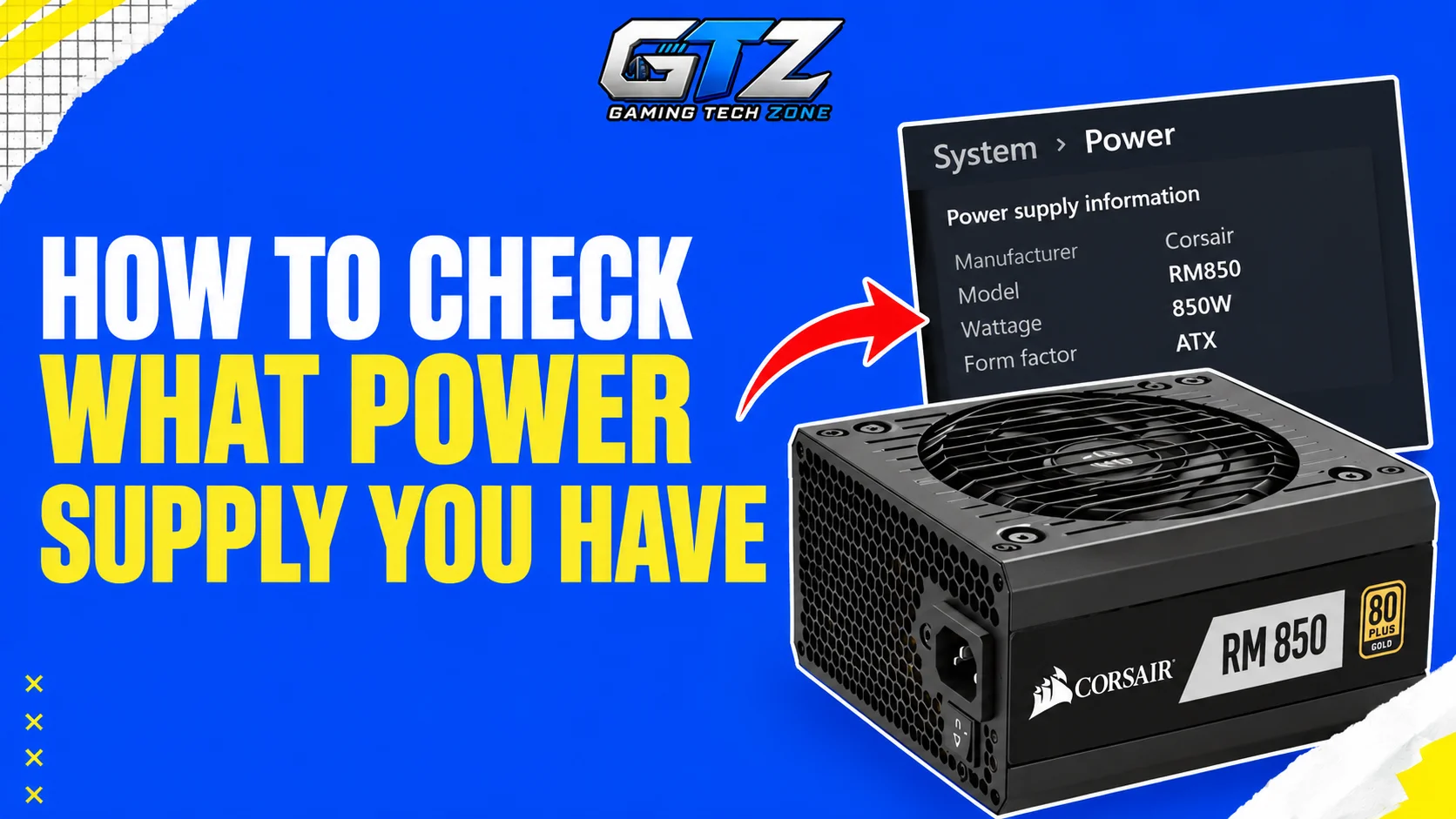
Your PC’s power supply unit (PSU) provides power to all its components, including the motherboard, processor, graphics card, and storage drives. Knowing which PSU you have is especially important when upgrading your gaming PC or troubleshooting unexpected shutdowns.
When I was planning to upgrade my PSU, I spent a lot of time checking Task Manager and other hardware-monitoring software to see what power supply I have on my PC.
After that, I got to know that Windows and most monitoring tools cannot identify the exact PSU model or wattage. So, in this article, I am going to show you how to check your PC’s power supply using a few simple methods so that you don’t waste your time.
Key Takeaways
- Check your PSU’s label to find its model number, manufacturer, and rated wattage.
- If you cannot access the label, check your PC’s original specifications, purchase records, or the manufacturer’s website.
- Windows and most hardware-monitoring tools cannot identify your exact PSU model or wattage.
- Before upgrading your graphics card, check your PSU’s wattage, power connectors, and compatibility with your components.
- Never open the PSU’s metal casing, as its internal components can retain dangerous electrical charges even when unplugged.
Why Should You Check Your PC’s Power Supply?
There are several reasons to check your PC’s power supply unit, especially if you play games or plan to upgrade your hardware.
- Upgrading Your Graphics Card: A more powerful GPU may need a higher-wattage PSU and specific power connectors. Checking your current unit helps you determine if it can support the new card.
- Troubleshooting PC Shutdowns: An unsuitable or faulty PSU can contribute to random shutdowns, restarts, or instability under heavy loads. However, these problems can also have other causes.
- Adding New Components: Extra storage drives, fans, and other hardware can increase your PC’s power requirements.
- Replacing an Old PSU: Knowing your current model and wattage makes it easier to find a compatible replacement.
- Checking Your PC’s Upgrade Options: If you want to build a more powerful gaming rig over time, your PSU’s capacity and connectors can affect which components you can install.
Easy Methods to Check What Power Supply You Have on Your PC
You can identify your PSU in three main ways. Checking the physical label is usually the most reliable method, but your PC’s original specifications and purchase records can also help.
Method 1: Check the Power Supply Label
The PSU label usually shows the manufacturer, model number, rated wattage, and electrical specifications. Follow these steps to find it.
- Shut down your PC completely.
- Switch off the power supply using its rear switch, if it has one.
- Unplug the power cable from the wall outlet or power supply.
- Remove the side panel of your PC case.
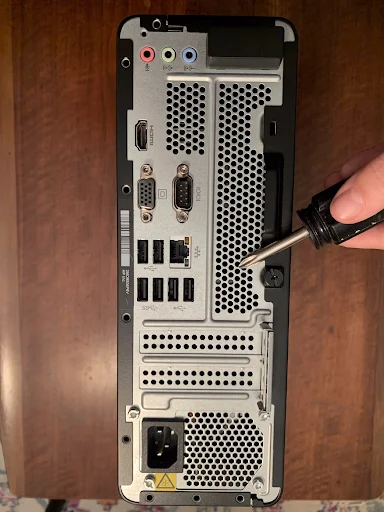
- Locate the power supply, which is usually installed at the bottom or top of the case.
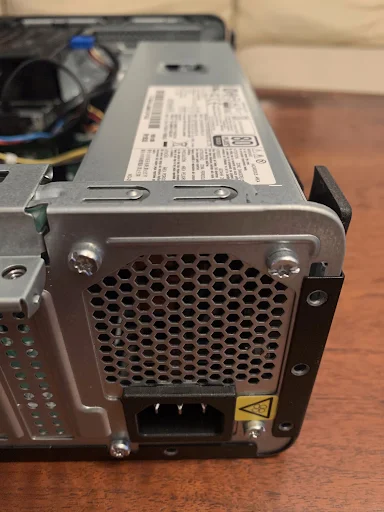
- Look for a label on the PSU’s side and note its model number and wattage.
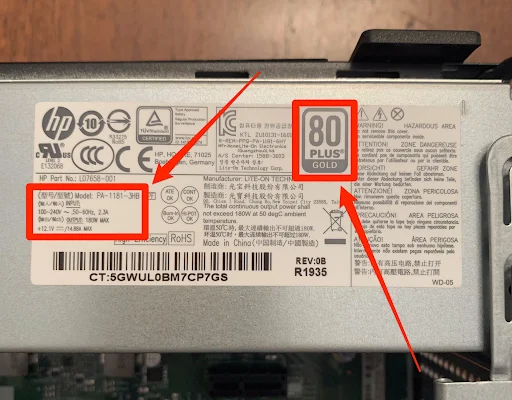
If the label says 650W, your PSU has a rated output of 650 watts. The model number can help you find additional details, such as its connectors and efficiency rating.
Important: Never open the metal casing of the PSU itself. Its internal components can retain dangerous electrical charges even after you unplug it. You only need to open your PC case to inspect the label.
Method 2: Find the PSU Model in Your PC or Purchase Records
If you have a prebuilt gaming PC, you may be able to find its PSU specifications without opening the case.
- Find your PC’s exact model name or product number.
- Visit the manufacturer’s website and look for the specifications of your model.
- Check whether the listed specifications include the power supply’s model and wattage.
You can also check your original invoice, order confirmation email, or product listing. If you built the PC yourself, look through your purchase history for the PSU you bought.
Keep in mind that some prebuilt PCs are sold with different configurations. The PSU may also have been replaced after purchase, so the original specifications might not match your current hardware.
Method 3: Check the Manufacturer’s Website
If you already know the PSU’s model number but want to confirm its specifications, visit the manufacturer’s website.
Search for the exact model number and open its product page. You can usually find details such as:
- Rated wattage
- PSU dimensions and form factor
- Available motherboard and graphics card power connectors
- +12V rail output
- Efficiency certification
Make sure the model number matches your unit. Two power supplies from the same manufacturer may have similar names but different specifications.
This method is particularly useful when you are checking whether your current PSU can support a new graphics card.
How to Find Out How Many Watts Your PSU Has?
To find your PSU’s wattage, look for a number followed by W on its label. Common ratings include 450W, 550W, 650W, 750W, and 850W.
For example, if your PSU label identifies the unit as a 750W model, its rated output is 750 watts.
Do not confuse the PSU’s rated output with your PC’s actual power consumption. A 750W power supply does not constantly draw 750 watts from the wall. Your PC uses the amount of power its components require, while the PSU supplies power within its rated limits.
You may also see several voltage and current ratings on the label. The +12V output is particularly relevant to modern gaming PCs because the processor and graphics card rely heavily on this power rail.
However, you should check the complete PSU specifications rather than judging the unit by one number alone.
What If You Cannot See the PSU Label?
Sometimes, the PSU label is difficult to reach or read. This commonly happens in gaming PC cases with a PSU shroud covering the power supply.
Try these options:
- Check the Other Side of the PSU: The label may face the opposite side panel. You might need to remove that panel to see it.
- Look Through the Case Openings: Some cases provide enough space to view the label without removing additional components.
- Check Your Purchase Records: Your invoice or order history may contain the exact model number.
- Search Using Your PC Model: If you own a prebuilt PC, its product specifications may list the PSU details.
- Contact the Manufacturer or Seller: They may be able to identify the original power supply using your PC’s exact model or configuration.
If the label is hidden behind the PSU shroud, avoid removing the power supply unless you are comfortable working inside a PC. You should never open the PSU’s metal casing to access the label.
Can You Check Your PSU Without Opening Your PC?
Yes, but only if you can find its specifications elsewhere. Windows does not normally display the exact power supply model or wattage.
Task Manager, Device Manager, and common hardware-monitoring programs generally cannot identify your PSU because Windows does not receive this information from most standard power supplies.
Instead, try the following options:
- Check your PC’s original product specifications.
- Search your order history or purchase receipt.
- Look for the PSU model in your own PC-building records.
- Search the manufacturer’s website using your PC’s exact model number.
If none of these options provide the correct information, checking the physical label is usually your best option.
What PSU Information Should You Check Before Upgrading?
Knowing your PSU’s wattage is a good starting point, but it is not the only detail that matters when upgrading your gaming PC.
| PSU specification | Why it matters |
|---|---|
| Wattage | Helps determine whether the PSU can supply enough power to your components. |
| Manufacturer and model | Lets you check the unit’s specifications, quality, and age. |
| Graphics card power connectors | Confirms whether the PSU has the connectors required by your new GPU. |
| Form factor | Helps you confirm that the PSU fits inside your PC case. |
| +12V output | Shows how much power the unit can provide through its main voltage rail. |
| Efficiency rating | Indicates how efficiently the PSU converts power from the wall into usable power for your PC. |
Before upgrading your graphics card, check the manufacturer’s recommended PSU wattage for that specific GPU. Also consider your processor, other components, and the PSU’s overall condition.
For example, a 650W PSU may be suitable for one gaming PC but insufficient for another with a more power-hungry graphics card and processor. A higher wattage alone also does not guarantee that a PSU is good quality.
Final Words
The easiest way to check what power supply you have on your PC is to inspect its label. It usually lists the model number and rated wattage, which are the main details you need.
If you cannot access the label, check your PC’s original specifications or purchase records. Before upgrading your graphics card, remember to verify the PSU’s wattage, connectors, and overall suitability for your hardware.
People Also Ask
No, Windows does not normally show your PSU’s rated wattage. You will need to check its physical label or find the specifications through your purchase records or PC manufacturer.
No, Task Manager does not display your PSU model or wattage. It shows information about your processor, memory, graphics card, storage, and system performance.
The PSU is usually located at the bottom or top of your PC case. In many modern gaming PCs, it sits at the bottom behind a separate cover called a PSU shroud.
Check your graphics card’s recommended PSU wattage and required power connectors. Then compare those requirements with your PSU’s specifications and consider the power needs of the rest of your system.
Yes, if your current PSU provides enough power and has the required connectors for the new graphics card. If it does not meet those requirements, you may need to replace it before upgrading.
