
What if building your first gaming PC in 2026 was simpler than you think?
Most people who want to get into PC gaming don’t quit because it’s too hard, they quit because nobody gives them a straight answer. This guide does exactly that.
Whether you’re deciding between building and buying, trying to decode acronyms like GPU and NVMe, or just trying not to waste $1,000, this guide walks you through every step in plain language. By the end, you’ll know exactly what to buy, what to skip, and how to get your system running smoothly.
What Actually Makes a PC a “Gaming PC”?
A gaming PC isn’t a different species of computer, it’s a regular machine with hardware chosen specifically to handle what games demand: fast graphics rendering, real-time physics, large open worlds, and smooth frame rates under pressure.
The difference comes down to a few key components, all working together. An unbalanced system say, a powerful graphics card paired with an underpowered processor will still underperform. Understanding what each part does, and how much to spend on each, is the whole game.
Which Actual Components Determine Performance?
A gaming computer is designed to handle complex graphics rendering, physics calculations, and real-time simulations used in modern video games. Unlike standard office computers, gaming PCs include specialized hardware that can process these workloads efficiently.
For a Gaming PC for Beginners, the goal is to build a balanced system where the processor, graphics card, and memory work together effectively. A system with balanced hardware prevents performance bottlenecks and ensures stable frame rates during gameplay.
A gaming computer is designed to handle demanding graphics rendering and real-time simulations used in modern games. Before buying or building a system, beginners should understand the main parts that determine gaming performance.
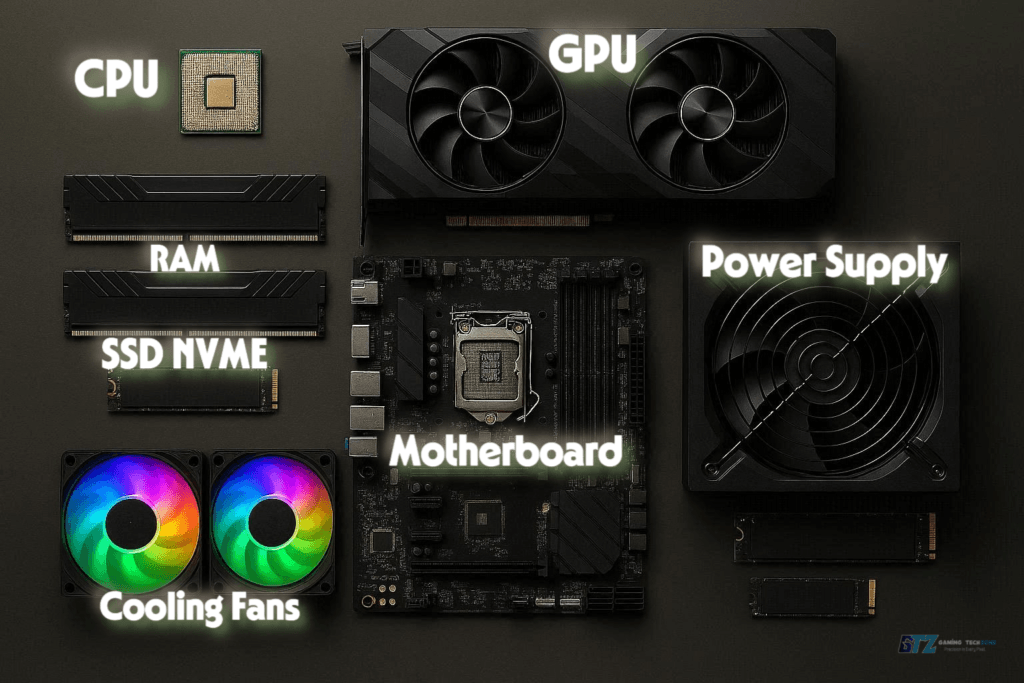
1. Processor (CPU)
The CPU runs game logic, manages background tasks, handles AI behavior, and keeps physics simulations running. It doesn’t render your graphics — the GPU does that — but a slow CPU creates a bottleneck that limits what even the best GPU can do.
In 2026, mid-range processors such as Intel Core i5-14400F and AMD Ryzen 5 7600 offer excellent gaming performance without excessive cost. These CPUs provide multiple cores and fast clock speeds, and strong single-core performance for the price. Either will handle every modern game without holding back a mid-range GPU
2. Graphics Card (GPU)
The GPU is the most important purchase you’ll make. It determines what resolution and frame rates you can hit, whether ray tracing is possible, and how smooth your gameplay looks and feels.
In 2026, NVIDIA continues to dominate desktop GPU market share. For beginners, these are the realistic options:
- RTX 4060: Solid 1080p card, widely available, reasonable price.
- RTX 4070: Steps up to 1440p, noticeably better ray tracing.
- Radeon RX 7600: AMD’s competitive budget alternative with strong rasterization performance.
- RTX 5060 : Worth considering if you find it at MSRP; brings improved memory bandwidth over the 4060.
One honest note: GPU prices fluctuate significantly. At time of writing, used cards are common on the market, but beware of artificially inflated listings, some sellers label aging cards as “AI-optimized” to justify higher prices. If it seems overpriced for its generation, it is.
For readers confused about which GPU they should buy, here is our detailed guide on AMD vs Nvidia GPUs. comparison.
3. Memory (RAM)
RAM holds the data your games and OS need in the moment. Not enough causes stuttering, micro-freezes, and dropped frame rates — especially in open-world games.
The standard in 2026:
- 16GB DDR5: Minimum for current games; you will feel it in memory-heavy titles
- 32GB DDR5: The right choice for most new builds; handles gaming, streaming, and browser tabs simultaneously
- 64GB: Only necessary if you’re also content-creating or running virtual machines
DDR5 is now standard across most new platforms. Don’t build on a DDR4 platform in 2026 unless you’re working with a very tight budget and a found deal
4. Storage
Game file sizes have ballooned, several popular titles now exceed 150GB each. You need fast, spacious storage.
An NVMe Gen4 SSD is the baseline. Gen5 drives exist but offer diminishing returns for gaming specifically; the real-world load time difference is modest. A 1TB NVMe SSD covers your OS and 4–6 large games. A 2TB drive is worth the small premium if you play frequently or have a large library.
Never use a spinning hard drive as your primary drive in a gaming build. It will create a painful bottleneck regardless of how good the rest of your components are.
5. Motherboard
The motherboard is the platform everything else plugs into. It determines which CPUs and RAM you can use, how many storage drives you can connect, and what upgrade paths remain open later.
For beginners:
- B650 chipset: Best pairing for AMD Ryzen 7000 series
- B760 chipset: Best pairing for Intel 13th/14th generation
Both are mid-range chipsets that offer modern connectivity (PCIe 4.0 slots, multiple NVMe headers, USB 3.2) without the unnecessary cost of higher-end X670 or Z790 boards.
6. Power Supply Unit
The PSU is unglamorous but critical. An undersized or cheap PSU can damage other components, cause random shutdowns, or fail entirely. Don’t skimp here.
For a mid-range build:
- 650W–750W covers most combinations of i5/Ryzen 5 + RTX 4060/4070.
- 80+ Gold certification is the minimum to aim for — it indicates efficiency and quality components.
- Buy new. A used PSU is one of the worst ways to save money, you have no visibility into how it was treated.
What Gaming Features are Essential to Understand?
Modern gaming systems include several features designed specifically for gaming workloads.
1. High Refresh Rate Gaming
High refresh rate gaming has become the norm rather than a premium perk. Monitors running at 144Hz, 165Hz, and 240Hz are affordable and widespread. A capable GPU that hits 144+ fps in your game of choice will feel dramatically smoother than 60fps, once you’ve played at 144Hz, it’s hard to go back.
2. Ray Tracing Graphics
Ray tracing creates more realistic lighting by simulating how light physically bounces around a scene. It looks excellent in supported titles but carries a significant performance cost. NVIDIA’s implementations are best-in-class. Beginners don’t need to prioritize it, but any RTX 40-series card supports it.
3. AI-Based Upscaling
AI upscaling (DLSS for NVIDIA, FSR for AMD) has become essential. These technologies render your game at a lower resolution and reconstruct it to a higher one using AI.
Effectively giving you a free frame rate boost with minimal visual quality loss. DLSS 3.5 in particular is excellent. Enable it on almost every game that supports it.
Building vs Buying: An Honest Comparison
| Feature | Custom Build | Prebuilt System |
|---|---|---|
| Value for money | Better — you pay for parts only | Worse — markup for labor and brand |
| Upgrade flexibility | Full control | Limited by case/PSU choices |
| Effort | 4–6 hours of assembly + setup | Plug in and play |
| Learning curve | Moderate | None |
| Warranty | Per-component | Single system warranty |
| Risk of error | Possible but rare | None |
Building wins on value. Buying wins on convenience. For anyone willing to follow a guide and watch a few YouTube videos, building is absolutely manageable — and you’ll understand your machine much better for it.
How to Build a Gaming PC?
Building a gaming computer may seem intimidating, but the process becomes manageable when broken into simple steps.
Step 1: Choose Your Budget
Pick your tier, then find the best components at that price — not the other way around.
- $700–$900: Solid 1080p gaming; targets smooth performance in most titles at medium-to-high settings
- $1,000–$1,500: Strong 1080p and capable 1440p; handles everything at high settings
- $2,000+: High-refresh 1440p and entry 4K territory; future-proofed for several years
A clear budget helps ensure beginners focus on performance rather than unnecessary features.
⚠️ Buyer’s Warning: The “Used Hardware” Trap
While buying used parts can save you significant money, beginners must be cautious. In 2026, avoid the “AI-Shortage” scam where sellers inflate prices on older cards by labeling them as “AI-Optimized.” Always buy your Power Supply (PSU) and SSD brand new; a used PSU can fry your entire system, and old SSDs have limited lifespans. Finally, always see a used GPU running a benchmark test under load before paying to ensure it hasn’t been damaged by heat or heavy use
Step 2: Select Compatible Hardware
CPU, motherboard, and RAM must be compatible. Use PCPartPicker — it flags incompatibilities automatically and shows real-time part pricing. There’s no excuse for buying mismatched parts in 2026 when this tool is free.
Avoid this mistake: The AMD Ryzen 7000 series requires DDR5. Some budget boards only support one memory speed. Check your specific board’s QVL (qualified vendor list) before buying RAM.
Step 3: Build on a Flat Surface First
Before mounting anything in the case, install the CPU, RAM, and NVMe SSD directly onto the motherboard while it’s flat on a clean surface. These are the fiddliest steps — doing them outside the case is significantly easier.
Also: Remove the protective plastic film from the bottom of your CPU cooler before mounting it. Forgetting this is the single most common cause of overheating in new builds.
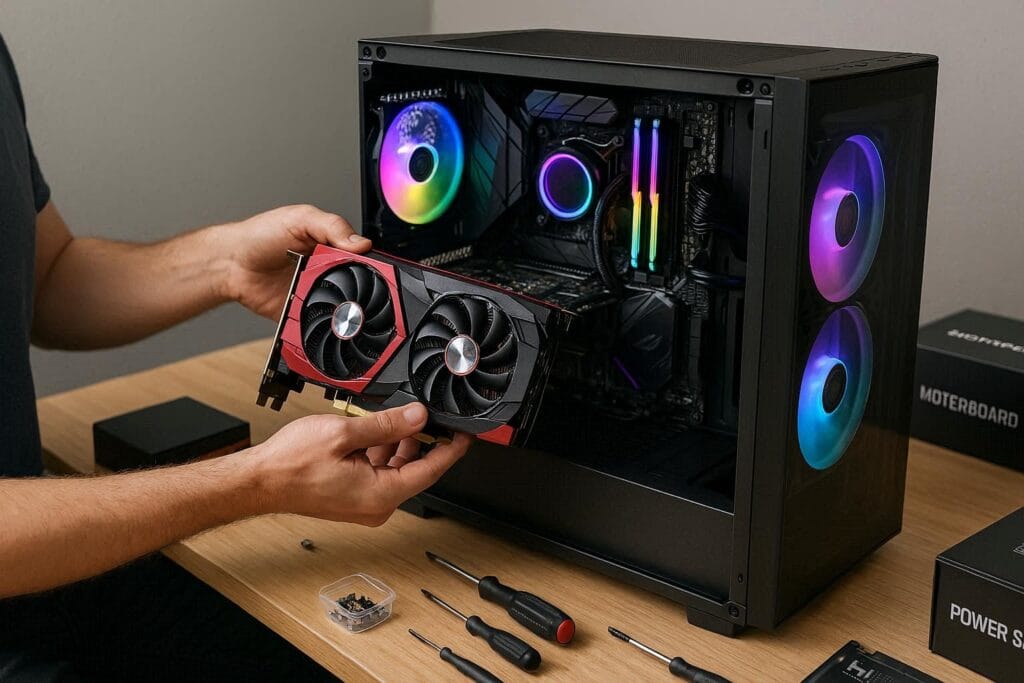
Step 4: Assemble the Components
Follow the order: Case standoffs → motherboard → GPU → PSU and cable routing → fans. Your motherboard manual will show the exact layout.
Take your time with cable management it improves airflow and makes future upgrades easier. Beginners should carefully follow motherboard manuals to ensure correct installation.
💡 Pro Tip: The “Pre-Flight” Check
Before mounting your motherboard inside the case, install your CPU, RAM, and NVMe SSD first. It is much easier to seat these tiny, delicate components on a flat table than inside a cramped computer case. Also, always remember to remove the clear plastic protective film from the bottom of your CPU cooler before mounting it forgetting this is the #1 cause of overheating in new 2026 builds.
Step 5: Install the Operating System
After assembling the system, install an operating system such as Microsoft Windows.
Windows remains the most widely supported gaming operating system. Most modern games are optimized for Windows operating systems, and beginners can review the official Windows system requirements before installing the OS on their gaming system.
Step 6: Install Drivers and Software
Drivers allow hardware components to communicate with the operating system. Installing updated graphics drivers ensures best gaming performance. A gaming PC should also include monitoring software to track temperatures and performance.
Step 7: Optimize Your Game Settings
Once you’re up and running:
- Enable DLSS or FSR in supported games
- Cap your frame rate to your monitor’s refresh rate
- Set your Windows power plan to “High Performance” or “Balanced” (never “Power Saver”)
- Verify game files in Steam/Epic on your first launch to avoid corrupted installs
Which Accesories are Best For Beginners?
A gaming computer works best when paired with the right components.
Important accessories include:
- Monitor: Match your GPU. A 144Hz 1080p IPS panel is the right starting point; brands like LG, ASUS, and AOC have solid options under $250.
- Mouse: Any gaming mouse with adjustable DPI works fine for beginners. The Logitech G305 is wireless, lightweight, and reliable under $60.
- Keyboard: Mechanical keyboards are more durable and satisfying, but a membrane keyboard is perfectly functional. Try before you buy if possible; switch feel is personal. Also, if you are confused between connectivity options, I would recommend that you choose wired keyboards.
- Headset: A decent stereo headset is fine for most games. Spatial audio matters more in competitive shooters. The HyperX Cloud II remains a strong value option.
These accessories complete the full gaming setup and improve immersion.
How Long Would I Keep This Gaming PC Build?
If I were building this PC for myself, I’d expect to keep it for around 4–6 years. I wouldn’t expect the same performance throughout that entire period, but for 1080p gaming, a balanced build should remain useful for several years before I feel the need for a major upgrade.
My approach would be:
- First few years: Use the PC as built and upgrade only if I actually need more performance.
- Later on: The GPU would be the first component I’d consider upgrading, since graphics requirements usually increase faster than CPU requirements.
- RAM: If 16GB starts becoming restrictive, I’d move to 32GB rather than replacing the entire system.
- Storage: Adding another NVMe SSD is an easy way to extend the system without rebuilding it.
- After 4–6 years: I’d reassess the CPU, motherboard, and GPU together instead of automatically replacing everything.
Final Thoughts For Beginners To Build a PC in 2026
Building your first gaming PC in 2026 is genuinely more accessible than it’s ever been — parts are well-documented, compatibility tools are free, and the community knowledge base is enormous. The learning curve is real, but it’s shallow.
The formula is simple: set a real budget, prioritize your GPU, use PCPartPicker to verify compatibility, and follow your motherboard manual during assembly. Everything else is optimization.
Gamers Also Ask When Building a Gaming PC
A capable starting build runs $700–$900 for components. That covers smooth 1080p gaming in most modern titles. If your budget is tighter, consider a used mid-range GPU — just test it under load before buying.
Building a system usually provides better value and upgrade flexibility. However, prebuilt systems are convenient for beginners who prefer a plug-and-play experience, as they come fully assembled and often include customer support for troubleshooting.
A well-balanced gaming computer can remain useful for four to six years. Upgrading the graphics card and memory can extend its lifespan, allowing the system to handle newer games and software requirements for an additional two to three years.
Most beginner systems target 1080p gaming because it provides smooth frame rates without requiring extremely expensive hardware.
Yes. Windows 11 Home runs around $100–$140 at retail. Alternatively, you can install and run Windows 11 in an unactivated state with minor limitations (no personalization options) indefinitely — though purchasing a license is recommended for long-term use.
Overspending on the CPU while under-investing in the GPU. In gaming, the GPU does the heavy lifting. A Ryzen 5 + RTX 4070 will outperform a Ryzen 9 + RTX 4060 in almost every game, for less money.
