
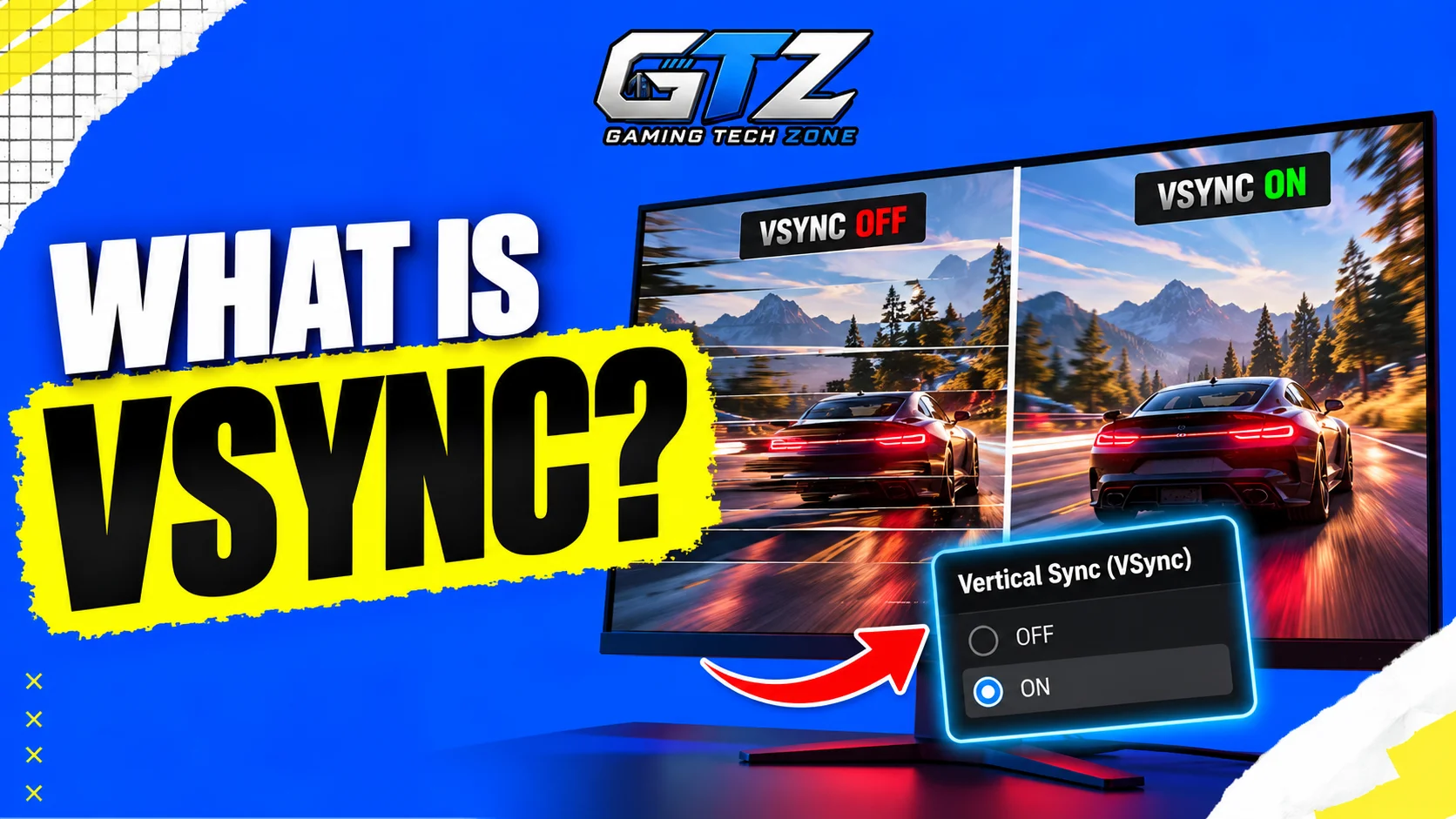
You may have noticed a game looking like the screen is split into two parts while moving the camera or turning quickly. This is called screen tearing, and it usually happens when your graphics card is producing frames at a different rate than your monitor can display them.
When I faced this problem, VSync helped me deal with it.
VSync is a graphics setting designed to prevent this problem. It synchronizes the game’s frame output with your monitor’s refresh rate. However, VSync can also introduce input delay or cause the game to feel less smooth when your FPS drops.
In this article, I will discuss what VSync is, how it works, its benefits and drawbacks, and whether you should use it for gaming.
Quick Takeaways
- VSync synchronizes your game’s FPS with your monitor’s refresh rate to reduce screen tearing.
- VSync can make gameplay look cleaner but may add input delay.
- VSync can limit FPS and reduce unnecessary GPU workload.
- G-Sync and FreeSync can provide smoother results by adjusting the monitor’s refresh rate.
- VSync is useful for many casual and single-player games, while competitive players may prefer it off.
What is VSync?
VSync, short for Vertical Synchronization, is a graphics setting on a gaming PC that synchronizes your game’s frame rate with your monitor’s refresh rate.
For example, if you have a 60Hz monitor, it refreshes the screen up to 60 times per second. With VSync enabled, the game tries to keep its frame output synchronized with those 60 refreshes.
Without VSync, your graphics card can produce frames faster than the monitor can display them. If the monitor starts displaying one frame and receives another before finishing it, parts of two different frames can appear on the screen at the same time. This creates screen tearing.
VSync helps prevent this by controlling when new frames are sent to the display.
How Does VSync Work?
To understand VSync, you first need to know the difference between FPS and refresh rate.
FPS refers to how many frames your graphics card produces each second. Refresh rate, measured in Hz, refers to how many times your gaming monitor can refresh the screen each second.
For example:
- A game running at 120 FPS is producing 120 frames per second.
- A 60Hz monitor can refresh the screen 60 times per second.
- With a 144Hz monitor, the screen can refresh up to 144 times per second.
If your GPU is producing frames faster or at a different timing than your monitor can display them, tearing can occur.
When VSync is enabled, the game limits its frame output to match the monitor’s refresh rate. On a 60Hz display, this generally means the game is limited to around 60 FPS. On a 144Hz display, it can run at up to around 144 FPS.
This synchronization prevents the monitor from displaying parts of multiple frames at once.
The downside is that the GPU may sometimes have to wait before sending another frame. This can increase input latency and may make controls feel slightly less responsive.
Benefits of Using VSync
VSync is mainly useful for preventing screen tearing, but it can provide a few other benefits.
1. Eliminates Screen Tearing
The biggest reason to use VSync is to prevent screen tearing. Fast camera movement can look much cleaner when each screen refresh displays a properly synchronized frame.
This can be especially noticeable in games with frequent camera movement, such as first-person shooters, racing games, and action games.
2. Keeps FPS Within Your Monitor’s Refresh Rate
VSync can stop your GPU from rendering unnecessary frames above your monitor’s refresh rate.
For example, if you have a 60Hz monitor and your GPU can produce 150 FPS, those extra frames cannot all be displayed by the monitor. VSync limits the output to match the display.
3. Can Reduce Unnecessary GPU Usage
Since VSync limits the frame rate, your GPU does not always need to work as hard as it would when rendering as many frames as possible.
This can sometimes reduce GPU power consumption, heat, and fan noise. Although VSync itself does not directly improve the health of your graphics card, keeping GPU temperatures and workload under control can also be beneficial for GPU health over long periods.
Does VSync Improve Graphics Quality?
No, VSync does not improve the actual graphics quality of a game.
It does not increase texture quality, resolution, shadows, lighting, or other visual settings. Instead, it changes how the game’s frames are delivered to your gaming monitor.
The main visual improvement comes from removing screen tearing. A game can therefore look smoother or cleaner with VSync enabled, but its graphical quality remains the same.
For example, turning VSync on will not make a low-quality texture look sharper. It can simply make movement on the screen appear more consistent.
VSync vs. G-Sync and FreeSync
VSync, G-Sync, and FreeSync all help prevent screen tearing, but they handle synchronization differently.
VSync limits the game’s FPS to match the monitor’s fixed refresh rate. This can prevent tearing but may add some input delay.
G-Sync and FreeSync are adaptive sync technologies. They adjust the monitor’s refresh rate based on the game’s current FPS, which can provide smoother gameplay with less tearing and latency.
| Feature | VSync | G-Sync | FreeSync |
|---|---|---|---|
| Prevents screen tearing | Yes | Yes | Yes |
| Adjusts refresh rate | No | Yes | Yes |
| Can add input latency | Yes | Less likely | Less likely |
| Best use | Basic synchronization | Adaptive sync with compatible hardware | Adaptive sync with compatible hardware |
G-Sync is NVIDIA’s adaptive sync technology, while FreeSync is developed by AMD. Compatibility varies between GPUs and monitors, so check both before choosing an adaptive sync option.
Pros and Cons of VSync
VSync has some clear advantages, but it is not ideal for every gaming setup.
Pros
- Prevents screen tearing
- Keeps FPS within the monitor’s refresh rate
- Can reduce unnecessary GPU workload
- Can make camera movement look cleaner
- Useful on standard fixed-refresh-rate monitors
Cons
- Can increase input latency
- May make controls feel less responsive
- FPS can drop noticeably when your GPU cannot maintain the target rate
- Can introduce stuttering in some situations
- It is less useful when using adaptive sync technologies
Should You Use VSync?
Whether you should use VSync depends on your monitor, hardware, and the type of games you play.
If you are using a 60Hz or 75Hz monitor and notice obvious screen tearing, VSync can be a simple way to fix it. It is also useful if you are not playing competitive games where every bit of input responsiveness matters.
- For single-player and slower-paced games, the slight input delay may be less noticeable, making tear-free gameplay more important.
- Competitive games benefit from low input latency, so some players prefer VSync off and accept some screen tearing.
If your monitor supports G-Sync or FreeSync, adaptive sync is usually a better option. It can provide smooth gameplay without locking FPS to a single refresh rate.
Your GPU performance also matters.
If your PC cannot consistently reach your monitor’s refresh rate, VSync may cause noticeable drops or stuttering depending on how the game handles lower frame rates.
For example, if you are optimizing your gaming PC for 120Hz, you need enough GPU performance to maintain around 120 FPS in the games you play.
How to Turn VSync On or Off?
You can usually control VSync from the game’s graphics settings.
Look for an option called VSync, Vertical Sync, or Vertical Synchronization.
The general process is:
- Open the game.
- Go to Settings or Options.
- Open the Graphics, Display, or Video section.
- Find the VSync option.
- Select On or Off.
- Apply the changes if required.
Some games also let you control VSync through your graphics card’s software.
If you have an NVIDIA GPU, such as the NVIDIA RTX 4090 or RTX 5090, you can also control VSync through the NVIDIA Control Panel:
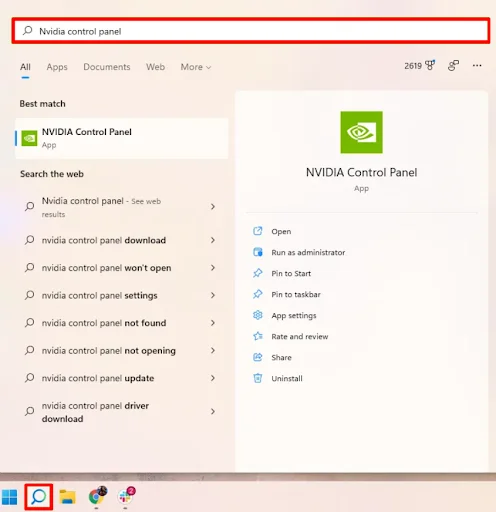
- Open the Start menu, search for NVIDIA Control Panel, and open it.
- Click Manage 3D settings on the left side.
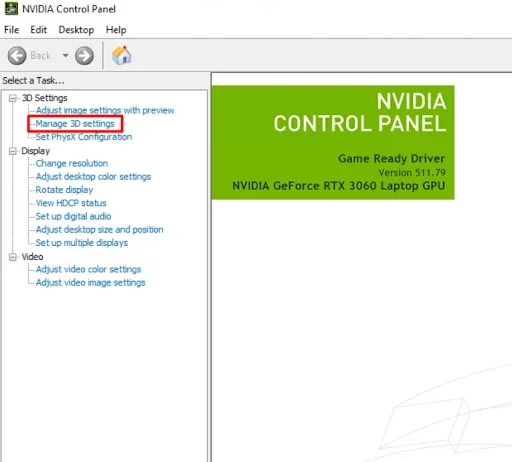
- Under Global Settings, find Vertical sync.
- Select On to enable VSync or Off to disable it.
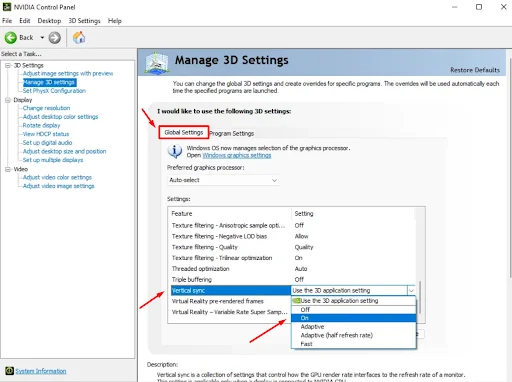
- Click Apply to save the change.
You can also configure VSync for individual games from the Program Settings tab instead of changing it for every game. The exact options may vary depending on your NVIDIA driver and hardware.
Final Words
VSync is a simple way to prevent screen tearing by synchronizing a game’s frame output with your monitor’s refresh rate. It can make movement look cleaner, but it may also add input latency or cause stuttering when your FPS drops.
For casual and single-player gaming, VSync can be useful if you notice tearing. Competitive players may prefer lower latency with VSync off, while gamers with G-Sync or FreeSync displays can usually get smoother results through adaptive sync.
People Also Ask
VSync can limit your FPS to your monitor’s refresh rate. For example, a 60Hz display will generally limit the game to around 60 FPS when VSync is enabled.
Turn VSync on if you notice screen tearing and want smoother-looking gameplay. Turn it off if you prioritize lower input latency, especially in competitive games.
VSync can increase input latency because the game may have to wait for the monitor’s next refresh before displaying a new frame. The effect varies depending on the game, hardware, and VSync implementation.
Some gamers avoid VSync because it can add input delay and make controls feel less responsive. It can also cause stuttering when the game cannot maintain the monitor’s refresh rate.
VSync does not improve a game’s graphical quality. It only synchronizes frame output with the monitor to reduce screen tearing, which can make gameplay look smoother.
