

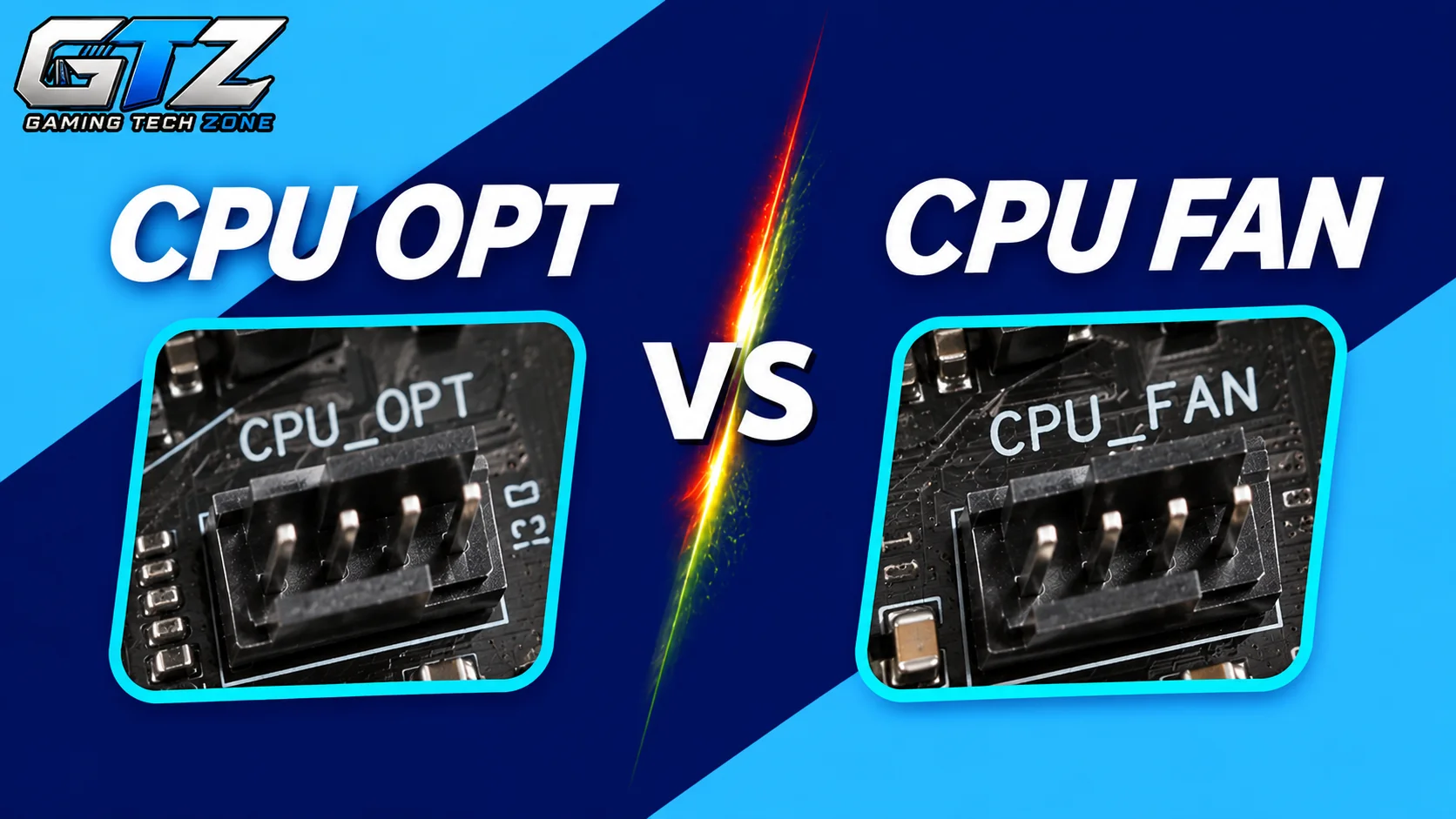
When setting up a gaming PC, I pay attention to every cooling component to make sure the processor stays at a safe temperature. While checking motherboard connections, you may come across two similar-looking headers called CPU_OPT and CPU_FAN.
Both are used for connecting cooling fans, but they have different purposes. Using the right header can help you manage your CPU cooling setup properly. In this article, I will compare CPU_OPT vs CPU_FAN and explain which one you should use.
Let’s start.
What Is CPU Opt?
CPU_OPT stands for CPU Optional. It is an additional fan header on some motherboards, designed to connect a second CPU cooling fan.
For example, if you have a dual-fan air cooler, you can connect its main fan to the CPU_FAN header and the second fan to CPU_OPT. This allows your motherboard to control both fans as part of your CPU cooling setup.
Depending on your motherboard model, CPU_OPT may follow the same fan speed settings as CPU Fan. This means both fans can increase or decrease their speed based on CPU temperature.
What Is CPU_FAN?
CPU_FAN is the primary fan header on your motherboard. It is designed to connect the main fan of your CPU cooler.
This header allows your motherboard to monitor the fan’s speed and adjust it based on the processor’s temperature. When your CPU’s temperature increases during gaming or other demanding tasks, the fan can spin faster to provide more cooling.
The CPU_FAN header also helps your motherboard detect cooling problems. If it does not detect a fan during startup, you may receive a CPU fan error warning.
CPU Opt vs CPU Fan: A Detailed Comparison
Although both headers are used for CPU cooling, they have different purposes and features. Let’s compare them across a few important aspects to understand how they work and which one is more suitable for your gaming PC.
1. Purpose
The main difference between CPU_OPT and CPU_FAN is the type of cooling component they are designed to control.
- CPU_OPT: It is mainly used for an additional CPU cooler fan. For example, you can connect the second fan of a dual-fan CPU cooler to this header.
- CPU_FAN: It is designed for the primary CPU cooler fan, which provides airflow to keep your processor cool.
Winner: CPU_FAN for the main CPU cooler fan. CPU_OPT is useful as an additional connection.
2. Fan Speed Control
Fan speed control determines how quickly a fan spins based on temperature. This is important because your CPU needs more cooling when running demanding games or applications.
- CPU_OPT: On many motherboards, it follows the same fan speed curve as CPU_FAN. However, some motherboards allow you to configure it separately.
- CPU_FAN: Usually has its own fan curve, allowing the motherboard to adjust the main cooler fan’s speed based on CPU temperature.
Winner: CPU_FAN for independent control of the primary cooler fan. However, CPU_OPT may offer similar control depending on your motherboard.
3. Fan Monitoring
Fan monitoring allows your motherboard to check whether a connected fan is running and how fast it is spinning. It can help you identify cooling problems.
- CPU_OPT: It can monitor the speed of a connected fan, depending on your motherboard. However, it may not be treated as the primary CPU cooling connection during startup.
- CPU_FAN: It provides primary CPU fan speed monitoring and is commonly used by the BIOS to check whether the CPU cooler fan is working.
Winner: CPU_FAN because it provides the main CPU fan monitoring and helps detect cooling problems during startup.
4. Compatibility
Compatibility refers to the types of cooling components you can connect to each header. Both headers generally support compatible 3-pin and 4-pin fans, but their exact functions depend on the motherboard.
- CPU_OPT: It is suitable for an additional CPU cooler fan. Some motherboards may also support connecting a compatible water cooling pump to this header.
- CPU_FAN: It is designed for the primary CPU cooler fan, including compatible air cooler and liquid cooler radiator fans.
Winner: CPU_FAN for the primary CPU cooler fan. CPU_OPT is more useful when you need an additional connection.
CPU_OPT vs CPU_FAN: Quick Comparison
| Aspect | CPU_OPT | CPU_FAN |
|---|---|---|
| Primary purpose | Connects an additional CPU cooling fan | Connects the main CPU cooler fan |
| Fan speed control | Often follows the CPU_FAN speed curve | Usually has its own fan speed settings |
| Fan monitoring | Monitors connected fan speed on supported motherboards | Provides primary CPU fan speed monitoring |
| Compatibility | Supports compatible additional fans; some boards support pumps | Supports compatible CPU cooler fans |
| Best use | Second fan in a CPU cooling setup | Main CPU cooler fan |
CPU Opt vs CPU Fan: Which Is Better for Gaming PCs?
For most gaming PCs, CPU Fan is the better choice for connecting your main CPU cooler fan. It allows your motherboard to monitor the fan and adjust its speed according to CPU temperature.
However, CPU Opt is also useful if your cooling setup has an additional fan. For example, you can use it to connect the second fan of a dual-fan CPU cooler.
Keep in mind that neither header directly improves gaming performance over the other. Their job is to manage cooling, which helps your processor maintain safe operating temperatures. So, you do not need to choose one over the other. If your motherboard has both headers, you can use them together to manage your CPU cooling setup.
Can You Connect a CPU Fan to the CPU_OPT Header?
Yes, you can usually connect a standard CPU cooler fan to the CPU_OPT header. Both headers generally support compatible 3-pin and 4-pin fans.
However, there are a few things to consider:
- Your motherboard may not monitor CPU_OPT in the same way as the primary CPU_FAN header.
- You may receive a CPU fan error warning if nothing is connected to the main CPU_FAN header.
- The fan may follow a different speed curve or use different control settings.
For these reasons, it is better to connect your main CPU cooler fan to the CPU_FAN header. If you need to use CPU_OPT, check your motherboard manual and BIOS settings first.
Can You Connect Multiple Fans to CPU_FAN or CPU_OPT?
Yes, you can connect multiple fans to a single CPU_FAN or CPU_OPT header using a compatible fan splitter. This is useful if your CPU cooler has multiple fans, but your motherboard has limited fan headers.
For example, a 360mm AIO liquid cooler, such as the DeepCool LT720, comes with three radiator fans that can be connected using a compatible splitter.
However, you should check the maximum power limit of the motherboard header before connecting multiple fans. Connecting too many fans can exceed this limit and potentially damage the header.
Also, remember that fans connected through a splitter will generally share the same speed control signal. If you want to control different fans separately, connecting them to individual headers is a better option.
Final Words
CPU_OPT and CPU_FAN serve different purposes, but both can help manage your CPU cooling setup. CPU_FAN is designed for the main CPU cooler fan, while CPU_OPT provides an additional connection for another fan.
For most gaming PCs, connecting your primary cooler fan to CPU_FAN is the right choice. You can then use CPU_OPT if your cooling setup requires another fan connection. Always check your motherboard manual for specific header functions and power limits.
People Also Ask
No, CPU_OPT and CPU_FAN are different motherboard headers. CPU_FAN is designed for the primary CPU cooler fan, while CPU_OPT is generally used for an additional cooling fan.
Yes, CPU_OPT can control fan speed automatically on supported motherboards. It may follow the same fan curve as CPU_FAN or have separate speed settings.
Yes, a fan connected to CPU_OPT can usually operate without a fan connected to CPU_FAN. However, your motherboard may show a CPU fan error during startup.
No, CPU_OPT does not directly improve gaming performance. It simply provides another connection for managing CPU cooling.
You should normally connect your main CPU cooler fan to CPU_FAN. If your cooler has a second fan, you can connect it to CPU_OPT.
