

I sometimes need to switch to another application while playing a game on my PC, whether to check a message, search for something online, or access a file. To do that, I don’t always want to close the game and start it again later.
Instead, I minimize the game without closing it so I can return to it whenever I want. If you want to know how to do the same, this article is going to be useful for you. Here, I’m going to cover different methods to minimize a PC game without closing it.
So, let’s get into it.
Is It Possible to Minimize a Game on PC Without Closing It?
Yes, you can minimize a game on your gaming PC without closing it. Windows has several keyboard shortcuts that let you switch to other applications or return to your desktop while keeping the game running.
However, the process may depend on the game’s display mode. Some games allow you to minimize them directly, while others may require you to switch from fullscreen to windowed or borderless mode first.
How to Minimize a Game on PC Without Closing It?
There are several ways to minimize a running game on Windows. The easiest method is to use a keyboard shortcut, but you can also change the game’s display mode if the usual shortcuts do not work.
Here are the methods you can try:
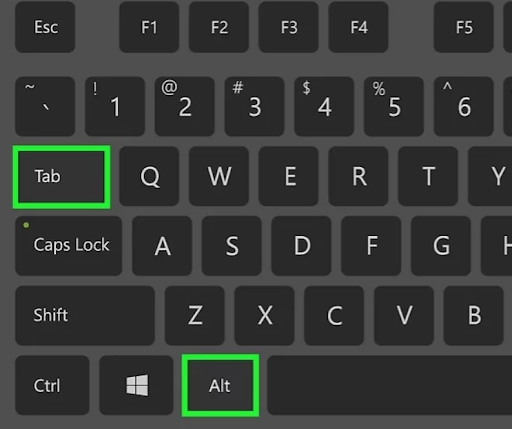
1. Use Alt + Tab
Alt + Tab is one of the easiest ways to switch between a running game and other open applications. This method works for both Windows 10 and Windows 11.
Follow these steps:
- While playing a game, press Alt + Tab on your keyboard.
- A window will appear showing your open applications.
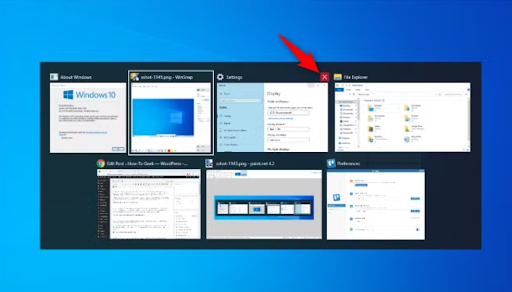
- Keep holding Alt and press Tab to select another application.
- Release both keys to switch to the selected window.
Your game will remain open in the background. You can use the same shortcut to switch back to it.
2. Use the Windows Key
You can also press the Windows key to access the Start menu while playing a game.
- Press the Windows key on your keyboard.
- The Start menu should appear.
- Open another application or select your desktop.
- Your game will remain running in the background.
This method works with many games, although some fullscreen games may block the Windows key.
3. Use Windows + D
The Windows + D shortcut takes you directly to your desktop by minimising open windows.
Here is how to use it:
- While playing your game, press Windows + D.
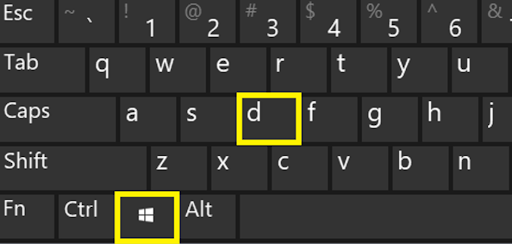
- Windows will minimize your open windows and show the desktop.
- You can now open other applications or access your desktop files.
- Press Windows + D again to restore your windows.
This is a quick way to access your desktop without closing the game.
4. Use Alt + Enter
If you are having trouble minimising a fullscreen game, try switching it to windowed mode.
- Open your game and press Alt + Enter.
- If supported, the game will switch from fullscreen to windowed mode.
- You can now minimize it using the minimize button in the window’s top-right corner.
Keep in mind that Alt + Enter does not work with every game. Some games also use different keyboard shortcuts for changing display modes.
5. Change the Game’s Display Mode
Another option is to change the display mode through your game’s settings. Most modern PC games offer fullscreen, windowed, and borderless windowed modes.
Follow these steps:
- Open your game’s settings.
- Go to the Display, Graphics, or Video section.
- Find the Display Mode option.
- Select Windowed or Borderless Windowed.
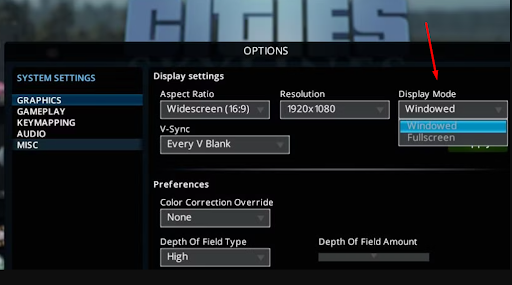
- Apply the changes and return to your game.
In windowed mode, the game runs inside a regular window that you can minimize using the minimize button.
Borderless windowed mode displays the game across your screen without the usual window borders. It also makes switching between applications easier in many games.
Does Minimizing a Game Pause It or Keep It Running?
Minimising a game does not always pause it. In most cases, the game continues running in the background, even when you switch to another application.
However, this depends on the game. Some games automatically pause when you minimize them or switch to another window. Others continue running, which means gameplay can carry on even when you are not looking at the screen.
Online multiplayer games usually remain connected when minimized. However, some may limit background activity or disconnect you after a period of inactivity.
If you want to leave a game running while doing something else, check its settings for options related to background activity or pausing when unfocused.
Final Thoughts
Minimising a game on your PC without closing it is easy once you know the right method. You can use shortcuts like Alt + Tab and Windows + D to switch to other applications or access your desktop.
If these shortcuts do not work, changing the game’s display mode to windowed or borderless windowed can help. Just remember that minimising does not always pause gameplay, as this depends on the game and its settings.
