

Input lag can make gaming frustrating, especially when your character does not respond as quickly as you expect. I have experienced this while playing games where even a small delay made aiming and moving feel difficult.
The good news is that you can often fix this issue without upgrading your gaming PC or buying new accessories. A few simple changes to your system and display settings can help. In this article, we will cover five key methods to reduce input lag in gaming. So, let’s get into it.
What Is Input Lag in Gaming?
Input lag is the delay between your action and the moment you see that action happen on the screen. For example, you might move your mouse to aim at an enemy, but the crosshair takes a moment to respond.
Some input lag is normal. However, too much can make controls feel slow and unresponsive. Reducing this delay helps your mouse, keyboard, or controller feel more responsive while you play.
What Causes Input Lag in Gaming?
Input lag can come from several parts of your gaming setup. Your PC, display, and peripherals can all contribute to the delay.
Common causes include:
- Low FPS: When your PC struggles to produce frames, your inputs may take longer to appear on the screen.
- Display Processing: Some TVs and monitors apply extra image processing that can increase delay.
- Incorrect Display Settings: A monitor running at a lower refresh rate may feel less responsive than expected.
- Wireless Interference: A weak or unstable wireless connection can affect some keyboards, mice, and controllers.
- System Performance Issues: Heavy background applications or outdated graphics drivers can affect game performance.
- V-Sync and Other Settings: Some graphics settings can increase the delay between your input and the displayed result.
Identifying the cause can help you choose the right fix instead of changing settings unnecessarily.
How to Reduce Input Lag in Gaming?
You do not always need new hardware to reduce input lag. A few changes to your display, game, and system settings may be enough to improve responsiveness.
Try these five methods one at a time. This will help you identify which changes make the biggest difference to your gaming experience.
1. Enable Game Mode on Your Display
Many gaming monitors and TVs include a Game Mode setting. It reduces certain image-processing effects that can delay what appears on the screen.
To enable it, open your monitor or TV’s on-screen menu using its physical buttons or remote. Look for Game Mode, Gaming Mode, or a similar option, and turn it on.
The exact name and location depend on your display model. If you play on a TV, this setting can be particularly helpful because TVs may apply extra processing to improve picture quality.
2. Increase Your Game’s FPS
FPS stands for frames per second. It tells you how many frames your gaming PC produces each second. Higher FPS can make controls feel more responsive, especially when your game is running at a low frame rate.
Here are a few ways to improve FPS:
- Lower demanding graphics settings, such as shadows and effects.
- Close unnecessary background applications.
- Reduce the resolution if your PC struggles to run the game smoothly.
- Enable NVIDIA Reflex or AMD Anti-Lag if your hardware and game support these features.
NVIDIA Reflex is designed to reduce system latency in supported games. AMD Anti-Lag can also help reduce input delay on supported hardware and software. Availability depends on your GPU, driver, and game.
Remember that higher FPS is most useful when your system can maintain it. If your game already runs smoothly, lowering every graphics setting may not provide a noticeable improvement.
3. Use a Wired Keyboard, Mouse, or Controller
Wireless peripherals are convenient, but their performance can depend on:
- Signal strength
- Interference
- Connection quality
A wired connection can help avoid some of these issues.
Try connecting your gaming mouse, keyboard, or controller directly to your PC using a USB cable. If the controls feel more responsive, the wireless connection may have been contributing to the delay.
However, wireless gaming devices are not always slower. Many modern gaming mice and controllers offer very low latency. If you prefer wireless devices, keep them charged and use the manufacturer’s recommended wireless receiver or connection method.
You can also check your mouse’s polling rate if the software provides that option. A higher polling rate allows the mouse to report its position more frequently, although the benefit depends on your hardware and game.
4. Update Your Graphics Drivers and Game
Outdated graphics drivers can cause performance problems, bugs, or compatibility issues in some games. Keeping your drivers updated may help improve performance and fix issues that contribute to poor responsiveness.
To update your graphics drivers:
- Identify your graphics card manufacturer, such as NVIDIA, AMD, or Intel.
- Open the manufacturer’s official driver software or website.
- Check for the latest compatible driver for your graphics card.
- Install the update and restart your PC if required.
You should also install available game updates. Developers sometimes release patches that improve performance or fix input-related issues.
An update will not automatically reduce input lag in every case. However, it is a useful troubleshooting step if the problem started after a game update, driver change, or system issue.
5. Optimize Your Display and Graphics Settings
Your monitor and in-game settings can have a noticeable effect on responsiveness. Make sure your display is using its highest supported refresh rate and review settings that may add delay.
Set your monitor to its highest refresh rate:
On Windows 11, follow these steps:
- Open Settings and select System > Display.
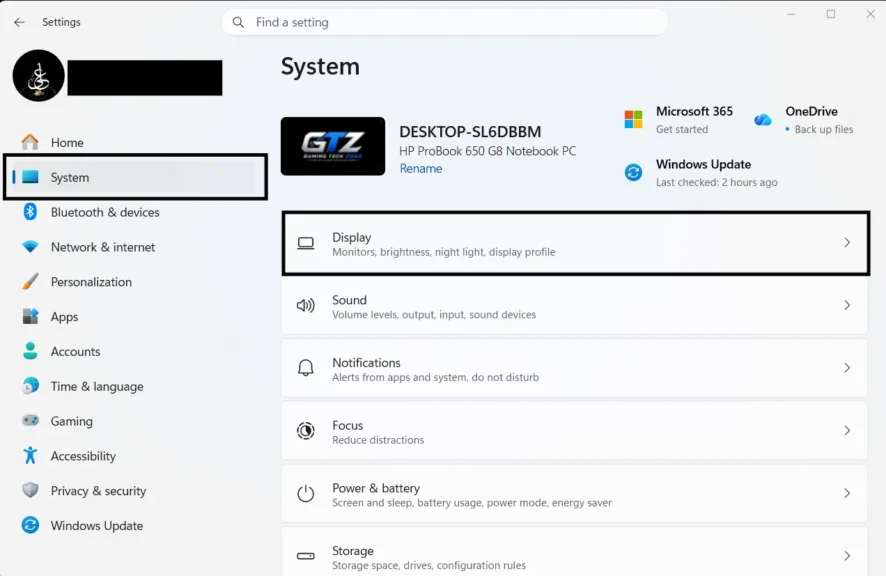
- Scroll down and select Advanced display.
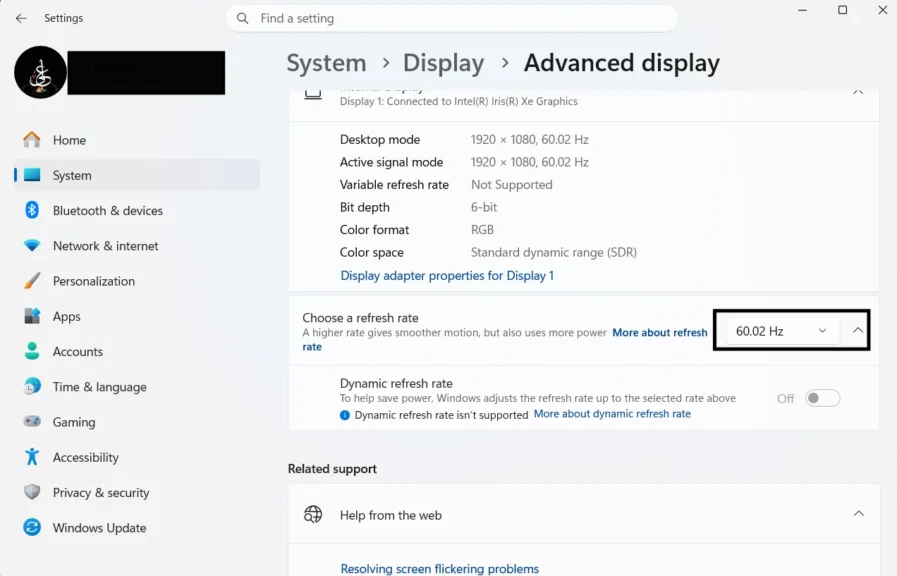
- Find the refresh rate option and choose the highest rate supported by your monitor.
The steps are similar on Windows 10, although the settings layout may differ. Make sure you use a compatible cable and connection, as some display combinations may limit the available refresh rates.
Review V-Sync and variable refresh rate settings:
V-Sync helps prevent screen tearing, but it can add input lag in some setups. Try turning it off in the game’s graphics settings and see whether the controls feel more responsive. You may notice more screen tearing as a result.
If your monitor supports NVIDIA G-SYNC or AMD FreeSync, these technologies can help reduce screen tearing and stuttering.
Their effect on input lag depends on your frame rate and configuration, so test the settings that work best for your setup. If you’re still confused about this, read my guide on “What is Vsync? How it Works and Should You Use it?” It will help you understand how V-Sync works and when to enable or disable it to reduce input lag.
Close unnecessary background applications:
Apps running in the background can use CPU, memory, and other system resources. Close programs you do not need while gaming, especially if your PC is struggling to maintain a stable frame rate.
Input Lag vs Response Time
Input lag and response time are related to how responsive a display feels, but they measure different things.
- Input Lag: The delay between sending an input and seeing the result on the screen.
- Response Time: How quickly a display pixel changes from one color or shade to another.
For example, low input lag helps your character respond quickly when you move your mouse. A fast pixel response time helps reduce visible smearing or ghosting when objects move across the screen.
When choosing a gaming monitor, consider both specifications. A monitor with a high refresh rate, low input lag, and fast pixel response time can provide a more responsive gaming experience.
Does Input Lag Affect All Games?
Input lag can affect all games, but you may notice it more in some genres than others.
Competitive first-person shooters, fighting games, and rhythm games often require quick reactions and precise timing. Even a small delay can make aiming, blocking, or hitting a note feel less accurate.
In slower games, such as turn-based strategy games or many story-driven adventures, input lag may be less noticeable. However, excessive delay can still make menus and basic controls feel sluggish.
Also, remember that network lag is different from input lag. Network lag happens when data takes too long to travel between your device and a game server. If other players teleport, actions register late online, or your connection feels unstable, the problem may be your network rather than your display or peripherals.
Final Words
Reducing input lag can make your games feel faster and your controls more responsive. Start by enabling Game Mode, improving FPS, and checking your monitor’s refresh rate. Then test your peripherals, update your drivers, and adjust graphics settings if needed.
You do not have to change everything at once. Try one method at a time and keep the settings that provide the best balance of responsiveness, smoothness, and visual quality.
People Also Ask
Lower input lag is generally better, especially for competitive games. The ideal amount depends on your display, gaming setup, and the type of game you play.
Yes, higher FPS can reduce the delay between your input and the image shown on the screen. The improvement depends on your hardware, game, and display refresh rate.
HDMI itself does not automatically cause noticeable input lag. However, the display’s processing, connection settings, and supported refresh rate can affect responsiveness.
Wired peripherals can avoid wireless interference and connection issues. However, many modern wireless gaming devices also provide very low latency, so the difference depends on the device and connection.
V-Sync can increase input lag in some setups, especially when frame rates are unstable. Turning it off may improve responsiveness, but it can also cause screen tearing.
