

Mouse DPI affects how quickly your cursor moves across the screen when you move your mouse. The right setting can make everyday tasks easier and help you aim more accurately in games.
It’s very simple to change mouse DPI, and yet I’ve seen many people struggle to do it. So, in this article, I am going to discuss how to change mouse DPI using different methods in simple and easy wording. Let’s get into it.
Key Takeaways
- Mouse DPI controls how far the cursor moves when you move your mouse.
- Use your mouse’s DPI button to switch between preset DPI levels.
- Use manufacturer software to select specific DPI values if your mouse supports it.
- Windows 10 and Windows 11 let you adjust pointer speed, but not the mouse’s actual DPI.
- For gaming, start with 800 DPI and adjust it to find a comfortable setting for your playstyle.
What Is Mouse DPI?
Mouse DPI stands for dots per inch. It measures how far your cursor moves on the screen when you move your mouse across a physical distance. A higher DPI makes the cursor move farther with the same hand movement, while a lower DPI makes it move a shorter distance.
For example, a mouse set to 800 DPI moves the cursor less than the same mouse set to 1600 DPI when you move it the same distance. This can affect how quickly you aim in FPS games or move between targets in strategy games.
However, DPI is not the only factor that affects cursor movement. Your Windows pointer speed and in-game sensitivity settings also play a role.
How to Change Mouse DPI?
There are several ways to change mouse DPI, depending on your mouse model. Here are the main methods you can try.
Change DPI Using the Mouse’s DPI Button
Many high-quality gaming mice, including Logitech G PRO X2 SUPERSTRIKE and Razer DeathAdder V4 Pro, have a dedicated DPI button, usually near the scroll wheel. You can use it to switch between preset DPI levels without opening any software.
Follow these steps:
- Look for a DPI button near your mouse’s scroll wheel or underneath the mouse.
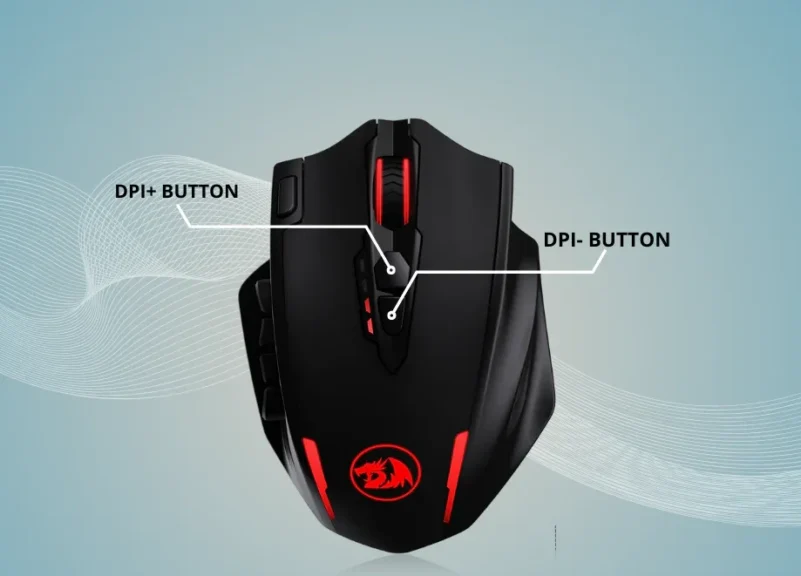
- Press the button once to switch to another DPI level.
- Move your mouse to check how quickly the cursor moves.
- Press the button again if you want to try a different setting.
Some gaming mice have indicator lights that show the selected DPI level. Others let you configure the available levels through their software.
Keep in mind that pressing the DPI button usually switches between preset levels rather than letting you enter an exact number. If you want a specific DPI value, try the manufacturer’s software.
Change Mouse DPI Using Manufacturer Software
Gaming mouse manufacturers often provide software that lets you adjust DPI more precisely. Depending on your mouse, you may be able to select a DPI value, set multiple levels, and assign different settings to different profiles.
Common examples include Logitech G HUB, Razer Synapse, and Corsair iCUE.
To change your DPI using this method:
- Download and install the software made for your mouse.
- Connect your mouse and open the software.
- Select your mouse from the available devices.
- Find the DPI or sensitivity settings.
- Choose your preferred DPI value or adjust the available levels.
- Save your changes if the software requires it.
For example, you can set your mouse to 800 DPI for FPS games and 1600 DPI for everyday computer use. If your mouse supports multiple DPI levels, you can switch between them using its DPI button.
The exact steps vary by manufacturer and model. Some basic office mice do not support software-based DPI adjustments.
Change Mouse Sensitivity in Windows 11
Windows 11 lets you change your mouse pointer speed through Settings. However, this changes how quickly the cursor moves on your screen rather than changing the mouse’s actual DPI.
Here is how to adjust it:
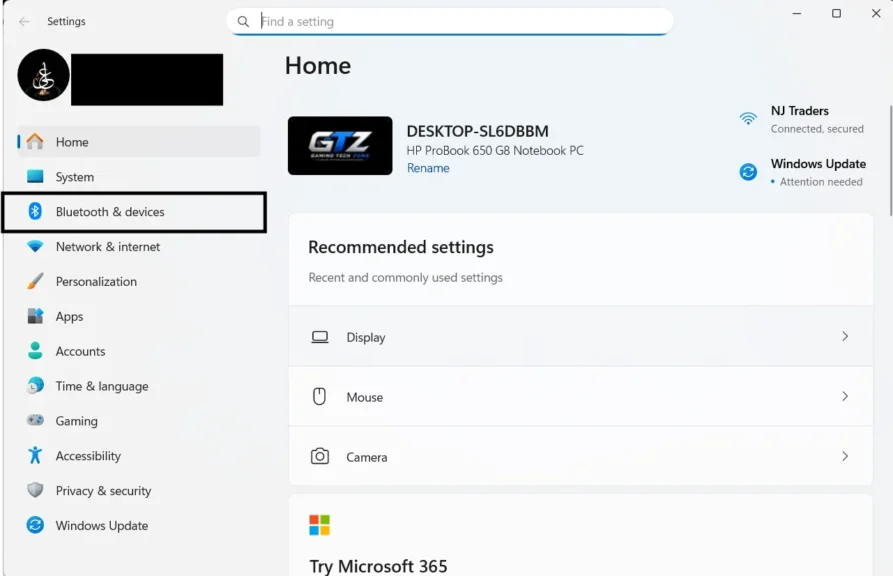
- Press Windows + I to open Settings.
- Select Bluetooth & devices.
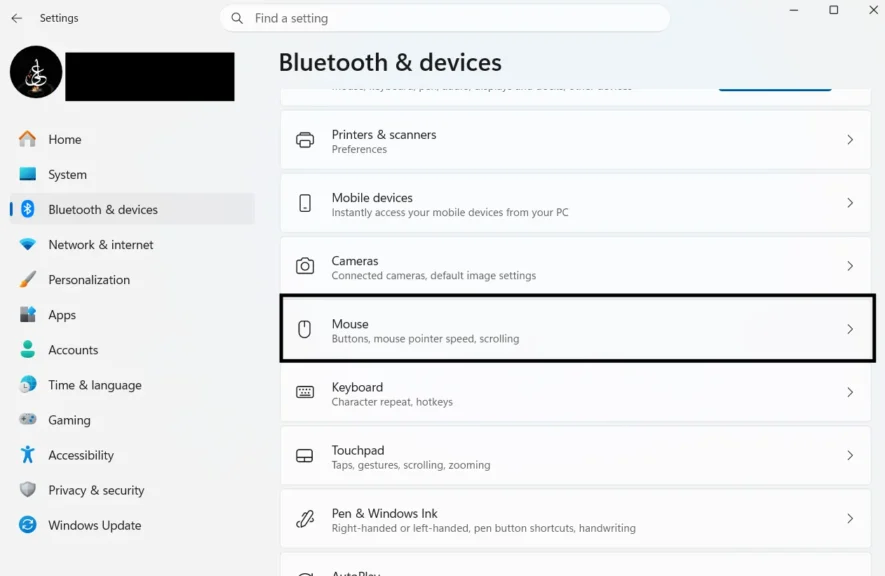
- Click Mouse.
- Find the Mouse pointer speed slider.
- Move the slider to the right to increase pointer speed or to the left to decrease it.
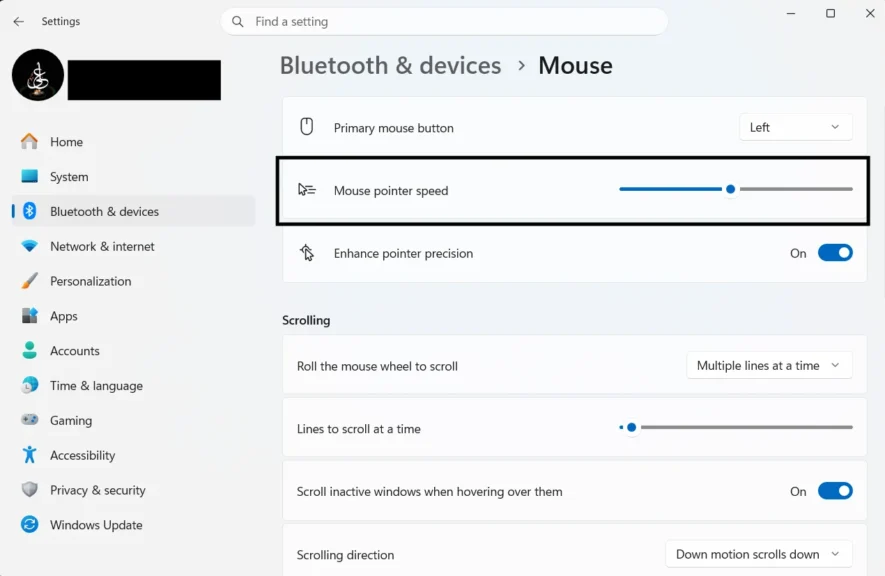
Move your mouse around after making the change to see how it feels. You can adjust the slider again until the cursor speed feels comfortable.
If you need to set an exact DPI value for gaming, use your mouse’s DPI button or manufacturer software instead.
Change Mouse Sensitivity in Windows 10
Windows 10 also lets you adjust mouse pointer speed through its settings. The process is slightly different from Windows 11.
Follow these steps:
- Press Windows + I to open Settings.
- Select Devices.
- Then click Mouse.
- Now, move the pointer speed slider to adjust cursor speed.
Moving the slider to the right makes the pointer move faster, while moving it to the left makes it slower.
Like Windows 11, Windows 10 does not let you set your mouse’s actual DPI through this slider. Use your mouse’s dedicated DPI button or compatible software if you want to change the DPI value itself.
What DPI Should You Use for Gaming?
The best mouse DPI depends on the game you play, your mouse movement, and your personal preference. A higher DPI is not automatically better for gaming. Many players prefer lower DPI settings in FPS games because they make small aiming adjustments easier.
Here are some starting points you can try.
| Gaming or computer use | Suggested DPI |
|---|---|
| Everyday computer use | 800–1600 |
| FPS games | 400–1600 |
| MOBA games | 800–1600 |
| Strategy games | 800–1600 |
| High-resolution displays | 1600–3200 |
These values are general suggestions, not strict rules. Some players prefer lower or higher settings depending on their mouse and playing style. When using gaming PCs with high-resolution monitors, a higher DPI may help you move the cursor across the screen with less physical mouse movement.
For FPS games, try starting at 800 DPI and adjust your in-game sensitivity until aiming feels comfortable.
If your aim feels too fast, lower the DPI or in-game sensitivity. If you frequently run out of mousepad space when turning, try increasing one of these settings.
Also, remember that your total aiming sensitivity depends on both DPI and in-game sensitivity. Two players using the same DPI can have very different aiming speeds because their in-game settings differ.
Final Words
You can change mouse DPI using a dedicated button or your mouse’s manufacturer software. These methods let you switch between preset levels or select a specific DPI value, depending on your mouse.
Windows settings provide another option if you only want to adjust cursor speed. For gaming, start with a comfortable DPI and test it in your favorite game. Make small adjustments until you find a setting that suits your playing style.
People Also Ask
Yes, if your mouse has a dedicated DPI button. Press it to switch between the available DPI levels. If your mouse does not have this button, check whether its manufacturer’s software supports DPI adjustments.
No. DPI measures how far the mouse cursor moves in response to physical mouse movement, while pointer speed is a Windows setting that changes how quickly the cursor moves on the screen. Both can affect how your mouse feels.
A DPI between 400 and 1600 is a common starting range for FPS games. Try 800 DPI first, then adjust your in-game sensitivity to find a comfortable balance between fast turns and accurate aiming.
800 DPI is often better for precise aiming in FPS games, while 1600 DPI makes the cursor move faster with the same hand movement. The better choice depends on your playing style and comfort.
It depends on the mouse. Some office mice have a DPI button that switches between preset levels, while others have fixed DPI settings. If your mouse does not support DPI adjustment, you can still change its pointer speed in Windows settings.
