
Low FPS can make even a good game feel frustrating. I have experienced this myself while playing Assassin’s Creed Black Flag, where the game could feel slow and struggle to maintain a smooth FPS on my older PC.
It showed me that low FPS is not always caused by one simple problem. Hardware limitations, high graphics settings, background apps, outdated drivers, and overheating can all affect performance.
If you are wondering why your FPS is so low, finding the actual cause is the first step. Once you know what is limiting your PC, you can make the right changes instead of randomly lowering every setting.
Key Takeaways
- Low FPS can be caused by weak hardware, high settings, overheating, or software issues.
- A weak GPU or CPU can limit your game’s performance.
- High temperatures can cause your CPU or GPU to slow down.
- Lowering graphics settings and closing background apps can improve FPS.
- Checking CPU, GPU, RAM, and temperatures can help identify the problem.
What Does FPS Mean in Gaming?
FPS stands for frames per second. It tells you how many individual frames your gaming PC can produce and display each second while you play a game.
For example, 60 FPS means the game is producing about 60 frames every second. Higher FPS generally makes movement look smoother, while low FPS can make the game feel choppy.
Your FPS can also change during gameplay. You might get 80 FPS while exploring an area but drop to 40 FPS during a busy fight. These sudden changes are known as FPS drops.
Why is My FPS So Low?
There could be a number of reasons why your FPS is low. These reasons are usually related to your hardware, system settings, or the game itself. Here are the details of the major ones:
Your GPU Is Not Powerful Enough
Your graphics card, or GPU, does most of the work involved in rendering game visuals. If your GPU is too weak for a particular game, you may get consistently low FPS.
This is more common when playing newer games on older graphics cards. Running the game at a high resolution or using demanding graphics settings can also put extra pressure on the GPU.
Check the game’s minimum and recommended requirements to see if your GPU meets them.
How to Fix This?
If your GPU is struggling, you can reduce the load by lowering graphics settings or the game’s resolution. You can also enable an upscaling feature such as DLSS, FSR, or XeSS if the game supports it.
If the GPU still cannot provide the FPS you want after lowering the settings, upgrading to a more powerful graphics card may be necessary.
In that case, you can read our comparison of several suitable graphics cards, including NVIDIA GeForce RTX 3080 vs 4080, RTX 4080 and RTX 4080 Super, and RTX 3090 vs 4080.
Your CPU Is Limiting Performance
The CPU also affects gaming performance. It handles things such as game logic, physics, AI, and other calculations.
A weak or older CPU can limit FPS even when you have a capable GPU. You may notice this more in games with large maps, many characters, or complex simulations.
If your GPU usage stays relatively low while your CPU is working heavily, the CPU could be limiting your FPS.
How to Fix This?
Start by closing unnecessary background programs to free up CPU resources. You can also lower CPU-heavy game settings, such as view distance, crowd density, or other settings related to game simulation.
If the CPU remains the main limitation, upgrading to a newer CPU may be the practical solution.
Your PC Is Overheating
High temperatures can cause your CPU or GPU to reduce its speed to protect itself. This is known as thermal throttling, and it can lead to lower FPS.
Heat can build up because of dust, poor airflow, high room temperatures, or a cooling system that is not working properly.
If your FPS starts high and falls after playing for a while, check your CPU and GPU temperatures.
How to Fix This?
- Clean dust from your PC’s fans, vents, and other cooling areas.
- Make sure your PC has enough space around its vents for proper airflow.
- Check that your case fans are working properly.
- For a gaming laptop, avoid using it on soft surfaces that can block the vents.
- If temperatures remain high, consider having the cooling system checked or serviced.
Too Many Background Apps Are Running
Other programs can use your CPU, RAM, and sometimes GPU while you are gaming. A web browser with many tabs, video software, launchers, and other apps can all consume system resources.
This can leave fewer resources available for your game and may cause lower FPS or stuttering.
Before starting a demanding game, close apps you do not need. You can also use Task Manager to see which programs are using the most resources.
How to Fix This?
- Press Ctrl + Shift + Esc to open Task Manager.
- Look for programs using a large amount of CPU, memory, or GPU resources.
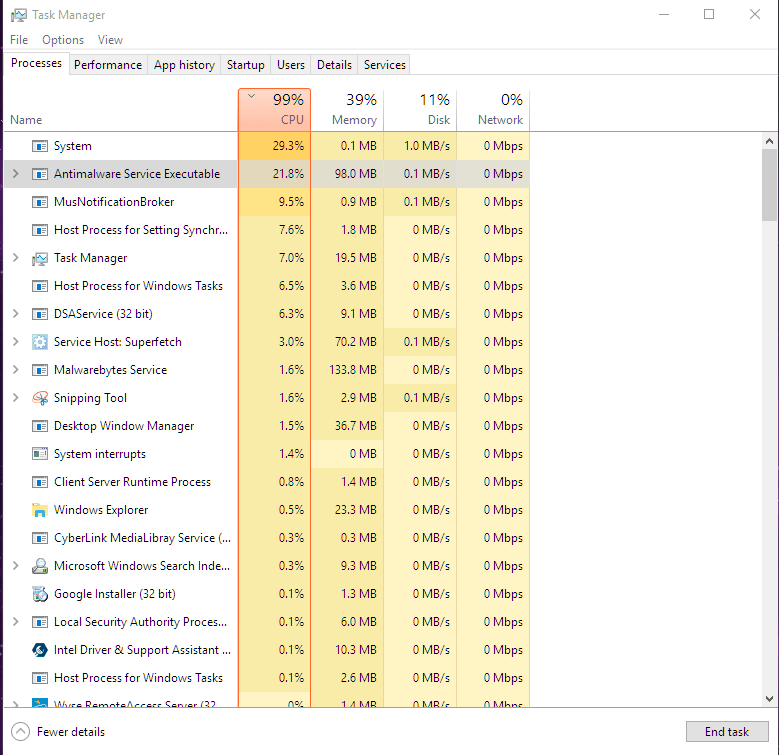
- Close apps that you do not need while gaming.
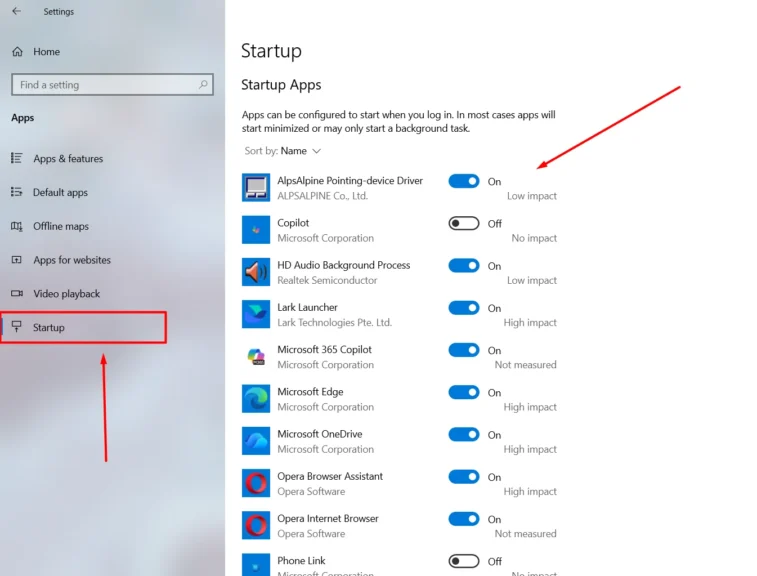
- Check the Startup apps section and disable unnecessary programs that automatically launch with Windows.
Your Graphics Settings Are Too High
High graphics settings can put a heavy load on your GPU. Settings such as shadows, reflections, ambient occlusion, and anti-aliasing can have a noticeable effect on FPS.
You do not always need to lower every setting. Start with the options that have the biggest performance impact and keep less demanding settings higher if your PC can handle them.
How to Fix This?
- Open the game’s graphics or video settings.
- Lower demanding options such as shadows, reflections, and ambient occlusion.
- Reduce anti-aliasing if you still need more FPS.
- Test the game after changing a few settings to see which ones have the biggest effect.
- Keep settings that have little impact on FPS higher if you prefer better visual quality.
Your Graphics Drivers Are Outdated
Graphics drivers help Windows and games communicate properly with your GPU. Older drivers can sometimes cause performance problems, bugs, or compatibility issues.
NVIDIA, AMD, and Intel regularly release driver updates that can include improvements for newer games.
If you have not updated your graphics driver in a while, check your GPU manufacturer’s software or website for a newer version.
How to Fix This?
- Open your GPU manufacturer’s software, such as NVIDIA App, AMD Software, or Intel Graphics Software.
- Check for available driver updates.
- Download and install the latest compatible driver.
- Restart your PC if the driver installation asks you to do so.
Your Windows Needs an Update
Windows updates can include system fixes, security improvements, and compatibility changes that can affect gaming.
An outdated version of Windows may also cause problems with newer games or drivers.
How to Fix This?
- Open Settings from the Start menu.
- Go to Windows Update.
- Select Check for updates.
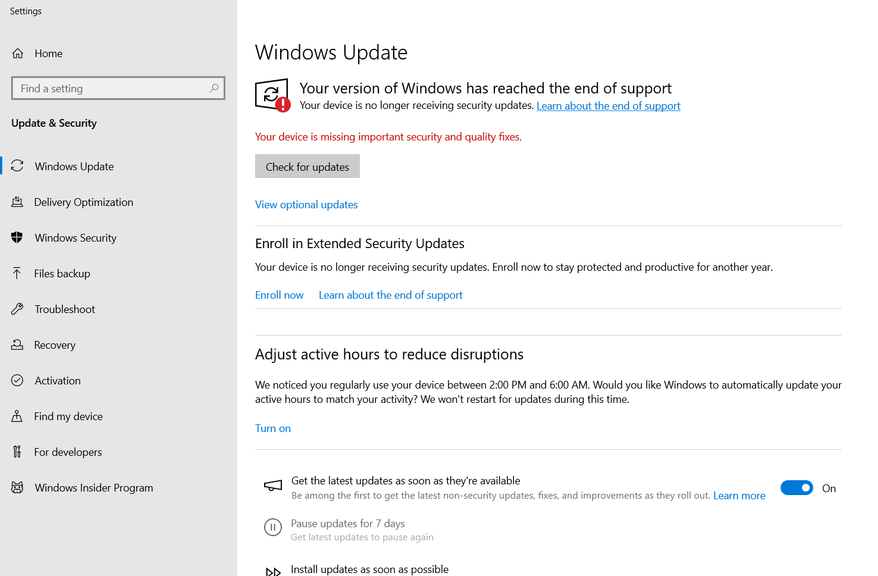
- Install any available updates.
- Restart your PC if required.
If you are using Windows 11, there are different ways to optimize it for better gaming performance. I have written a complete guide on “How to Optimize Windows 11 for Gaming”. This guide covers useful details on how you can get the best out of Windows 11 in order to get better gaming performance.
Your PC Is Using a Power-Saving Mode
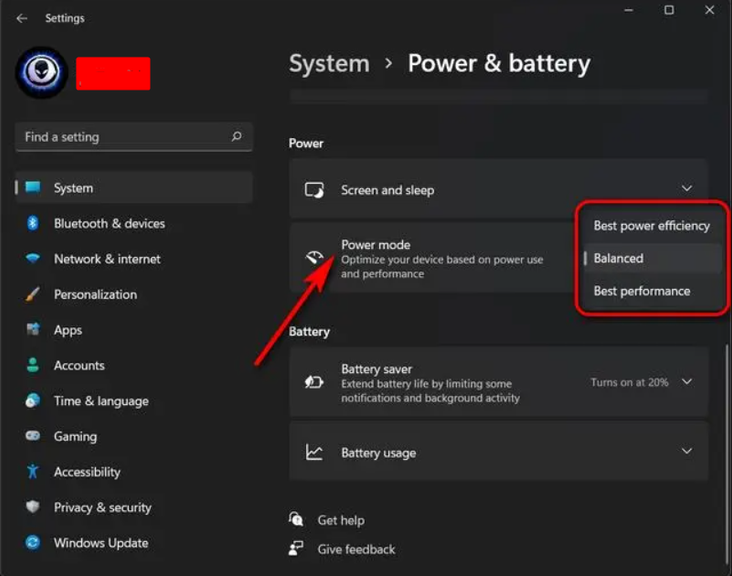
Windows can limit system performance when a power-saving mode is active. This is particularly common on laptops running on battery power. If you are gaming on a plugged-in laptop or using a desktop PC, check your Windows power settings and select an appropriate performance mode.
How to Fix This?
- Open Settings > System > Power & battery on Windows 11.
- Find the Power mode option.
- Select Best performance when gaming on a plugged-in laptop or desktop PC.
- If you are on a laptop, keep it plugged in when playing demanding games.
V-Sync or an FPS Limit Is Capping Your FPS
Sometimes your FPS is not actually low. It is simply being limited by a game setting.
V-Sync can limit your FPS to match your monitor’s refresh rate. For example, a 60 Hz monitor may result in a 60 FPS limit when V-Sync is enabled.
Games can also have their own FPS limit settings. Check the graphics or display settings and make sure you have not accidentally set a low frame-rate limit.
How to Fix This?
- Open the game’s graphics, display, or video settings.
- Find the V-Sync option and turn it off if you do not want it limiting your FPS.
- Look for FPS Limit, Frame Rate Limit, or a similar option.
- Increase the limit or disable it if you want the game to run above the current cap.
- Keep in mind that V-Sync can also help reduce screen tearing, so disabling it is not necessary if you are happy with your current FPS.
Your RAM or Storage Is Causing Problems
Insufficient RAM can make it harder for your PC to handle a game and other programs at the same time. This can lead to stuttering and performance problems.
Storage can also play a role. A drive that is almost completely full may cause other system issues, while slower storage can increase loading times and contribute to some stuttering.
Check your RAM usage while the game is running and make sure your main storage drive has enough free space.
How to Fix This?
If your PC regularly runs out of RAM while gaming, upgrading to more RAM can give games and other programs more memory to work with.
If your storage drive is old or too slow, upgrading to an SSD can improve loading times and may help with some stuttering. Adding more storage can also help if your current drive is almost full.
How to Find What Is Causing Low FPS?
Before changing settings, check what is using your PC’s resources while the game is running. Task Manager and an in-game performance overlay can help you identify the problem.
- GPU Usage: High GPU usage usually means the GPU is working at its limit.
- CPU Usage: High CPU usage with lower GPU usage can point to a CPU limitation.
- Temperatures: Check if CPU or GPU temperatures rise when FPS drops.
- RAM Usage: If your RAM is nearly full, background apps or insufficient memory may be causing problems.
- Different Games: If FPS is low in several games, your hardware or system may be the issue. If only one game has the problem, check its settings, files, and updates.
When Should You Upgrade Your PC?
Before upgrading your PC, make sure software, temperatures, and game settings are not causing the problem. If your PC still struggles after checking these things, its hardware may simply be too old or weak for the games you want to play.
Check the game’s requirements against your CPU, GPU, and RAM. If the GPU is consistently the limit, a graphics card upgrade may help. If the CPU is holding back performance, you may need a newer processor and potentially a new motherboard.
You do not always need to replace the entire PC. Upgrading the component that is causing the biggest limitation can be enough.
Final Words
Low FPS can have many causes, from high graphics settings and outdated drivers to overheating or hardware limitations.
The easiest way to solve the problem is to check your GPU, CPU, temperatures, and RAM while the game is running. Once you know what is limiting performance, you can make the right settings changes or decide if a hardware upgrade is needed.
People Also Ask
A sudden FPS drop can be caused by high temperatures, background apps, driver problems, or a recent game or Windows update. Check your system usage and temperatures first.
Your CPU, RAM, temperatures, or game settings could still be limiting performance. An FPS cap or V-Sync can also make your FPS appear lower than expected.
Yes. High CPU or GPU temperatures can cause the hardware to reduce its speed. This can lower FPS, especially after playing for some time.
More RAM does not always increase FPS. It can help if your PC does not currently have enough RAM and is struggling to run the game and other programs.
Start by lowering demanding graphics settings and checking for background apps, driver updates, high temperatures, and FPS limits. If your hardware is below the game’s requirements, you may need an upgrade.
