
Are you running out of storage to install your favorite games on PC? I have been in this same situation. Fortunately, there are a few methods that you can try to get more storage on your PC to download and install heavy games.
The simplest way is to add an extra storage drive to your computer or upgrade the one you already have. Besides this, there are a few other options that you can try out. In this quick guide, I will cover each option in detail. Let’s start.
A Quick Look at Ways to Get More PC Storage
| Method | What It Involves | Best For |
|---|---|---|
| Add a New Internal Drive | Install an additional SSD or HDD in your PC | Adding a large amount of storage |
| Upgrade Your Existing Drive | Replace your current drive with a higher-capacity one | PCs with limited drive slots |
| Use External Storage | Connect an external SSD or HDD to your PC | Portable storage and extra game space |
| Clear Up Storage | Delete unnecessary files, apps, and old games | Freeing up space without spending money |
| Use Cloud Storage | Move personal files to online storage | Freeing local space used by photos, videos, and documents |
How to Get More Storage on Your Gaming PC?
There was a time when 500 GB of storage was enough for gamers. But times have changed now. These days, even a single AAA game requires 100 GB for installation.
So, if you want to install multiple heavy games, you have to keep upgrading your PC by adding storage.
Here are some of the main options you have when it comes to getting more storage on a PC:
Method #1. Add a New Internal Storage Drive
The first method that you can try is adding a new internal storage drive to your computer. When upgrading your PC, you get multiple options when you’re upgrading RAM for your PC. In the same way, you have similar choices when upgrading the storage.
You can buy an SSD or HDD according to your storage needs and budget.
When I was planning my storage upgrade, I realized that I also needed to understand how to choose a motherboard for future storage upgrades. I did not want to end up with a motherboard that had limited SATA ports or M.2 slots.
You may face the same issue when building a new PC or replacing your current motherboard. So, make sure you go with the option that is compatible with the storage drives you plan to use.
A motherboard with enough SATA ports and M.2 slots gives you more options to add SSDs and HDDs later. So, choosing the right motherboard can make future storage upgrades much easier.
SSD vs HDD: Which One Should You Choose?
If you are adding a new drive mainly for gaming, an SSD is usually the better option. However, SSDs are available with different interfaces and speeds, so it is worth checking what your PC supports before buying one.
Some common options available for gamers are PCIe 4.0 and PCIe 5.0 SSDs, and they can offer very high speeds. However, you need a compatible M.2 slot to use them properly.
The following table will help you pick a better option.
| Feature | SSD | HDD |
|---|---|---|
| Gaming speed | Faster | Slower |
| Game loading times | Shorter | Longer |
| Price per GB | Higher | Lower |
| Storage capacity | Usually lower for the price | Usually higher for the price |
| Best for | Frequently played games | Large game libraries and files |
| Noise | Silent | Can make noise |
Method #2. Upgrade Your Existing Drive
Another simple method that you can try is upgrading your existing storage drive. Instead of adding more drives, you can simply replace the one you have with an expanded version.
For example, if your current drive is 500 GB, buy a new drive that has storage of 1 TB or 2 TB. Then, install this drive on your computer and start enjoying heavy games.
Method #3. Use External Storage Devices
This method is similar to the first method. However, instead of installing an internal drive, you use an external one. An external drive works in the same way but gives you the option of carrying your game library and other large files between different PCs.
I have specifically added this method for people who game on laptops. Having a gaming laptop is completely worth it. But it comes with a consequence. You usually have fewer options for adding internal storage compared with a desktop PC.
An external SSD can solve this problem by giving you extra space without changing the internal hardware.
Almost all the major brands like Samsung, SanDisk, and Crucial are now selling these types of drives that you can use without having to install them inside your computer.
What to Consider Before Buying an External Storage Device?
There are a few things I usually keep in mind when it comes to buying an external storage device:
- Choose a drive with enough storage for the games and files you plan to keep on it.
- An external SSD is a better choice if you want faster game loading times.
- Check the USB connection to make sure it can provide the speed you need.
- Pick a smaller and lighter drive if you plan to carry it between different PCs.
- Compare prices from different brands to find an option that fits your budget.
Method #4. Clear Up Your Computer Storage
If you don’t want to buy a new storage drive, you can first clear some space on your existing one. Temporary files, old downloads, unused applications, and other unnecessary files can take up a lot of storage over time.
Windows has a built-in Storage section that shows what is using space on your drive. You can then remove unnecessary files or uninstall games and applications that you no longer use.
This method can give you extra space without buying a new drive. However, it may not be enough if your drive is already full of heavy games.
Here’s a practical guide that you can follow to clear up storage:
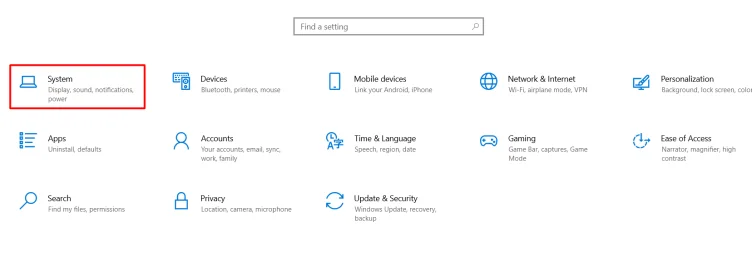
- Go to Settings and open System.
- Open Storage on your Windows PC.
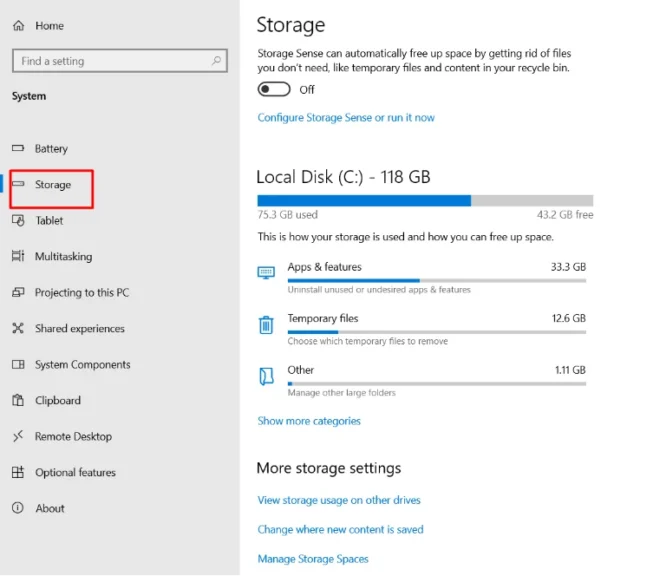
- Check which files, apps, and other items are taking up the most space.
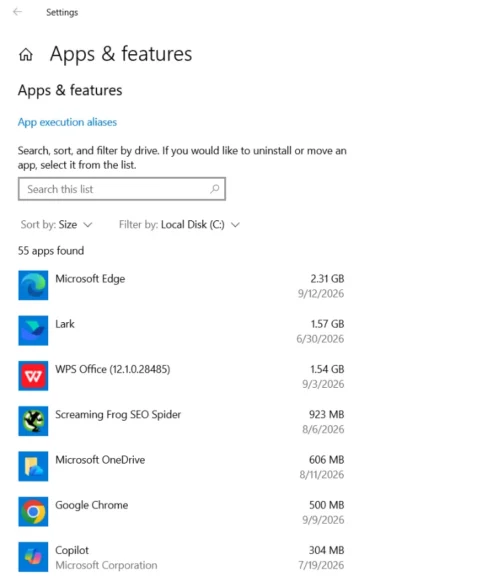
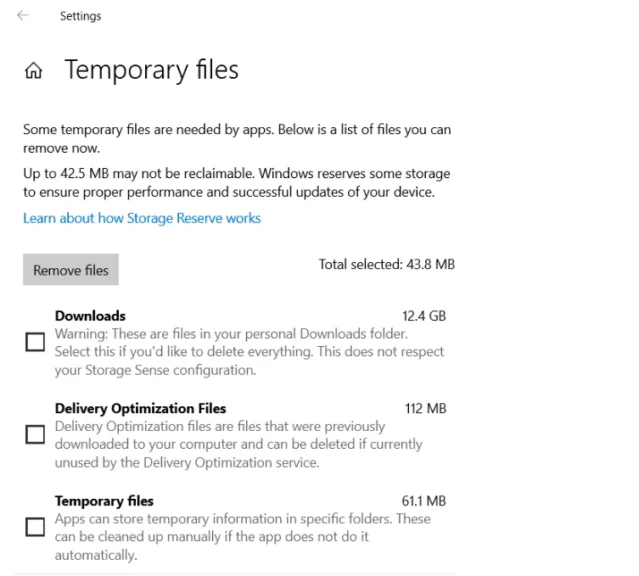
- Open Temporary files and remove files you no longer need.
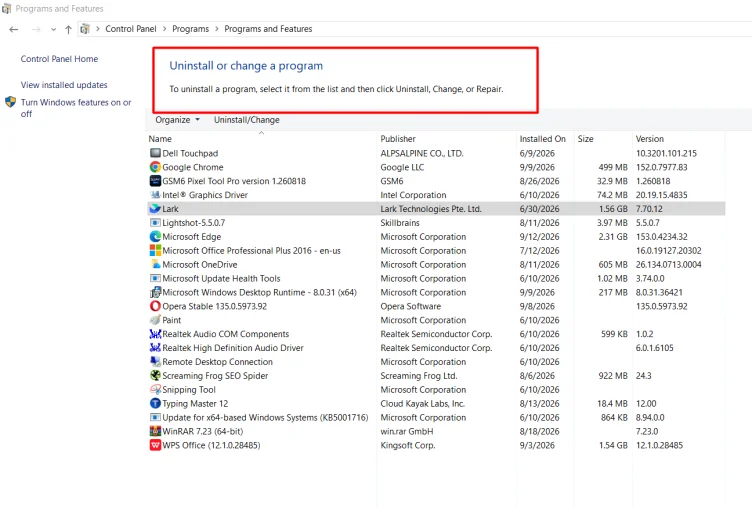
- Uninstall games and applications that you no longer use.
- Check your Downloads folder and delete old files and installers.
- Empty the Recycle Bin to permanently remove deleted files.
Method #5. Utilize Cloud Storage
You can also use cloud storage for large personal files such as photos, videos, and documents. Uploading these files can free up local storage for your games. This method is particularly useful for people with cheap gaming PCs who don’t have enough money to spend on expensive storage devices.
Services like Google Drive, OneDrive, and Dropbox let you access your files without keeping everything stored on your PC. However, cloud storage is not a replacement for a gaming drive. You still need enough local storage to install and run your games.
Best Cloud Storage Services
There are a bunch of different cloud storage services that are useful for PC gamers. They include:
- Google Drive: Good for storing personal files and documents.
- OneDrive: A convenient option for Windows users.
- Dropbox: Useful for syncing files across multiple devices.
- iCloud Drive: Best suited for users who also have Apple devices.
- MEGA: A good option for storing large personal files.
What Method is the Best Option for You?
The best option depends on how much storage you need, how you use your PC, and your budget. If you regularly install large games, adding or upgrading an internal SSD is usually the most practical choice. An external SSD is better if you want extra storage that you can move between different PCs.
If you only need some extra space, start by clearing unnecessary files and uninstalling games you no longer play. You can also move personal files such as photos and videos to cloud storage to free up space for games.
How Much Does Increasing a PC’s Storage Cost?
The cost of increasing PC storage depends on the type, capacity, and brand of the storage drive you choose.
- 1TB HDD (internal): roughly $45–$60
- 2TB HDD (internal): roughly $90–$230, depending on brand and use case (NAS/enterprise drives cost more)
- 1TB SATA SSD: roughly $90–$150
- 1TB NVMe SSD: roughly $150–$260
- 2TB SSD (SATA/entry NVMe): roughly $110–$160
- 2TB SSD (Gen4 NVMe): roughly $190–$350
- External portable drives (1TB–2TB): roughly $50–$100, though pricier branded models (like Samsung T9) can run higher
- Cloud storage (Google Drive, OneDrive, Dropbox): typically $2–$10/month for 100GB–2TB plans
How to Prevent Your PC Storage from Getting Full Quickly?
You can avoid running out of storage by keeping your PC organized and monitoring how much space is available. These simple habits can help:
- Keep at least 10–20% of your drive free for Windows and other software.
- Uninstall games and applications that you no longer use.
- Delete old downloads, temporary files, and unused installers regularly.
- Move photos, videos, and other large personal files to external or cloud storage.
- Check your storage usage before installing large games.
- Store large games on a separate drive if your PC has multiple drives.
- Use Storage Sense in Windows to automatically remove some unnecessary files.
Final Thoughts
Running out of storage can be frustrating when you want to install a new game. You can add a new internal drive, upgrade your existing drive, or use an external storage device for more space.
If you don’t want to spend money, clearing unnecessary files and using cloud storage can also help. Choose the method that fits your PC, budget, and gaming needs to keep enough space for your favorite games.
