

Your Xbox account stores your games, Game Pass subscription, payment details, and saved progress, so keeping it secure is important. I have used Xbox accounts for years, and I know how frustrating it can be to deal with account access issues.
Two-factor authentication (2FA) adds an extra verification step after your password, making it harder for someone else to access your account. In this guide, I’ll show you how to enable 2FA on Xbox in 2026.
Quick Takeaways
- Xbox 2FA is managed through your linked Microsoft account.
- Open Microsoft account security settings to find Two-step verification.
- Select Turn on and complete the verification setup.
- Microsoft Authenticator is one of the supported ways to verify your identity.
- Keep your recovery information available in case you lose access to your usual method.
What Is Two-Factor Authentication (2FA) on Xbox?
Two-factor authentication (2FA) adds an extra verification step when you sign in to your Xbox account. After entering your password, you may need to enter a security code or approve the sign-in using a method such as Microsoft Authenticator.
This makes it harder for someone to access your account with your password alone.
Microsoft calls this feature two-step verification. Since your Xbox account uses a Microsoft account, you will see this term in the security settings when you enable 2FA.
Xbox itself is a very reliable console, and most gaming sessions are smooth. Not being able to refund a game on this console is one of them. So, if you are struggling with this issue, you should read our detailed guide on how to refund a game on Xbox. It will give you a practical action plan to make sure you follow the correct steps and know what to expect during the refund process.
What Will You Need Before You Start?
Before turning on 2FA, make sure you have the following ready:
- A Microsoft account linked to your Xbox profile
- At least one available verification method, such as a recovery email or authenticator app
- The Microsoft Authenticator app installed on your phone if you plan to use it
If you also use the same Microsoft account for gaming on PC, account security is only one part of keeping your setup ready for newer games. As games become more demanding, you may also need to consider upgrading your gaming PC to improve performance and meet newer system requirements.
Microsoft is phasing out SMS as an authentication and account recovery method for personal accounts, so using an authenticator app or another supported method is a better choice for your account.
How to Enable 2FA on Xbox Step by Step?
The setup happens on your Microsoft account, not inside the Xbox console menus themselves. Here is the process from start to finish.
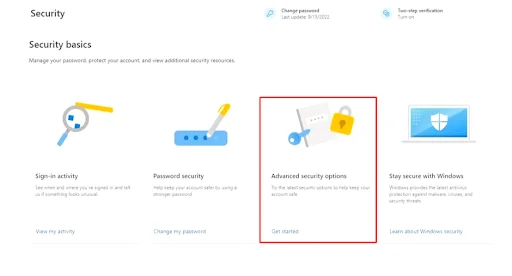
- Go to account.microsoft.com/security in your browser and sign in with the Microsoft account linked to your Xbox.
- Select Advanced security options, or Manage how I sign in, depending on which layout you see.
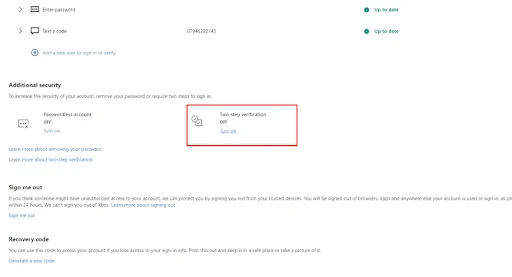
- Look for Two-step verification under the Additional Security section and choose Turn on.
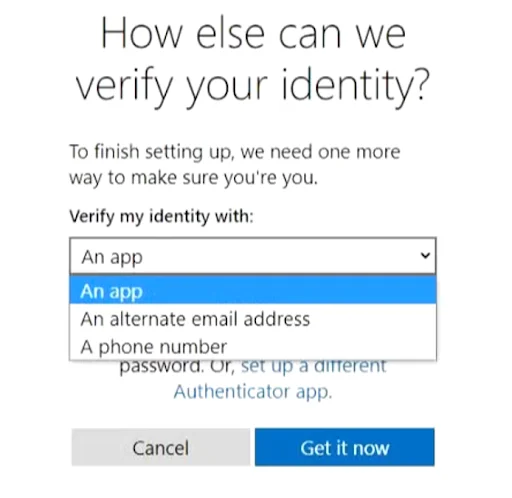
- Follow the prompts to confirm your identity using your phone, email, or the Authenticator app.
- Save the backup codes Microsoft provides before you finish.
Once this is done, your Xbox account is protected everywhere you use that Microsoft login, including on your console, gaming PC, and mobile devices.
What Are the Benefits of Enabling 2FA on Xbox?
Enabling 2FA adds another layer of protection to the Microsoft account you use for Xbox. It can help protect your account even if someone gets hold of your password.
Protects Your Xbox Account From Unauthorized Access
A password alone may not be enough to protect your account if it is stolen or exposed. With 2FA enabled, an attacker also needs access to your second verification method to sign in.
Helps Protect Your Games and Purchases
Your Microsoft account can contain purchased games, Game Pass access, payment information, and other account data. Adding 2FA makes it harder for someone else to access these details through your account.
Protects Other Microsoft Services
The same Microsoft account may also be used for services such as Outlook, OneDrive, and Microsoft Store purchases. Enabling 2FA therefore adds protection beyond your Xbox profile.
Reduces the Risk of Account Takeover
Even if someone obtains your password, 2FA can prevent them from completing the sign-in without the additional verification step. This gives your account another layer of protection against unauthorized access.
Common 2FA Issues and How to Fix Them
During the 2FA setup, I ran into a few technical errors with verification codes and the Authenticator app. Knowing how to deal with these problems can save you time if something goes wrong during setup. Xbox isn’t the only console that shows errors.
It happens in PlayStation as well. One of the mostt annoying error is related to DNS. As a PS5 player, if you are facing this issue, it’s important to take a look at our guide on how to fix DNS error on PS5 so that you can identify the cause of the connection problem efficiently and get your PS5 back online.
Not Receiving Codes
Check that your email address or other security information is current. If you are using email, also check your spam or junk folder. If the code still does not arrive, try another available verification method.
Authenticator App Not Syncing
Make sure your phone’s date and time are set automatically and that the Authenticator app is up to date. Also check your internet connection if you are expecting a sign-in notification.
Locked Out After a New Phone or Factory Reset
Try restoring your Authenticator account on the new device or use another available verification method. You may need to sign in again or complete additional verification before the account can be used.
Conclusion
Enabling 2FA on Xbox adds another layer of protection to your Microsoft account. To turn it on, open your Microsoft account security settings, find Two-step verification, and complete the setup.
Once enabled, you will need an additional verification step when Microsoft requires it during sign-in. Keep your security and recovery information up to date so you can regain access if you lose your usual verification method.
