

Are you having trouble turning off your Xbox controller after gaming on your PC? I had the same issue when I first started using an Xbox controller with my PC. I could connect it easily, but turning it off was not as clear.
After trying different methods, I found that the process is quite simple. In this guide, I’ll show you how to turn off an Xbox controller on a PC using different connection methods. I’ll also cover what to do if your controller stays on or keeps reconnecting.
Quick Answer: Fastest Way to Turn Off an Xbox Controller
If you just want the quick steps, use the Xbox button:
- Find the Xbox button in the center of the controller.
- Press and hold it for about 6 seconds.
- Wait for the Xbox light to turn off.
- Release the button when the light goes out.
The controller is now turned off. This method works with most modern Xbox wireless controllers connected to a PC, including Xbox One, Xbox Series X|S, and Xbox Elite controllers.
How to Turn Off Xbox Controller on PC?
There are several ways to turn off an Xbox controller on a PC or a gaming laptop. The best method depends on how your controller is connected, so let’s look at each option below.
Method 1: Turn Off via the Guide Button
This is the go-to method for wireless and Bluetooth-connected controllers, and it works regardless of which Xbox controller generation you own.
Here’s how to do it:
- Locate the Guide button in the center of the controller
- Press and hold it for 6 to 10 seconds
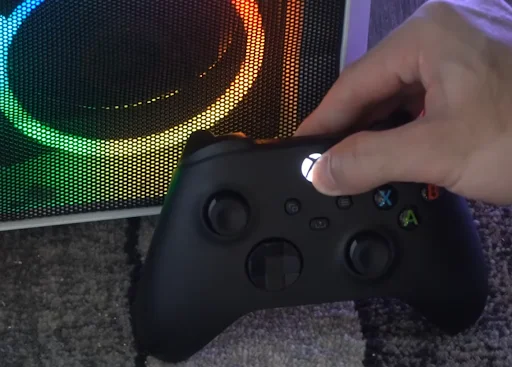
- Watch for the light to fade and turn off completely
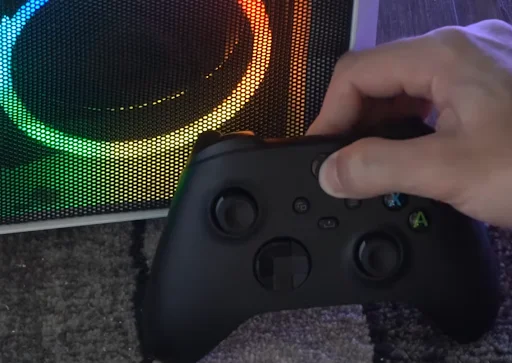
- Release the button once the light is off
The controller is now powered down and will need to be reconnected the next time you want to use it.
Important Note
A quick press of the Xbox button may open Xbox Game Bar instead of turning off the controller. To change this:
- Open Settings and go to Gaming.
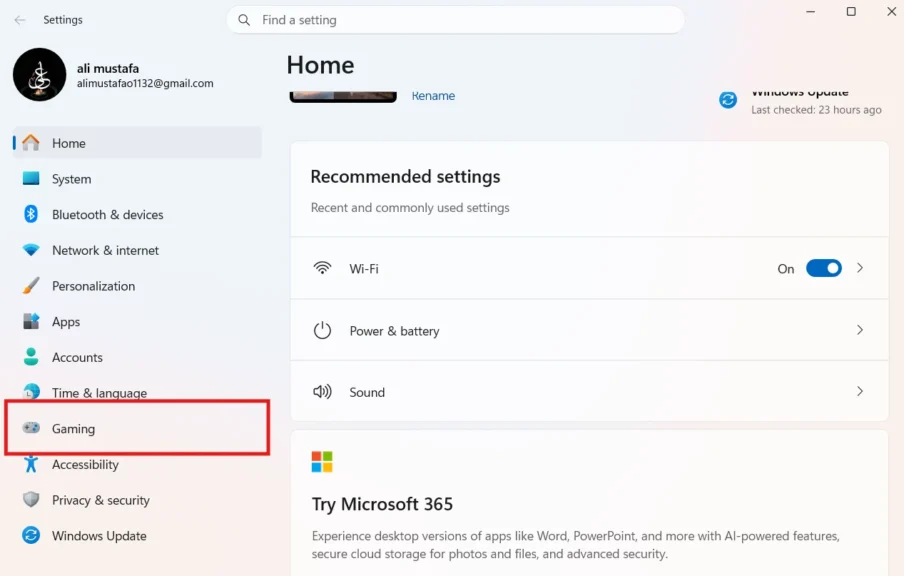
- Select Game Bar.
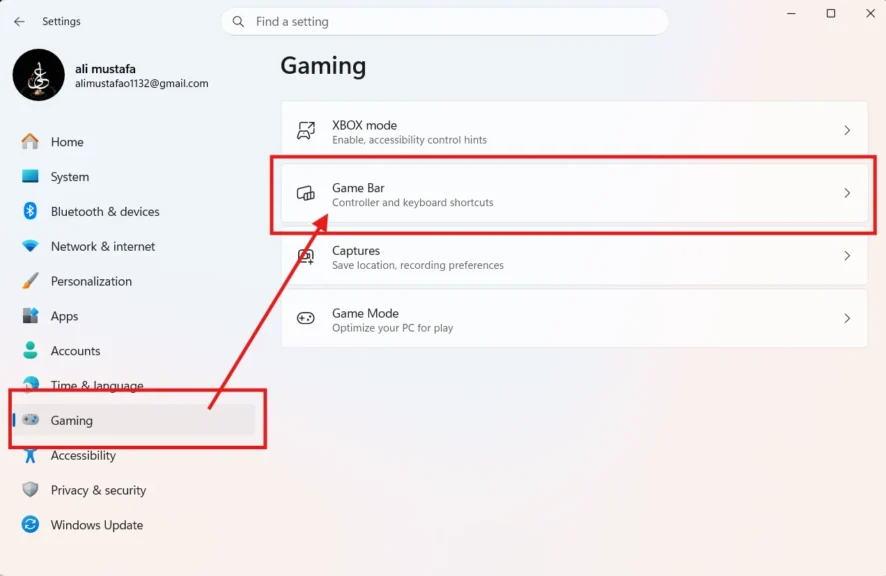
- Turn off “Allow your controller to open Game Bar.”
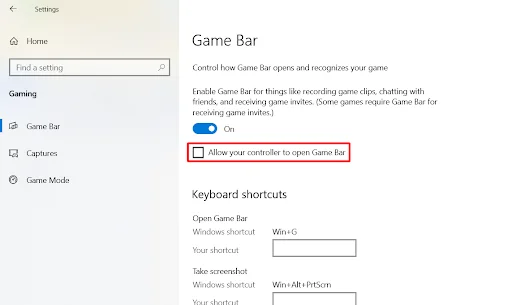
- Press and hold the Xbox button to turn off the controller.
Method 2: Turn Off via Bluetooth Settings
If your controller connects over Bluetooth, you can disconnect it by turning off Bluetooth on your PC. Keep in mind that this will also disconnect your other Bluetooth devices, such as a wireless gaming headset.
Steps for Windows 10 and Windows 11:
- Open Settings.
- Go to Bluetooth & Devices
- Turn Bluetooth off.
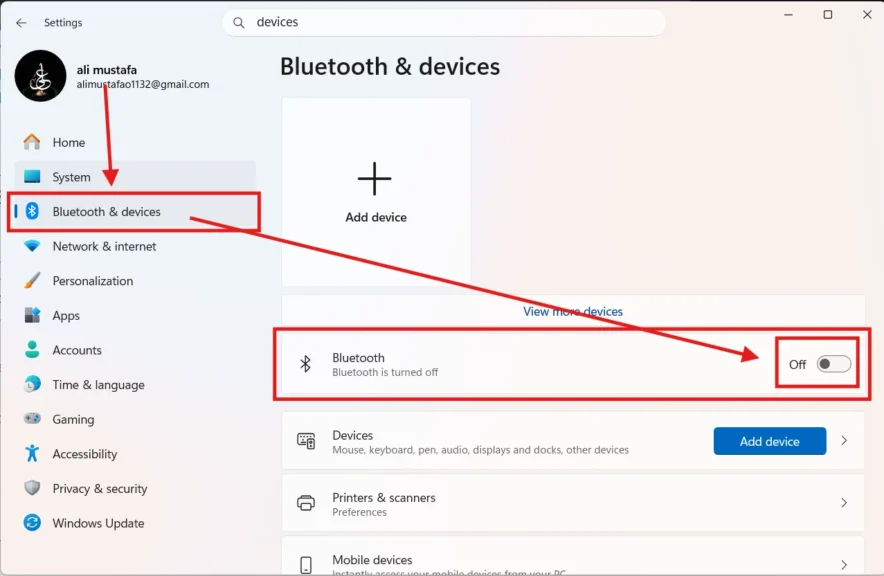
This method is useful if the controller is not responding to the Guide button or if you want to disconnect all Bluetooth devices at once.
Method 3: Turn Off a Wired Controller
Wired controllers are simple to turn off. I usually just unplug the USB cable when I’m done playing, and the controller powers down right away.
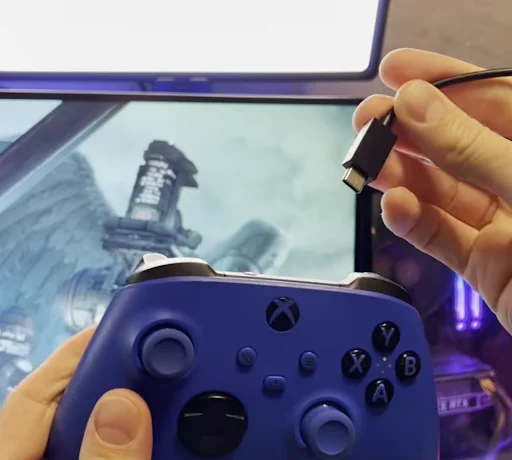
Depending on your controller, you may use a micro-USB or USB-C cable. Simply disconnect the cable from your PC, and plug it back in whenever you want to play again.
Method 4: Turn Off via the Xbox Wireless Adapter
The Xbox Wireless Adapter connects your controller to a PC without Bluetooth, and it behaves a little differently. The Guide button hold still works to power off the controller itself, but the adapter has its own connection light that stays active as long as it’s plugged into your PC.
If you want to fully stop the connection, unplug the adapter from your USB port after turning off the controller. This is a useful option if you regularly switch between multiple controllers on the same PC.
Troubleshooting Common Problems
Most controllers turn off without any issues, but a few problems come up often enough to cover here.
The Controller Stays On After Holding the Guide Button
This usually points to outdated firmware or background software intercepting the button press. Open the Xbox Accessories app and check for a firmware update. If an overlay tool, such as a recording or streaming app, is running in the background, close it and try again.
Controller Keeps Reconnecting on Its Own
Windows sometimes auto-reconnects paired Bluetooth devices as soon as they’re back in range.
To stop this, open Bluetooth & devices in Settings, select your controller.
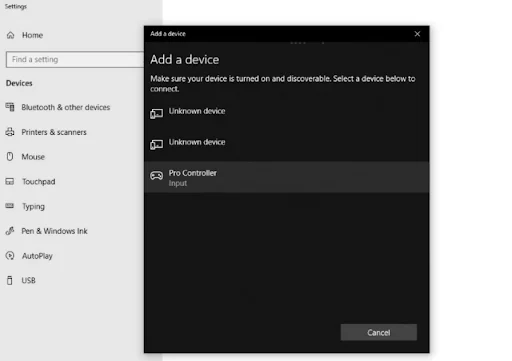
After this, disable auto-reconnect if the option is available. Removing the paired device entirely also works, though you’ll need to pair it again next time.
The LED Light Stays On Even After Turning Off
On some firmware versions, the LED dims instead of switching off completely, which can look like the controller is still powered on. If you’re not sure, remove the batteries or unplug the USB cable as a final check. This confirms the controller is fully off, regardless of what the light shows.
Final Words
Turning off an Xbox controller on PC comes down to matching the method to your connection type. The Guide button hold works for most situations, while Bluetooth settings, unplugging, and battery removal cover the rest.
Use the troubleshooting steps if your controller won’t power down normally, and pick whichever method fits how you actually use your setup.
