

Do you want to know the motherboard model of your PC or laptop? I have needed this information a few times when checking hardware compatibility and looking for the right BIOS updates. At first, I thought I would have to open my PC case to find the model, but Windows provides several easier ways to check it.
I have used System Information and other built-in tools to find these details without opening the computer.
If you are using a laptop, the process can be a little different because the motherboard information may not be listed clearly. In this article, I will show you the simplest ways to find it.
Quick Takeaways
- You can check your motherboard model using built-in Windows tools.
- System Information is one of the easiest ways to find motherboard details.
- PowerShell, BIOS or UEFI, and physical inspection offer other ways to find the model.
- Laptop users may need to check the device model or manufacturer support tools.
- Knowing your motherboard model helps with hardware compatibility, BIOS updates, and troubleshooting.
How to Find the Motherboard Model on a Windows PC?
On a Windows PC, you can find your motherboard model by using different methods.
If you are checking your motherboard because you want to upgrade or replace a component, identifying the exact board can save you from buying incompatible hardware.
For example, someone using an older processor such as the Ryzen 5 2600X may need to confirm the motherboard’s socket and chipset before choosing a replacement or planning a CPU upgrade.
Knowing the motherboard model gives you a starting point for checking which processors and other components it supports. Here are the details of these methods:
1. Using System Information (msinfo32)
This is the simplest built-in method and works the same way on Windows 10 and Windows 11.
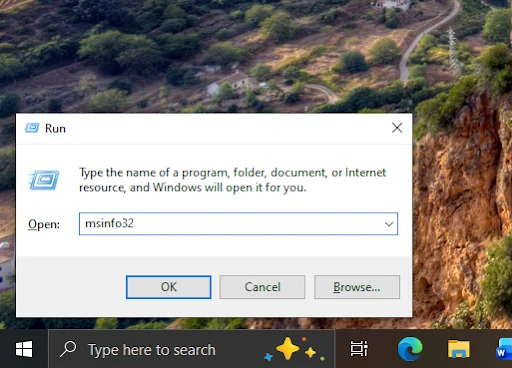
- Press Win + R to open the Run box
- Type msinfo32 and press Enter
- Click on System Summary in the left panel
- Look for BaseBoard Manufacturer, BaseBoard Product, and BaseBoard Version on the right
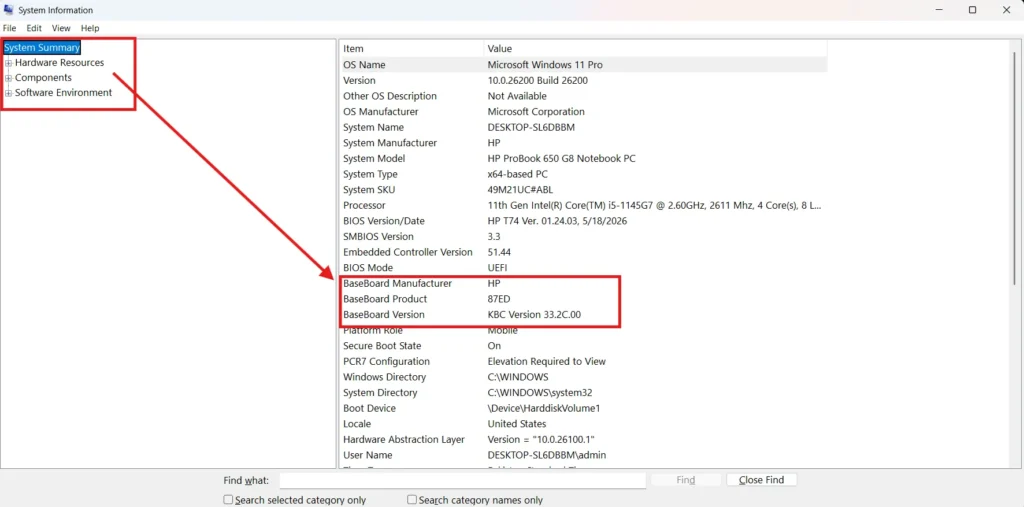
These three fields together tell you the brand and exact model of your motherboard.
2. Using Command Prompt
If you prefer typing commands, Command Prompt can display your motherboard manufacturer and model in one line.
- Open Command Prompt.
- Type wmic baseboard get product,Manufacturer and press Enter.
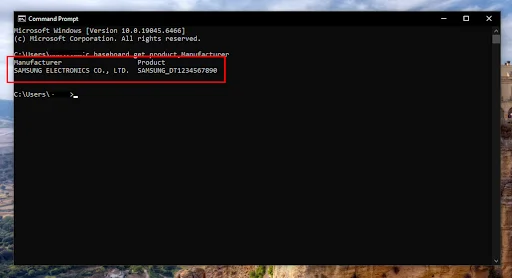
- Check the results for your motherboard manufacturer and model.
3. Using PowerShell
PowerShell provides another way to check your motherboard details.
- Open PowerShell.
- Run Get-WmiObject Win32_BaseBoard | Select Manufacturer, Product.
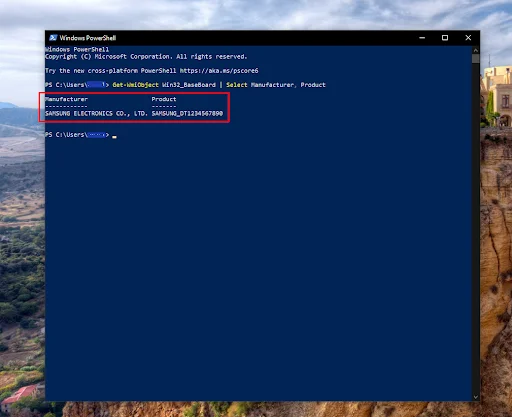
- Check the output for the motherboard manufacturer and model.
4. Checking via BIOS or UEFI
You can also find your motherboard model before Windows even loads. Restart your PC and press the key shown during startup, usually F2, Delete, Esc, or F10 depending on your manufacturer.
Once inside BIOS or UEFI, look for a Main or System Information tab. The exact wording varies between brands, but the model number is usually listed clearly.
5. Physical Inspection
If none of the software methods work, you can open the case and look directly at the board. The model name is usually printed near the PCIe slots or RAM slots. Before doing this, turn off your PC and unplug it, and make sure to ground yourself to avoid static damage to any components.
Finding the motherboard model this way can also be useful if you are planning a memory upgrade but are unsure which RAM your system supports.
The motherboard determines factors such as the supported RAM type and maximum memory capacity, so identifying the board first can help you avoid buying incompatible modules. If you are planning to upgrade PC RAM, knowing your motherboard model gives you a better starting point for checking compatibility.
How to Find the Motherboard Model on a Laptop?
Laptop motherboards are not standardized like desktop ones. Each board is custom built for a specific laptop model, and this is especially important with gaming laptops, which can use custom motherboard designs built around their specific CPU, GPU, cooling system, and chassis.
This can become a problem if you are trying to replace or upgrade the motherboard and are unsure which board will work with your existing hardware.
Different motherboards support different CPU sockets, RAM types, chipsets, and form factors, so choosing one based only on its price or appearance can lead to compatibility problems. If you are struggling to decide which board fits your setup, you can read our guide on how to choose the right motherboard before making a purchase.
Because of this, many OEM laptops from brands like Dell, HP, and Lenovo may show a blank or generic BaseBoard Product code instead of a clear model name.
Best Methods for Laptops
The same msinfo32 and BIOS methods used for desktops still apply here, but the results are often less specific.
A more reliable approach on laptops is checking the manufacturer’s own software, such as Dell SupportAssist, HP Support Assistant, or Lenovo Vantage. These tools can identify the specific laptop and provide its hardware and support information.
You can also flip the laptop over and check the sticker on the bottom. It usually lists the full model number, which is often more useful than the motherboard name itself.
On many laptops, the system model is more useful than the motherboard model because manufacturers use it for drivers, BIOS updates, and support documents.
What to Do If the Motherboard Model Does Not Show Correctly?
Sometimes the BaseBoard fields in Windows show blank or unclear information. This usually happens when the manufacturer did not properly fill in the SMBIOS data during production, which is more common on custom-built PCs or older systems. If this happens to you, try one of these options:
- Check your BIOS or UEFI directly for the same information
- Open the case and look at the board itself
- Check your original purchase receipt or order history if you bought the motherboard separately
Keep in mind that a BIOS update can sometimes change how this information is displayed, but it does not change the actual hardware inside your PC.
Conclusion
Finding your motherboard model is simple when you know where to look. Windows tools such as System Information and PowerShell can provide the details quickly, while BIOS or UEFI and physical inspection are useful alternatives.
Laptop users may get better results by checking the device model or the manufacturer’s support tools. Once you know the correct motherboard or system model, you can check compatibility, find suitable updates, and troubleshoot hardware with greater confidence.
People Also Ask
The model number is usually printed directly on the motherboard, often near the RAM slots or PCIe slots. You can also find it through Windows System Information or BIOS or UEFI.
You can check the motherboard itself without turning on the PC. Look for the model name or number printed on the board, usually near the RAM or PCIe slots.
Yes, BIOS or UEFI usually displays the motherboard manufacturer and model. Look for this information under the Main, System Information, or similar section.
This usually happens because OEM manufacturers do not always fill in detailed baseboard information in the system data. In these cases, using manufacturer support tools or checking the sticker on your laptop works better.
Yes, System Information, Command Prompt, PowerShell, and BIOS or UEFI can help you find your motherboard model without opening the case.
