

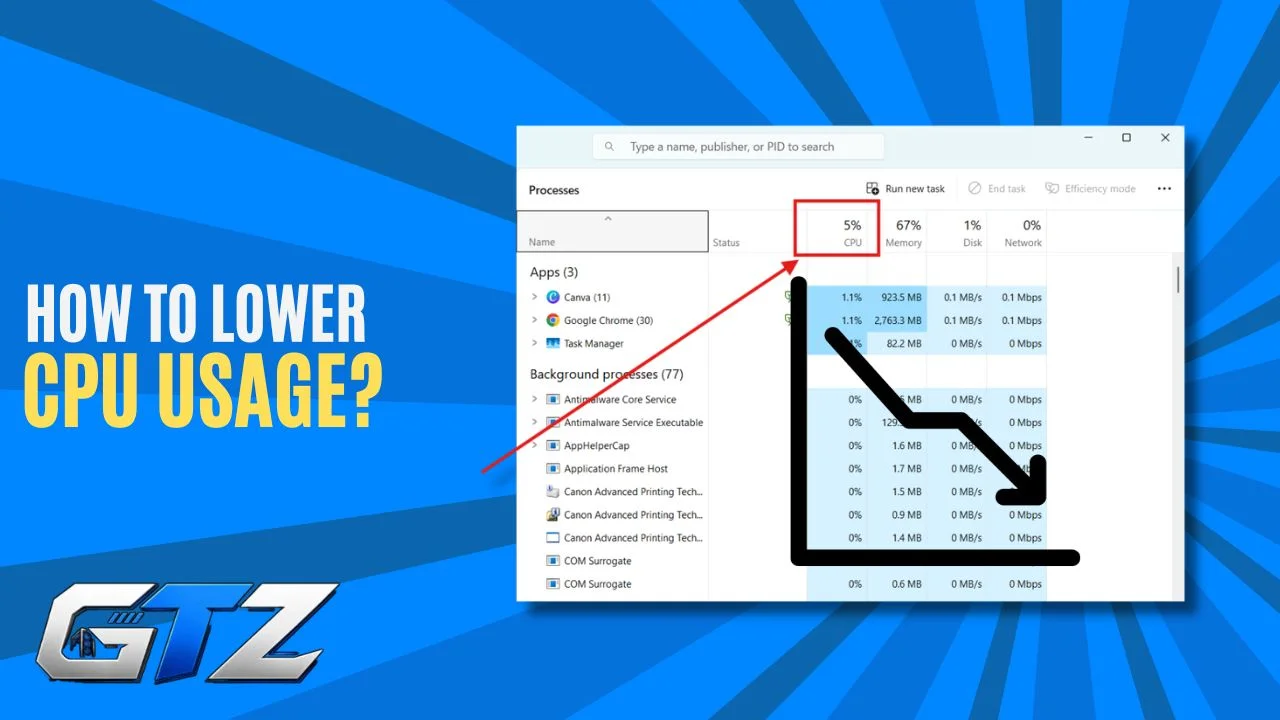
When my computer starts getting slow for no clear reason, I check the CPU usage first. A high CPU load can make apps take longer to open, cause stuttering, and make the fan run louder than usual. In many cases, the problem is not the hardware itself.
Too many background apps, startup programs, old drivers, or malware can all put extra load on the processor. I prefer to start with simple fixes before looking at hardware upgrades. In this article, I’ll share five practical tips to lower CPU usage and help your computer run better.
Quick Key Takeaways:
- Close unused apps and browser tabs to lower CPU usage.
- Disable unnecessary startup programs to reduce CPU load.
- Keep your drivers and software updated.
- Scan for malware if CPU usage stays high.
- Consider a hardware upgrade if an old CPU still runs at high usage.
What High CPU Usage Actually Means?
CPU usage shows how much of your processor’s capacity is being used at a given time. Every app, browser tab, and background service takes a share of that processing power. When too many tasks are running at once, the CPU has to work harder, which can slow down your computer.
Several things can cause high CPU usage. Too many background apps, malware, outdated drivers, and a large number of browser tabs or extensions can all put extra load on the processor. Overheating can also be a factor because the CPU may reduce its speed to control its temperature.
What are Common Signs of High CPU Usage?
You do not need a technical background to spot the warning signs. Watch for these patterns:
- Apps take noticeably longer to open
- The fan runs loud even during light tasks
- The system freezes or stutters randomly
- Everything feels slower a few hours after startup
How to Check Your CPU Usage Right Now?
Before applying any fix, first check what is causing the high CPU usage. On Windows, open Task Manager and look for the processes using the most CPU. On a Mac, you can do the same through Activity Monitor.
For Windows, you can:
- Press Ctrl + Shift + Escape to open Task Manager.
- Click the CPU column to sort processes by CPU usage.
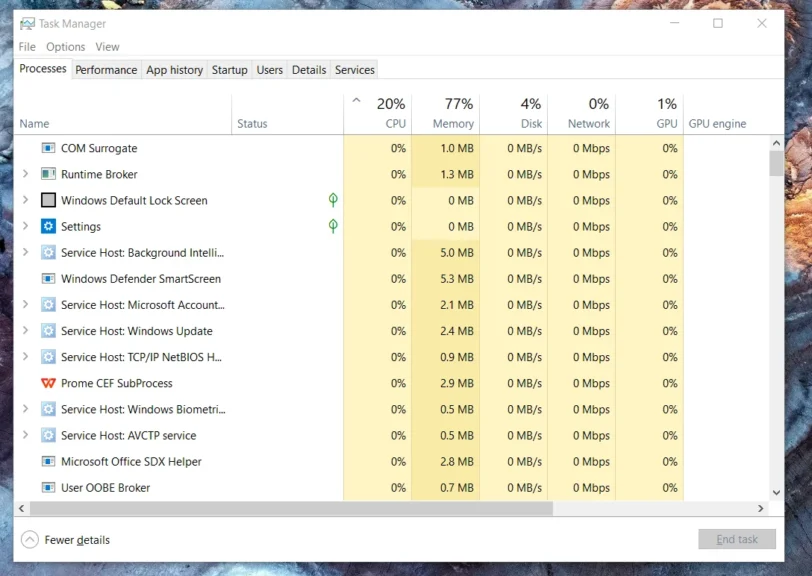
- Check which apps or processes are using the most CPU.
On a Mac, open Activity Monitor from Spotlight search. Then select the CPU tab to see which apps or processes are using the most CPU.
5 Practical Tips to Lower CPU Usage
I like to start with the simple fixes before changing system settings or looking at hardware upgrades. These five tips move from the quickest ways to lower CPU usage to fixes that need a little more attention.
Tip one: Close Background Apps and Browser Tabs
When I see high CPU usage, I first check which apps and browser tabs are running in the background. Unused programs still consume processing power, while browser tabs can run scripts, ads, and trackers even when I am not actively using them. Closing them can lower the overall CPU load quickly.
I also find that minimizing a browser window is not enough. If I no longer need a tab or program, I close it completely. For example, a browser with twenty tabs and three extensions can use more CPU than expected.
- Open Task Manager on Windows or Activity Monitor on Mac.
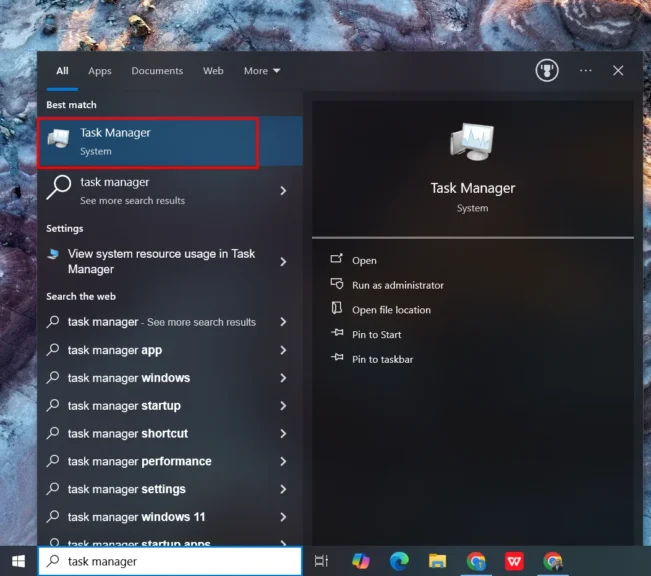
- Sort processes by CPU usage to find apps using the most power.
- Close programs you no longer need.
- Close unused browser tabs and remove extensions you rarely use.
- Fully close the app instead of only minimizing its window.
Tip Two: Disable Unnecessary Startup Programs
Startup programs are easy to overlook because they start running before I open them myself. Too many of them can add to CPU usage as soon as the computer boots. Disabling the ones I do not need can reduce the load and also make startup quicker.
I recommend keeping important programs, such as antivirus software, enabled while turning off apps that do not need to launch every time.
On Windows:
- Open Settings.
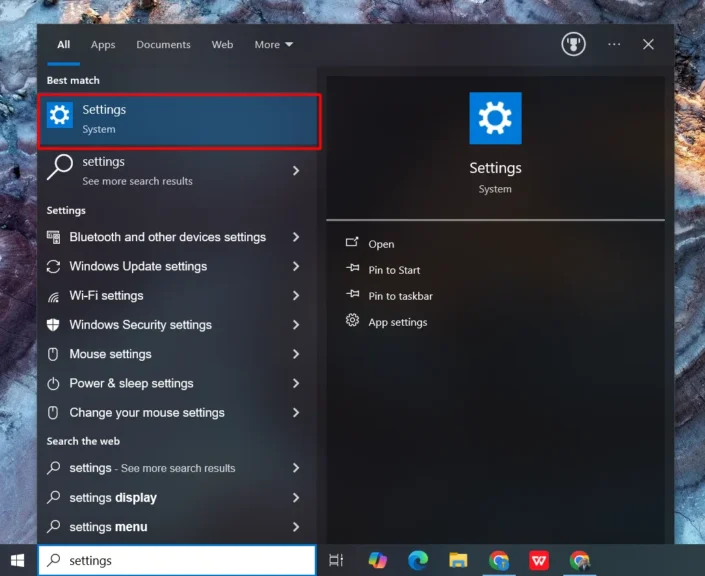
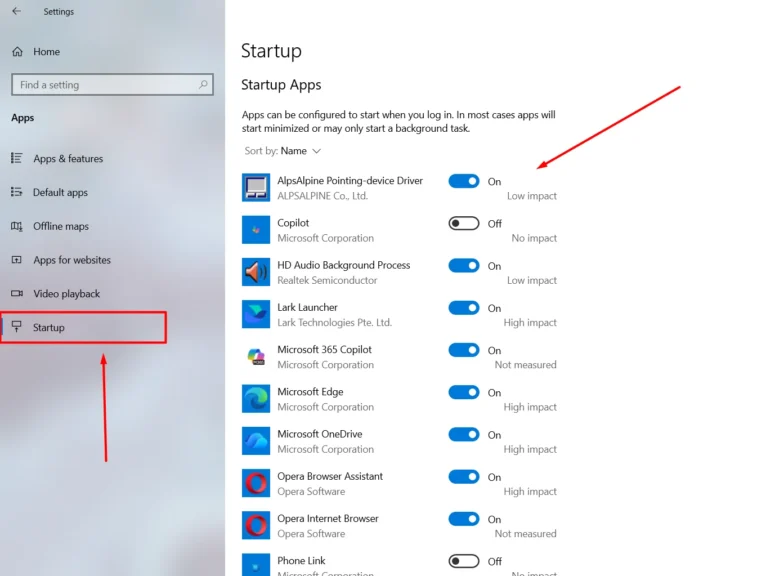
- Go to Apps > Startup.
- Review the apps that launch when Windows starts.
- Turn off programs you do not need immediately after startup.
On Mac:
- Open System Settings.
- Go to General > Login Items.
- Review the apps allowed to open at login.
- Remove unnecessary apps from the list.
Tip Three: Keep Drivers and Software Update
I do not overlook updates when dealing with high CPU usage. Old graphics or chipset drivers can cause performance problems and make the processor work harder than it should. Updating drivers, the operating system, and commonly used software can help fix these issues.
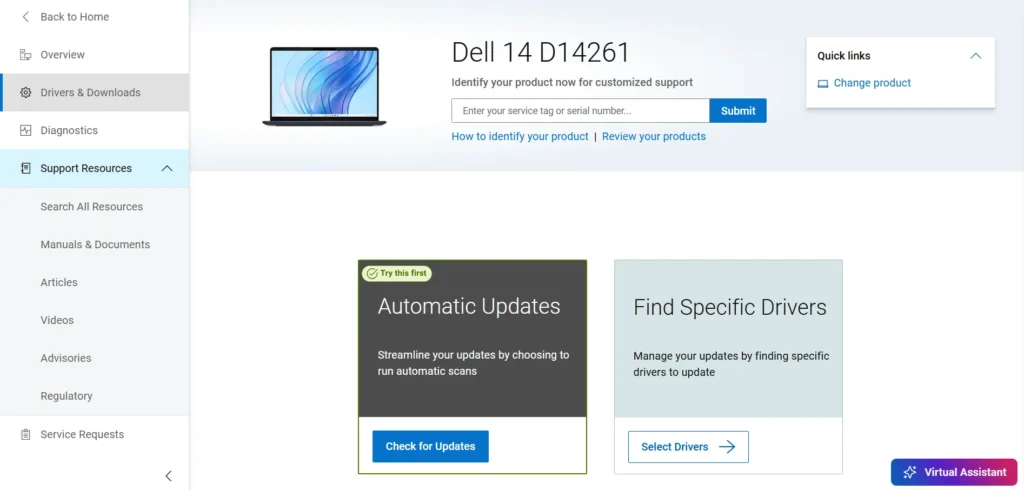
I prefer getting drivers directly from the computer or component manufacturer’s website. Third-party driver download tools can sometimes include unwanted software, which can create more problems than they solve.
- Check your computer manufacturer’s website for driver updates.
- Pay attention to graphics, chipset, and other important system drivers.
- Install available operating system updates.
- Keep frequently used apps updated.
- Restart the computer after major driver or system updates.
Tip Four: Scan and Remove Malware
Malware can use CPU resources without making its presence obvious. I would pay close attention to unfamiliar processes that keep using a large amount of CPU. Some malware can disguise itself as a normal system process and continue running in the background.
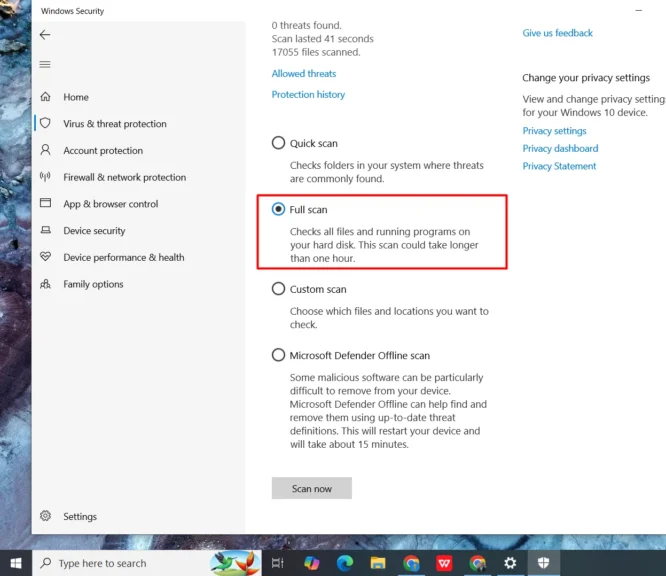
A full scan is a better choice when I suspect malware because a quick scan may not catch every threat. Windows Security and other reputable security tools can scan the system and remove detected threats.
- Open your computer’s built-in security software.
- Choose a Full Scan instead of only a quick scan.
- Let the scan finish before opening other demanding programs.
- Remove or quarantine any threats the security tool finds.
- Restart the computer if the security software recommends it.
Tip Five: Adjust Power Settings and Visual Effects:
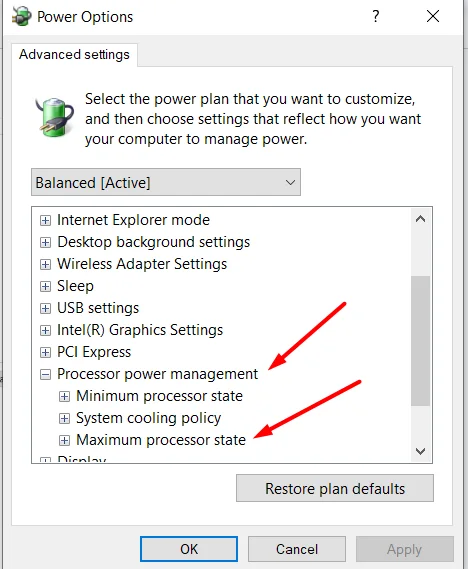
This option can help when the CPU is still running hot or working harder than necessary after trying the simpler fixes. Lowering the maximum processor state can reduce CPU power use, heat, and fan noise, although it may also lower performance.
For this reason, it is better suited to browsing, writing, and other light tasks than gaming or other demanding workloads.
If you are building or upgrading a gaming PC, choosing the right hardware also plays an important role in keeping the system stable and efficient.
Windows also includes visual effects such as animations and transparency. Turning some of these off can provide a small reduction in system load and may help the PC feel more responsive, especially on systems with limited hardware.
- For visual effects, press Windows + R, type sysdm.cpl, and press Enter.
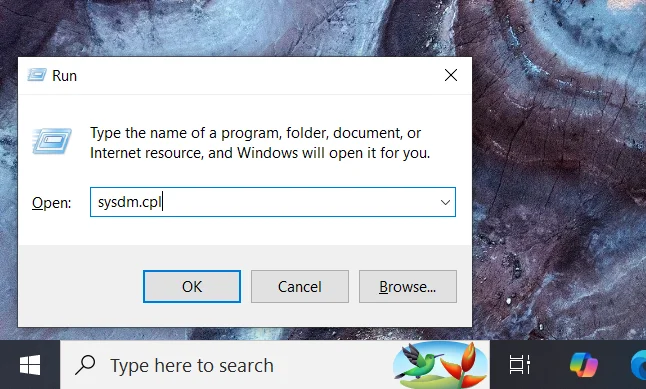
- Open the Advanced tab and select Settings under Performance.
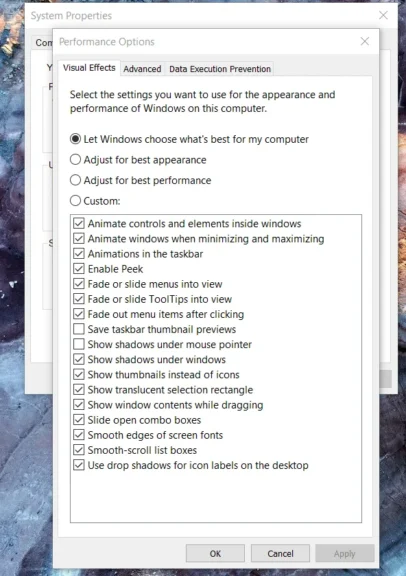
- Review the available visual effects and turn off unnecessary animations and effects.
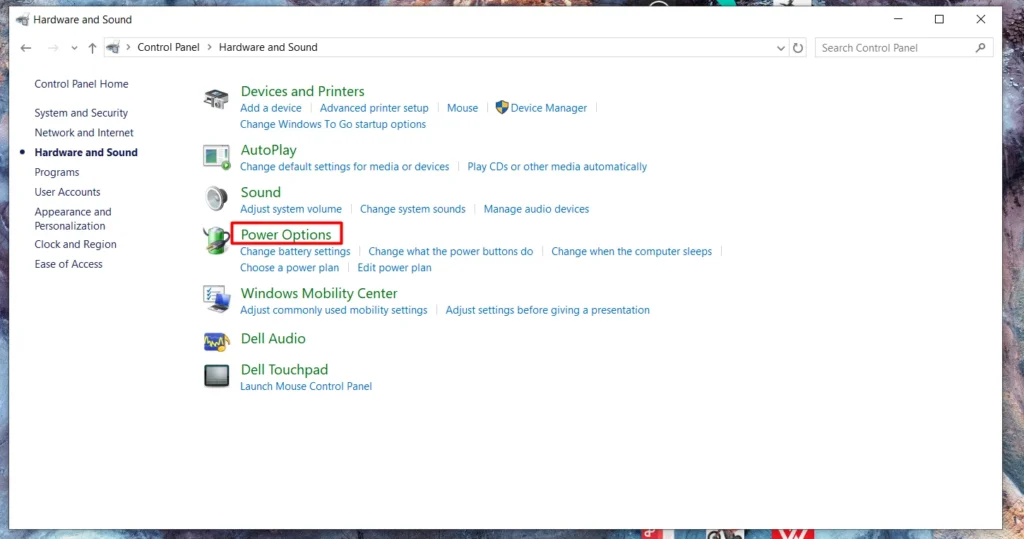
- For power settings, open Control Panel > Hardware and Sound.
- Now, go to Power Options.
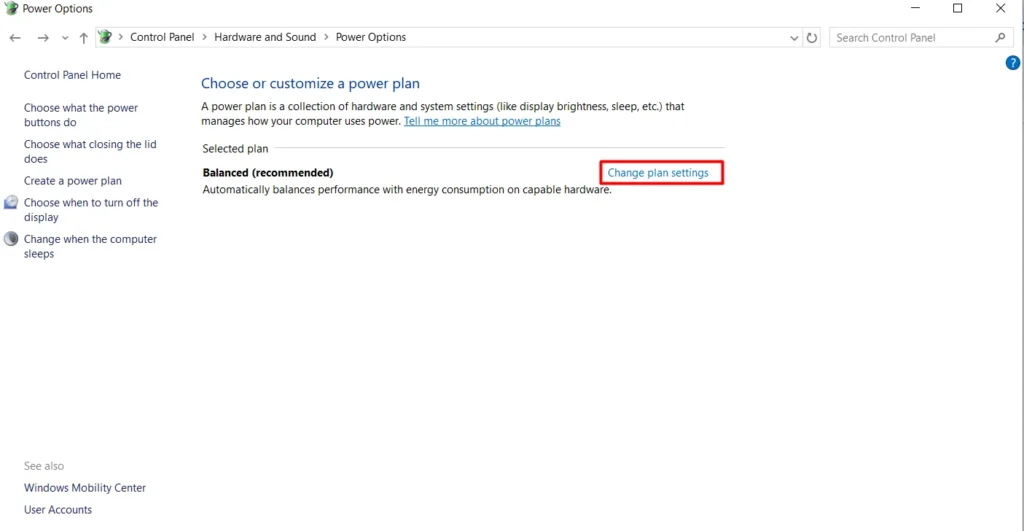
- Select Change Plan Settings.
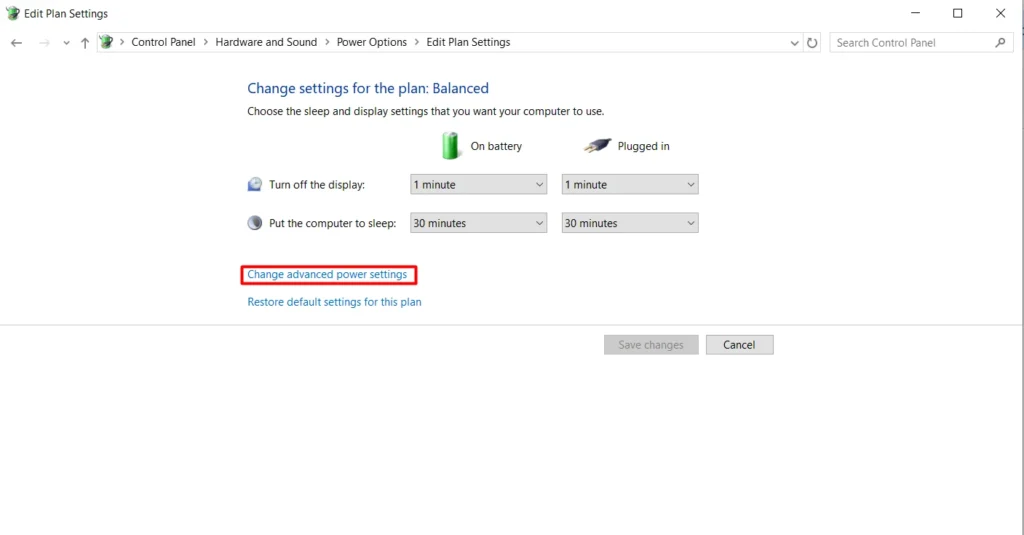
- Then choose Change advanced power settings.
- Select Processor power management.
- Adjust the Maximum processor state if you need to reduce heat and fan noise.
- Use higher performance settings again when running demanding tasks.
Bonus Fixes if CPU Usage is Still High
If the five tips above do not fully solve the issue, a few deeper checks are worth trying before assuming the hardware itself is failing.
- Restart the computer fully, since a restart clears temporary processes and background services that build up over long uptime
- Clean dust from internal fans and vents, since overheating triggers automatic CPU throttling
- Check the hard drive’s health, since a failing drive can spike CPU usage while it retries reading damaged sectors
- Run a clean boot to isolate whether a specific third-party service is the cause
When to Consider a Hardware Upgrade?
Sometimes the CPU itself is simply outdated for the workload placed on it. If usage still sits above 90 percent after every fix above, and the processor is more than six or seven years old, an upgrade becomes the more practical answer than continued troubleshooting.
Adding RAM or switching to a solid-state drive first is usually cheaper and still meaningfully reduces CPU strain, since the processor spends less time waiting on slower components.
My Final Answer
High CPU usage does not always mean your computer needs an upgrade. I’d start by closing unused apps, managing startup programs, and checking for updates. A malware scan can also catch problems that are easy to miss.
If the CPU still stays high, adjusting power settings or checking for hardware issues may help. In this article, I covered five practical fixes that can lower CPU usage and help your computer run cooler and more smoothly.
People also ask
Anywhere between ten and thirty percent during light tasks is considered normal. Usage climbing above 80 percent during regular browsing usually signals a problem worth investigating.
This usually points to a background service, a startup program, or malware running silently. Checking Task Manager or Activity Monitor will reveal exactly which process is responsible.
Yes, since each open tab can run scripts and trackers that draw processing power continuously. Closing tabs fully, rather than minimizing them, frees that capacity immediately.
Sustained high usage generates excess heat, which can shorten component lifespan over time. It rarely causes instant damage, but consistent overheating is a real long-term risk.
An unfamiliar process consuming a large percentage of CPU in Task Manager is a common warning sign. A full malware scan confirms it and removes the infection if one is found.
