

Is your PS4 not turning on when you press the power button? I faced this problem with my PS4 too. There was no startup screen, no game, and sometimes not even a light or beep.
At first, I thought the console had completely failed, but a few simple checks helped me find the problem.
A bad outlet, loose power connection, temporary system glitch, or software problem can prevent the PS4 from starting normally. In this guide, I’ll cover three fixes to try, explain what the PS4 lights mean, and show you when the problem may need hardware repair.
Key Takeaways
- Check the power cable and wall outlet if your PS4 has no response.
- Power cycle the PS4 by unplugging it for at least 20 minutes.
- Use Safe Mode to troubleshoot startup and software problems.
- Check the PS4’s lights and symptoms to identify the likely cause.
- If the PS4 still shows no signs of life, it may need hardware repair.
Why Is Your PS4 Not Turning On?
Your PS4 may not turn on because of a power connection problem, system error, overheating, or hardware failure. A faulty outlet or power cable can stop it from receiving power, while software errors can prevent it from starting properly.
Overheating or a damaged internal component can also cause the console to shut down or remain unresponsive.
The PS4’s lights can help you identify the problem. It normally starts with a blue light and then changes to white, while orange means Rest Mode. No light means it is powered off.
A blue light that stays on or keeps blinking can point to a startup problem, while a blinking white light can indicate a system error. If the PS4 has a white light and you can hear it running but the TV shows no picture, check the HDMI cable, TV input, and display instead.
How to Fix a PS4 That Won’t Turn On?
You can try a few simple fixes before considering professional repair. Start with the power connection, then move to Safe Mode and hardware checks if your PS4 still won’t turn on.
These 3 fixes are covered in the details below:
Fix 1: Power Cycle the PS4 and Check the Power Connection
If your PS4 has no response at all, start here. This is simple, does not erase your games or saves, and can clear a temporary power state.
Check the outlet and power cable
First, disconnect the PS4 from the wall and inspect the power cable. Look for obvious damage, loose connections, melted plastic, or discoloration around the cable and power port.
Then:
- Plug the PS4 directly into a working wall outlet.
- Avoid using a power strip while testing it.
- Make sure the cable is firmly connected to both the PS4 and outlet.
- Try another compatible power cable if you have one.
- Try another wall outlet.
A faulty outlet or power cable can make the PS4 appear completely dead. Testing another outlet and compatible cable can help you rule out a simple power connection problem before moving on to other fixes.
Perform a full power cycle
If the outlet and cable seem fine, completely disconnect the PS4.
- Make sure the console is off.
- Unplug the power cable from the PS4.
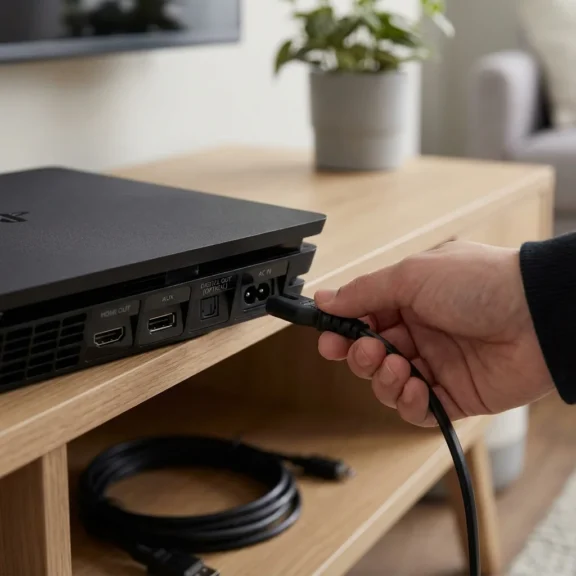
- Leave it disconnected for at least 20 minutes.
- Plug the cable back in.
- Press the power button.
Sony specifically recommends leaving a PS4 disconnected for 20 minutes when power cycling does not resolve Safe Mode or startup problems.
If the PS4 starts normally after this, the problem may have been a temporary power or system state. If it remains completely dead, move on to the next fix.
Fix 2: Start the PS4 in Safe Mode
If your PS4 shows some signs of life but will not start normally, Safe Mode is the next thing I would try.
Safe Mode starts the console with only basic functions available. It gives you access to tools for problems involving system software, storage, display settings, and other startup issues.
How to enter PS4 Safe Mode
- Turn the PS4 completely off.
- Press and hold the power button.
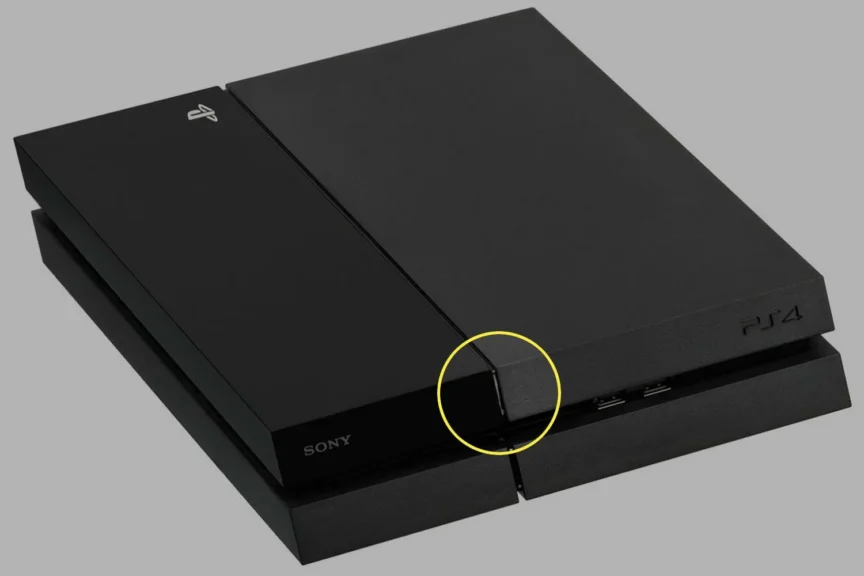
- Keep holding it until you hear the second beep, which occurs about seven seconds after the first.
- Connect the controller to the PS4 with a USB cable.
- Press the PS button on the controller.
- The Safe Mode menu should appear.
Sony confirms that the second beep starts Safe Mode and requires the controller to be connected through USB.
Which Safe Mode option should you use?
You do not need to jump straight to a factory reset. Several options are available, and some are much safer than others.
- Restart System: Try this first. It simply exits Safe Mode and attempts a normal startup.
- Change Resolution: Useful when the PS4 turns on but you cannot see anything properly on the TV or gaming monitor. It restarts the console at 480p, which can help with certain display problems.
- Update System Software: Use this if a software update failed or the PS4 has not been updated for a long time. Sony allows the PS4 to update through Safe Mode using a USB drive when necessary.
- Rebuild Database: This can help with certain system and storage problems without being the same as a full factory reset. It scans the drive and creates a new database of the content stored on the PS4.
- Initialize PS4: Leave this for later. It deletes user data from the console.
- Initialize PS4 (Reinstall System Software): This is the most destructive option. It removes your data and the system software, so it should only be considered after the less destructive options fail.
What if Safe Mode won’t start?
If you cannot even reach Safe Mode, check the power and USB connections again. Sony recommends checking the cables and trying another power cycle if you cannot start Safe Mode.
If the PS4 still gives you no response after these checks, hardware becomes a more likely explanation.
Fix 3: Check for a Hardware or Overheating Problem
If the first two fixes did not work, it is time to look at the physical condition of the console.
Check for overheating
Overheating is more likely if the PS4 turns on and then shuts down, rather than remaining completely dead.
Check the vents for heavy dust and make sure the console has room for airflow. Sony says a PS4 showing a pulsing red light is overheating and recommends turning it off, allowing it to cool, and moving it somewhere with better ventilation.
Do not immediately assume overheating is the cause if your PS4 has no light, no beep, and no response at all. A completely unresponsive console points more strongly toward a power or hardware issue.
Look for physical damage
Check the area around the power connection for:
- Damaged or loose cables
- Burn marks or melted plastic
- A damaged power port
- Heavy dust buildup
- Signs of liquid exposure
- Unusual smells
- Insects or debris inside the console
Dust and debris can affect the console’s operation, while a damaged power supply or power connection can prevent it from turning on.
I would avoid opening the PS4 or replacing internal parts unless you are comfortable working with electronics. If the console remains completely unresponsive, having a repair shop inspect it may be the safer option.
What Do the PS4 Lights Mean?
The light on the PS4 can tell you whether the console is starting normally, in Rest Mode, shutting down, or having a problem. Checking the light is one of the quickest ways to understand what the console is doing when it does not start as expected.
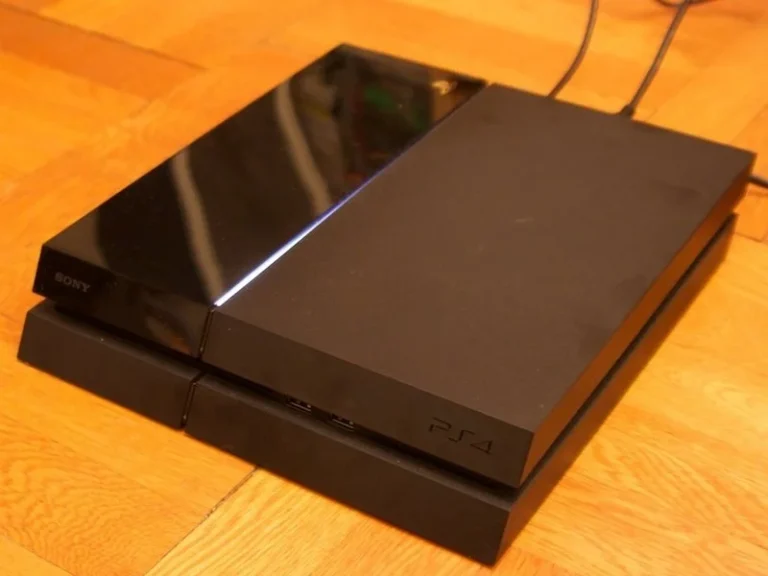
A normal startup begins with a blue light and then changes to white. Other colors and light patterns can point to different situations. Use the table below to match the light on your PS4 with its likely meaning.
| PS4 light | Meaning |
|---|---|
| Blue, then white | Console is starting normally |
| Solid white | Console is powered on |
| Solid orange | Rest Mode |
| Blinking orange | Entering Rest Mode |
| Blinking white, then turns off | Console is powering off |
| Blinking white | Console error |
| Solid or blinking blue that never becomes white | Startup error |
| Pulsing red | Console is overheating |
| No light | Console is powered off |
Sony’s current support information identifies blue-to-white as the normal startup sequence, orange as Rest Mode, and pulsing red as overheating. A blue light that does not transition to white or a persistent blinking white light indicates a problem that needs troubleshooting.
What Should You Do If PS4 Turns On But the Screen Is Black?
This is worth separating from a PS4 that will not turn on.
If you see a power light, hear the console start, or hear the fan running, the PS4 is receiving power. The problem may instead be the HDMI connection or display.
Try these checks:
- Make sure the HDMI cable is firmly connected.
- Select the correct HDMI input on your TV.
- Try another HDMI port on the TV.
- Try another compatible HDMI cable.
- Connect the PS4 to another TV or monitor if possible.
- Start the PS4 in Safe Mode and select Change Resolution.
When Should You Consider PS4 Repair?
If you have tried another outlet and power cable, completed a full power cycle, and still cannot get the console to respond, the problem may be beyond a simple software glitch.
A repair becomes more reasonable when:
- The PS4 has no light or beep after power checks.
- The power cable and outlet work with another device.
- The console repeatedly shuts down after starting.
- The PS4 remains stuck on a blue or white light.
- You notice burning, melting, or physical damage.
- Safe Mode will not start.
- The same problem keeps returning after a temporary fix.
At that point, the power supply, motherboard, storage drive, or another internal component may need inspection. PlayStation also provides a repair tool for hardware issues that remain after basic troubleshooting.
What Not to Do When Your PS4 Won’t Turn On?
Before trying more aggressive fixes, avoid a few common mistakes.
- Don’t factory reset immediately. You could erase your saved data without fixing a hardware problem.
- Don’t keep forcing the power button repeatedly. Follow the Safe Mode procedure instead.
- Don’t use a visibly damaged power cable.
- Don’t block the vents while testing the console.
- Don’t assume a black TV screen means the PS4 is completely dead.
- Don’t download PS4 system files from random websites. Sony recommends using only official system software files and installation methods.
How to Prevent PS4 Power Problems?
You cannot prevent every hardware failure, especially with an older PS4, but basic maintenance can reduce avoidable problems.
Keep the console in a clean, dry, well-ventilated location. Do not place it against a wall or inside a cramped cabinet where hot air cannot escape. Cleaning dust from the exterior vents can also help maintain airflow.
It is also worth backing up important saved data. If you eventually need to initialize the PS4 or reinstall its system software, having a backup can save you from losing progress and other locally stored data. Sony notes that some Safe Mode options delete data, so backing up before using destructive options is recommended.
Final Thoughts
A PS4 that refuses to turn on does not always mean the console is finished. I would start with the power cable and outlet, then perform a full 20-minute power cycle before moving to Safe Mode. If those steps fail, check for overheating or physical damage.
If the console still shows no signs of life, a failed power supply or another hardware problem becomes more likely, and professional repair may be the better option.
People Also Ask
An orange light usually means the PS4 is in Rest Mode, not that it is completely off. Press the power button or the PS button on a paired controller to wake the console.
Your PS4 may be having a startup or power issue if it beeps but does not turn on. Try a power cycle first, then start the PS4 in Safe Mode if it still does not respond.
A blue light that never changes to solid white can indicate a console error. Try a power cycle first, then attempt to start the PS4 in Safe Mode.
Rebuild Database is not the same as initializing the PS4. Sony describes it as scanning the drive and creating a new database of the content on the system, while initialization deletes user data.
This can be caused by overheating, power problems, storage issues, or other hardware and software faults. Check ventilation first, then try a power cycle and Safe Mode if the console stays on long enough.
Start by testing the outlet and power cable, then disconnect the console for at least 20 minutes and reconnect it. If there is still no light, beep, or other response, the power supply or another internal hardware component may need professional inspection.
