

If you’ve spent any time scrolling keyboard TikTok this year, you’ve probably already heard the Aula F75 keyboard before you’ve seen it. I’ve been using the black-and-yellow version with light green accent keys as my daily keyboard for a couple of months.
And now combining that hands-on time with official specs and retailer data makes it easy to see why this budget 75% board keeps showing up in “best budget keyboard” conversations. This review breaks down the Aula F75’s specs, sound, setup process, and price so you know exactly what you’re getting.
| Quick Glance | Details |
|---|---|
| Layout | 75% compact, 81 keys |
| Switches | LEOBOG Reaper linear (hot-swappable; other options available) |
| Connectivity | Bluetooth 5.0 / 2.4GHz / USB-C wired |
| Polling Rate | 1000Hz (wired & 2.4GHz), 125Hz (Bluetooth) |
| Battery | 4000mAh built-in |
| Price Range | Roughly $59–$80 depending on retailer and switch choice |
Hands-on Experience
This review is based on my personal experience using the Aula F75 as my daily keyboard for the past couple of months. I used it for gaming, writing, and everyday productivity over wired, 2.4GHz wireless, and Bluetooth connections.
Along with my hands-on testing, I verified specifications, features, and pricing using official manufacturer information and reputable retailers to ensure the review is accurate and up to date.
Is Aula F75 Worth Buying?
Yes. The Aula F75 is one of the best mechanical keyboards in its price range for gamers, writers, and everyday users.
It combines features like a gasket-mounted design, hot-swappable switches, tri-mode connectivity, and PBT keycaps that are usually found on more expensive keyboards.
After using it daily, I found it delivers a premium typing experience without the premium price tag, making it an easy recommendation for most users looking for a compact mechanical keyboard.
What are the Specifications of Aula F75?
The Aula F75 packs a surprising amount of hardware into a budget 75% board — gasket mounting, hot-swap sockets, and tri-mode wireless are all things you’d normally expect to pay a lot more for.
What is the Switch Type of Aula F75?
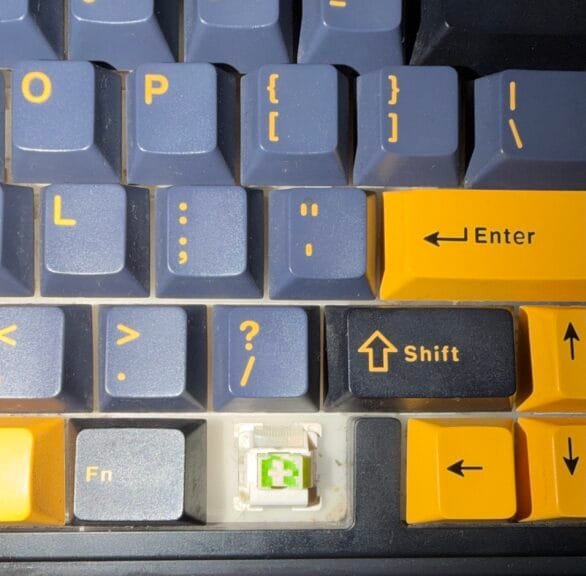
The Aula F75 most commonly ships with pre-lubed LEOBOG Reaper linear switches, rated at roughly 45gf actuation force with a 1.8mm pre-travel and 3.6mm total travel distance. Some retailers and colorways swap in TTC Crescent, Leobog Ice Vein, or Graywood switches instead.
My own black-and-yellow unit came with the Reaper switches, and after a couple of months of daily use, they still feel buttery smooth with zero scratch.
Best for:
- Gamers who want fast, consistent linear keystrokes
- Typists who dislike the bump of tactile switches
Caveats:
- The bundled switch depends on the retailer and color — check the listing before buying
- All hot-swap sockets accept standard 3-pin or 5-pin MX-style switches if you want to swap later
What is the Keyboard Layout of Aula F75?
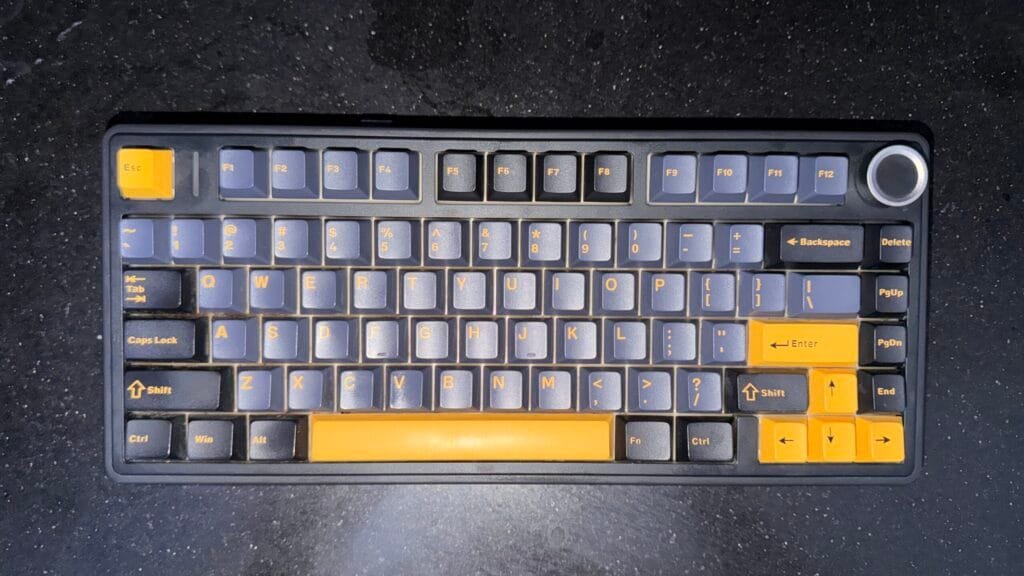
The F75 uses a 75% layout with 81 keys, keeping the arrow cluster and a condensed function row while dropping the numpad entirely. It sits on a gasket-mounted plate with a flip-out kickstand for adjustable typing angles, and the 2.4GHz USB dongle tucks into a hidden storage slot on the bottom.
My black-and-yellow unit with light green accent keys shares the same footprint as every other F75 colorway.
Best for:
- Desks with limited space
- Anyone who wants full function/arrow keys without a numpad’s extra width
Caveats:
- No dedicated numpad — heavy spreadsheet or accounting work may call for a prebuilt full-size or TKL instead
Is Aula F75 Good for Gaming?
Yes. The Aula F75 performs well for gaming due to its 1000Hz polling rate over wired and 2.4GHz wireless connections, responsive linear switches, and compact 75% layout that leaves more desk space for mouse movement.
During my own gaming sessions, input felt fast and consistent with no noticeable delay, making it suitable for both casual and competitive games.
If you are a true gaming geek, you should use the wired mode more for consistent performance. I have created a complete article on wired vs wireless keyboards comparison for gaming, and you should read it to determine where I am coming from.
What Lights do Aula F75 Have?
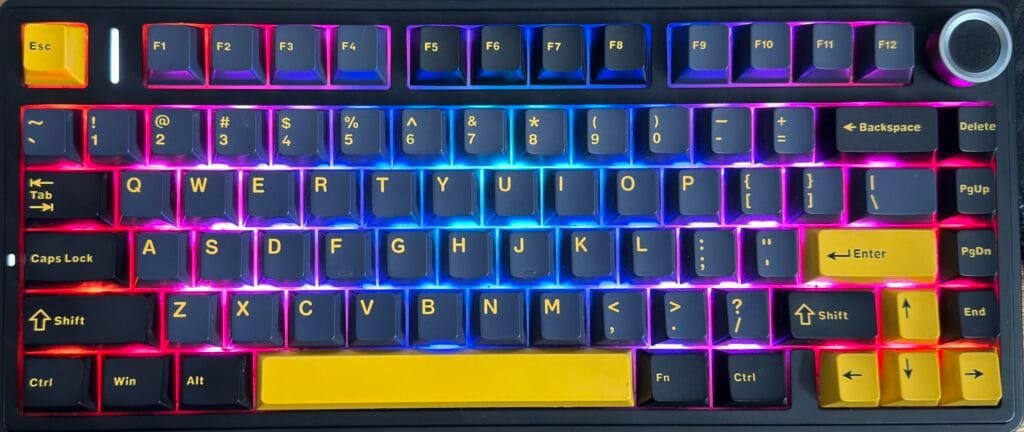
The F75 backlight supports 16.8 million RGB colors with several preset lighting effects, adjustable brightness and animation speed through Fn shortcuts, and deeper per-key customization through Aula’s driver software when connected by USB.
On my own black-and-yellow board, the light green accent keys catch the RGB nicely without clashing.
Best for:
- Desk setups and streaming backgrounds where RGB matters
- Users happy with preset effects rather than deep per-key mapping
Pros:
- Bright, even lighting through the keycap legends
- Quick on-keyboard controls,
- No software required for basics
Caveats:
- Full per-key RGB customization only works in wired USB mode
What Do Aula F75 Sound Like?
Thanks to a gasket mount and a five-layer dampening stack—two layers of Poron foam, an IXPE switch pad, a PET sound-enhancement pad, and a silicone bottom pad—the F75 produces a deep, rounded “creamy-thock” sound that reviewers regularly compare favorably to boards costing two to three times as much.
I can back that up from a couple of months of daily typing on mine—the sound has stayed consistently charming, even during long writing sessions.
Best for:
- Home offices and shared spaces where a quiet, non-hollow sound matters
- Anyone chasing the “creamy” keyboard sound trend without a custom build
Caveats:
- Exact sound character shifts with switch choice: Ice Vein leans thockier, Graywood is quieter, and TTC Crescent has a snappier rebound
- Keycaps also play a role here—the F75 typically ships with double-shot PBT, Cherry-profile keycaps, which resist the thin, tinny ping that cheaper ABS caps can add on top of the switch sound
What is the Polling Rate of Aula F75?
The Aula F75 runs a 1000Hz polling rate over both USB-C wired and 2.4GHz wireless connections, dropping to 125Hz when connected over Bluetooth — a common split for tri-mode boards in this price bracket. For more on why this number matters, see our guide to keyboard polling rate for gaming.
Best for:
- Competitive or fast-paced gaming — use wired or the 2.4GHz dongle, not Bluetooth
What is the Latency of Aula F75?
A 1000Hz polling rate means the wired and 2.4GHz connections check for input roughly every 1 millisecond, which is fast enough for the vast majority of gaming scenarios. Bluetooth’s 125Hz polling works out to roughly 8ms between checks, noticeably slower but perfectly fine for typing, browsing, or media use.
What Connectivity Options does Aula F75 have?
The F75 is a genuine tri-mode board: Bluetooth 5.0 (up to three paired devices, switched instantly with Fn+1/2/3), 2.4GHz wireless via the included USB dongle, and USB-C wired for zero-latency, always-charged use. I’ve used all three on my own unit, and response has felt instant across the board.
If you’re deciding which mode fits your setup best, our wired vs wireless keyboard for gaming guide breaks down the tradeoffs in more depth.

Best for:
- Switching between a work laptop, a gaming PC, and a tablet or phone throughout the day
Can You Use Aula F75 with a Mac?
Yes. The Aula F75 works with macOS using Bluetooth, USB-C, or the included 2.4GHz receiver.
Basic typing, gaming, and multimedia controls work without issues. However, Aula’s configuration software is currently available only for Windows, so advanced RGB customization and macro settings aren’t available on macOS.
What Is the Price of Aula F75?
Across Amazon, Best Buy, Newegg, and Epomaker’s own store, the Aula F75 typically lists between roughly $59 and $80 depending on the switch type and color chosen, with frequent sales bringing it toward the lower end of that range. That squarely places it in under-$100 budget keyboard territory.
How to Use Aula F75?
Setup is mostly plug-and-play, but a few Fn shortcuts unlock the rest of the board’s features.
Aula F75 Keyboard Light Controls
Best for: quick on-the-fly lighting changes without opening any software.
- Fn + Up/Down arrow — adjust brightness
- Fn + Left/Right arrow — adjust animation speed
- Fn + PrtSc — cycle through preset RGB effects
- Fn + Space (hold) — turn the backlight off completely
How to Connect Aula F75 Keyboard Bluetooth?
- Slide the mode switch to the BT position
- Hold Fn + 1 (or 2 or 3) for about 3 seconds until the indicator flashes rapidly
- Open Bluetooth settings on your PC, phone, or tablet and select the Aula F75 from the device list
- Once paired, the light holds solid briefly, then turns off — you’re connected
Best for: switching between up to three paired devices instantly with Fn+1/2/3.
How to Download Aula F75 Keyboard Software?
The official driver is available from Aula’s own site (aulastar.com), under the Downloads section for the F75 model page. A few caveats worth knowing:
Caveats:
- The driver only detects the keyboard in wired USB mode, not Bluetooth or 2.4GHz
- As of this writing, the software is Windows-only
- If your unit is branded “Epomaker x Aula F75,” use Epomaker’s driver hub instead of Aula’s own site
How to Charge Aula F75 Keyboard?
Plug in the included USB-C cable to charge the built-in 4000mAh battery. Press Fn + B in wireless mode to check remaining charge — the number row lights up to show the level, with a red indicator at low battery.
Caveats:
- Avoid third-party fast chargers, which the manufacturer warns can damage the battery
How Long Does the Aula F75 Battery Last?
Battery life varies depending on RGB brightness and connection mode.
In my daily use, which included gaming, writing, and general productivity, the built-in 4000mAh battery comfortably lasted several days before needing a recharge. Lowering the RGB brightness extends battery life even further.
How to Change Keyboard Light Color Aula F75?
Cycle through preset colors and effects with Fn + “\ |”, or connect over USB and open the Aula driver software for custom static colors, per-key RGB, and saved lighting profiles.
PROS and CONS
| PROS | CONS |
|---|---|
| Excellent typing sound | Software only for Windows |
| Smooth switches | No numpad |
| Hot-swappable | Bluetooth lower polling rate |
| Premium feel | – |
Who Should and Should Not Buy This Keyboard?
| Should Buy | Should Not Buy |
|---|---|
| Budget shoppers who want a gasket-mount, hot-swappable board | Anyone who wants a numpad or full-size layout |
| Gamers and typists who want a “creamy” sound without custom-building | Mac users who need full software parity (driver is Windows-only) |
| People who switch between multiple devices throughout the day | Buyers who specifically want hall-effect switches for adjustable actuation |
| First-time mechanical keyboard buyers exploring hot-swap switches | Anyone who prefers an even smaller 65% board |
As with many budget keyboard lines, unit-to-unit quality control can vary slightly between colorways — a handful of reviewers have reported inconsistent stabilizers or switches out of the box on related Aula F-series models, so it’s worth testing every key right after unboxing.
Mine didn’t have any of those issues, but it’s still worth checking on arrival. If you’re still comparing options at this price point, our best gaming keyboards for every budget guide is a good next stop.
My Honest Experience
I’ve had the black-and-yellow Aula F75 with light green accent keys on my desk for a couple of months now, and it’s genuinely one of my favorite budget keyboards to date.
The keys feel buttery smooth on every single press — no scratchiness, no inconsistency between switches — and the sound is charming in a way that’s hard to fake: that rounded, gasket-mounted “creamy-thock” the spec sheet promises actually shows up in day-to-day typing and gaming. Response time has felt instant too, whether I’m in a match or just typing up articles like this one.
The colorway has held up well cosmetically over daily use, and the light green keys give it some personality without feeling gimmicky. One habit I’ve settled into: I stick to the 2.4GHz dongle for gaming sessions and only switch to Bluetooth when I want to hop between devices, since that’s where the F75’s tri-mode setup really earns its keep.
Beyond my own daily use, the recurring theme in other owners’ feedback lines up with what I’ve experienced — people don’t compare the F75 to other $60–$80 boards so much as to keyboards costing two or three times as much, and it tends to hold up in that comparison. The main tradeoffs other reviewers flag are the Windows-only software and the lack of a numpad, which read less like dealbreakers and more like the expected cost of a budget price tag.
People Also Ask About the Aula F75
For its typical $59–$80 price range, yes — the gasket mount, hot-swap sockets, and tri-mode connectivity are features usually reserved for pricier boards.
Both, depending on the switch — the stock Reaper switch leans creamy with a light thock, while the Ice Vein option pushes further into thocky territory.
Yes. Use the wired or 2.4GHz connection for the full 1000Hz polling rate; Bluetooth is fine for casual play but not ideal for competitive gaming.
Hold Fn + Esc for a few seconds until the lights flash, which restores factory lighting and settings without erasing your saved Bluetooth pairings.
Slide the mode switch to the wired position while it’s unplugged from USB power — this fully cuts battery draw.
Bottom Line
The Aula F75 earns its reputation as a budget standout: a gasket-mounted, hot-swappable, tri-mode 75% board with a sound profile that punches well above its typical $59–$80 price. It’s an easy recommendation for gamers, typists, and hot-swap beginners who want a “creamy” custom-keyboard feel without a custom-keyboard budget — just go in expecting Windows-only software and no numpad. If the F75’s specs check your boxes, it’s worth adding to your cart before the next sale ends.
