

Building a PC from scratch isn’t just about getting it running on day one — I also want the parts I choose today to remain useful several years from now. That means choosing a sensible CPU platform, enough RAM, a capable GPU, and components that leave room for future upgrades.
In this guide, I’ll walk you through how to choose compatible parts, assemble the PC, configure the BIOS, install Windows and drivers, and troubleshoot the common problems that can appear during your first build. By the end, you’ll have a complete system and a clearer idea of how long you can realistically keep it before upgrading.
Before committing to a desktop build, it’s worth sanity-checking the alternative. If portability matters to you, our guide on gaming laptops worth it breaks down when a laptop makes more sense—and how much should I spend on a laptop helps set realistic budget expectations if you go that route. If a desktop is the call, read on.
What You’ll Need
| Component | Recommended Pick | Budget Alternative |
|---|---|---|
| CPU | AMD Ryzen 7 9800X3D / Intel Core Ultra 5 245K | AMD Ryzen 5 9600X |
| Motherboard | B850 (AM5) / B860 (LGA1851) | Same tier, smaller brand |
| RAM | 32GB DDR5-6000 CL30 (2×16GB kit) | 32GB DDR5-5600 CL36 |
| GPU | RTX 5060 Ti (1080p/1440p) / RTX 5070 (high-end) | RX 9060 XT |
| Storage | 1–2TB PCIe Gen4 NVMe M.2 SSD | 1TB Gen4 any reputable brand |
| PSU | 750W–850W, 80+ Gold, ATX 3.1 | 750W Gold from Seasonic/Corsair |
| Case | Fractal Design North / NZXT H5 Flow / Lian Li Lancool 216 | Any ATX mid-tower with mesh front |
| CPU Cooler | 240mm AIO or Noctua NH-D15 | 120mm AIO (adequate for 65W chips) |
Tools
- Phillips head screwdriver (#2 — handles 99% of all PC screws)
- Anti-static wrist strap (~$8, optional but smart)
- Zip ties or velcro straps for cable routing
- Thermal paste (only if not pre-applied on your cooler)
- 16GB+ USB drive for OS installation
Budget Baseline
A capable 1080p gaming PC starts around $750–$950. A high-end 1440p build lands around $1,200–$1,500. If you’re still deciding whether it’s cheaper to build your own computer versus buying a prebuilt, the short answer is You typically save 20–30% on equivalent hardware, and every dollar goes where you decide.
How to Make A Computer: Step-by-Step
1: Define Your Goals Before You Make a Computer from Scratch
Don’t pick a single component until you know what you’re building toward.
Gaming at 1080p — Spend 35–40% of your budget on the GPU. A mid-range chip like the Ryzen 5 9600X paired with a strong GPU outperforms a top-tier CPU paired with a weak one every single time.
1440p or creative work — Balance GPU and CPU investment. Video editing, streaming, and 3D rendering reward more cores and more RAM.
General use / first PC — A Ryzen 5 9600X or Core Ultra 5 235 with 16–32GB of RAM handles everything a mainstream user needs without wasted spending.
The clearest way to think about this upfront is to read through what makes a computer a good computer before locking in your part list. Component balance matters more than any individual spec.
2: Choose Your Parts and Check Compatibility
Compatibility errors are the most common and most expensive mistakes in a first build. The good news: they’re almost entirely preventable.
Use PCPartPicker.com before buying anything. Add your parts to a build list, and the site flags every conflict—wrong socket, incompatible RAM type, GPU too long for the case—automatically. This one tool eliminates the majority of first-build errors.
The four non-negotiable compatibility checks:
- CPU socket must match the motherboard socket. In 2026: AMD Ryzen 9000 uses AM5; Intel Core Ultra 200 uses LGA1851. These are not cross-compatible and never will be.
- Motherboard must support DDR5 — all current AM5 and LGA1851 boards do, but verify before buying any clearance stock.
- GPU length must fit inside your case — check both measurements in the case specs.
- PSU wattage must cover your build — add CPU TDP + GPU TDP + 150W of headroom. An RTX 5070 system typically needs 750–800W minimum.
For a full walkthrough of every decision point with current pricing context, our guide on how to choose PC parts covers the entire process, including what to prioritize when your budget is tight.
If you are going with the Ryzen chips i recommend you choose the X670 as it is one of the best decision i made when buying my gaming PC. You can read my detailed review of the MSI x670.
3: Pick the Right CPU
For gaming specifically, the CPU matters less than most first-timers assume. Gaming is still largely single-threaded — a fast 8-core chip beats a slower 16-core one in most titles.
Best picks in 2026:
- AMD Ryzen 7 9800X3D — the best all-around chip for gaming and productivity. Excellent power efficiency, strong IPC gains over previous generation, AM5 socket longevity.
- AMD Ryzen 5 9600X — the budget winner. Still fast enough for any current title and dramatically cuts costs.
- Intel Core Ultra 5 245K — strong single-thread performance for Intel-loyal builders. Requires Z890 or B860 board.
Stay away from first-gen Ryzen 7000 series chips unless they’re on deep clearance. The Zen 5 architecture in the 9000 series brings meaningful IPC improvements.
Our guide on how to pick a CPU covers socket selection, core count vs clock speed, TDP, and when AMD’s X3D cache chips justify the premium — worth reading before finalizing this decision.
My Recommendation: Choose the Ryzen 7 9800X3D because it delivers excellent performance in games and future-proofs the system. I have it installed in my own pc and I haven’t faced any issues.
4: Select Your RAM
In 2026, DDR5 is the only option for new platforms. AM5 and LGA1851 are DDR5-exclusive — you cannot use DDR4 in these boards.
The right spec for most builds: 32GB DDR5-6000 CL30 in a dual-channel kit (2×16GB). This lands in the performance sweet spot for both AMD and Intel platforms: fast enough that you’re not leaving frames on the table, but not so overspecced that you’re paying a premium for near-zero real-world gain.
One critical thing to know: DDR5 runs at its slow base speed of ~4800MHz by default out of the box. If you buy DDR5-6000 sticks and never enable XMP (Intel) or EXPO (AMD) in BIOS, you’re running slower than what you paid for. This is a one-toggle fix in the BIOS—covered in Step 14.
5: Prepare Your Workspace
Do not open a single anti-static bag until you’ve done this:
- Work on a hard, non-carpeted surface. A kitchen table or desk is ideal. Carpet generates static charge — not worth the risk.
- Ground yourself. Touch an unpainted metal surface (a radiator, the metal leg of a desk) before handling components. If you have an anti-static wrist strap, clip it to the unpainted metal on your case throughout the build.
- Keep your camera ready. Before disconnecting or moving anything, photograph the cable positions and connector locations. Referencing a photo is 10× faster than flipping through a manual mid-build.
- Never touch the gold contacts on RAM sticks, the CPU’s contact pads, or the NVMe SSD’s connector. Handle by the edges only.
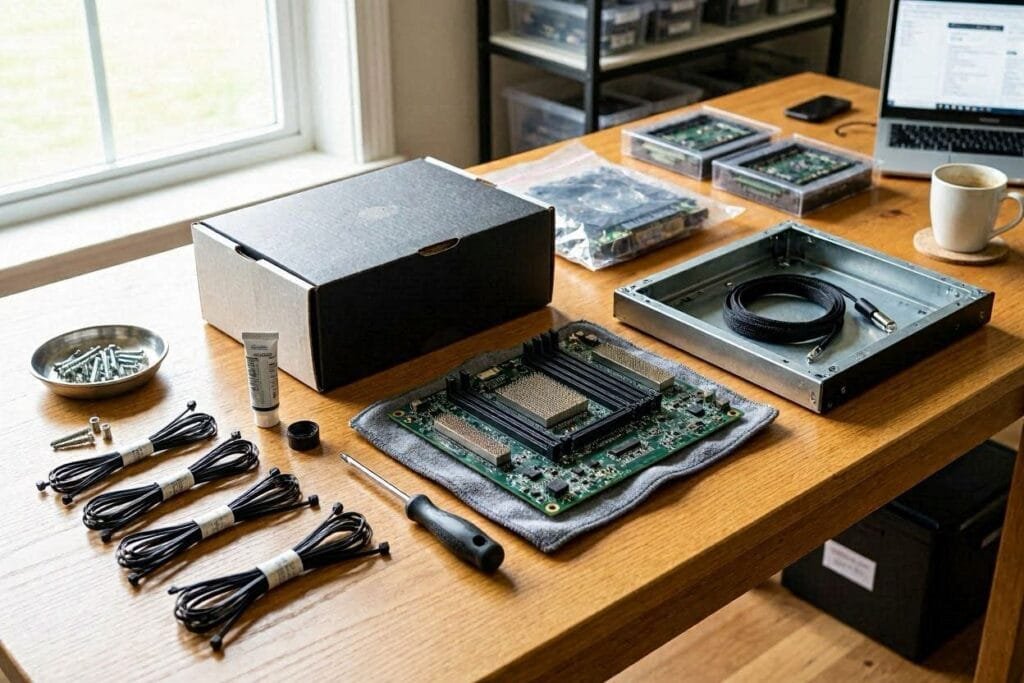
Safety note: Static discharge can silently destroy a component — no visible spark, no obvious damage, just a dead part days later. It’s rare but it happens, and it tends to kill the most expensive things. An $8 wrist strap and a clean surface are all the insurance you need.
6: Install the CPU onto the Motherboard
Always install the CPU before the motherboard goes in the case. You have far more visibility and control working on a flat surface.
- Set the motherboard on top of its original cardboard box — provides cushioning and is non-conductive.
- Open the CPU socket: on AMD AM5, lift the ZIF lever. On Intel LGA1851, lift the load arm.
- Find the alignment triangle — a small gold marker on one corner of the CPU. Match this to the corresponding mark on the socket.
- Lower the CPU straight down into the socket. No force required. If it doesn’t drop in freely, it’s oriented wrong — rotate 180° and try again.
- Close and lock the retention arm. On Intel boards, this requires meaningful downward pressure — the socket is designed for it, so push through the resistance.
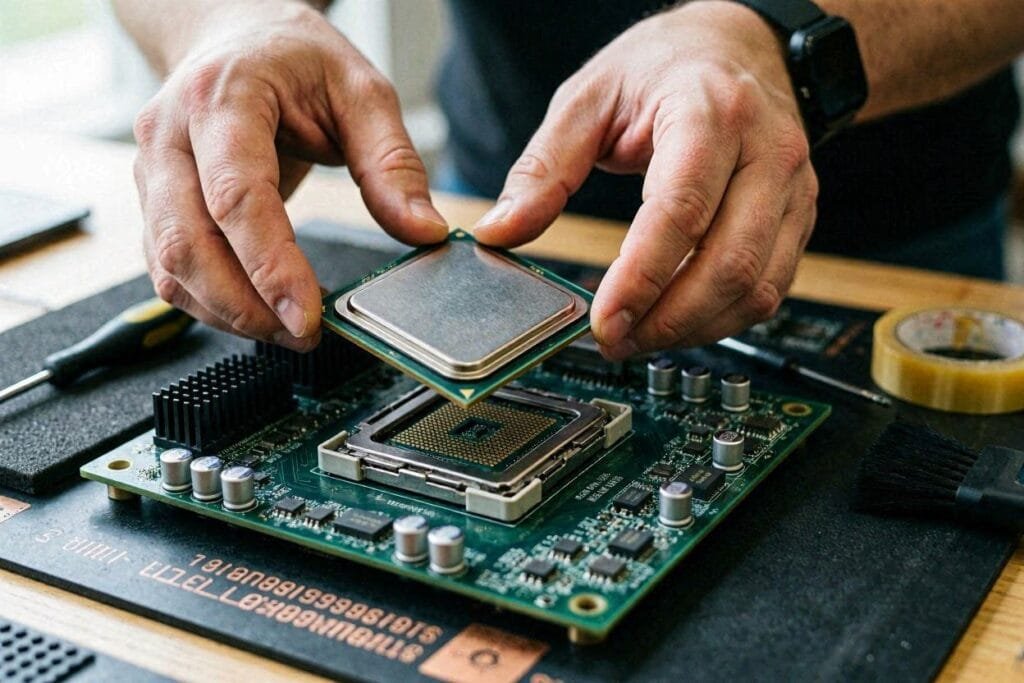
What success looks like: The CPU sits flush with no gaps around the perimeter. The retention arm is fully locked.
Common mistake: Forcing the CPU when it doesn’t drop freely. This bends pins. If it doesn’t drop in with zero resistance, stop and recheck orientation.
7: Mount the CPU Cooler
Thermal paste: Most aftermarket coolers ship with gray compound pre-applied to the copper contact plate. If yours does, use what’s there — do not double-apply. If applying your own:
- Use a pea-sized drop (roughly 4mm) centered on the CPU heat spreader.
- Do not spread it. Mounting pressure distributes the paste evenly.
- Too much is worse than too little — excess squeezes into the socket area.
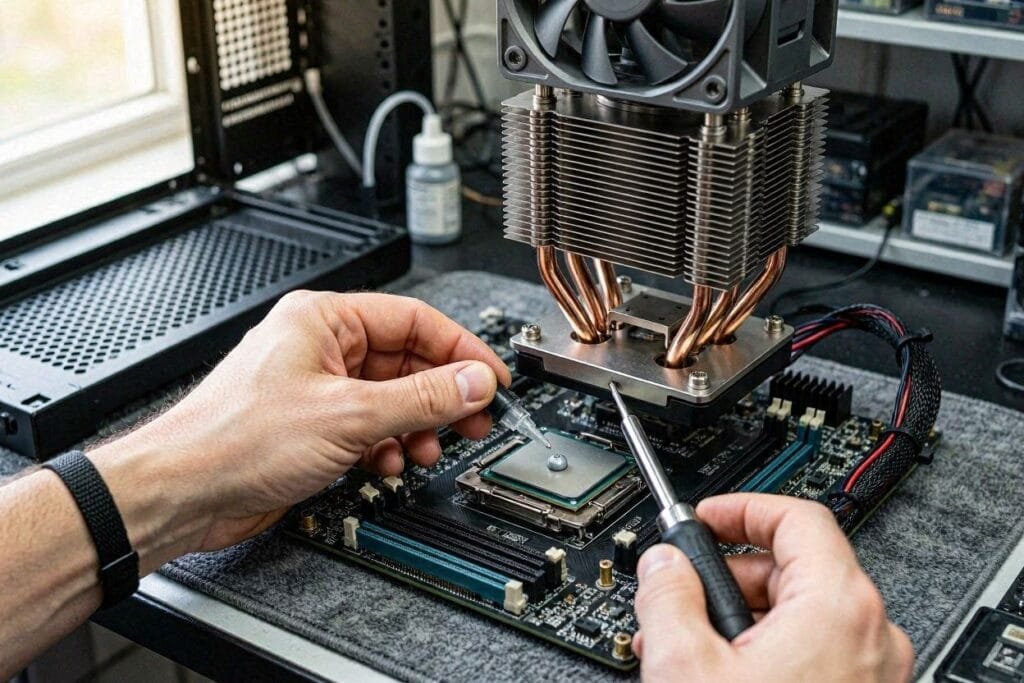
Mounting steps:
- Attach the backplate (if required) from the rear of the motherboard.
- Lower the cooler straight down onto the CPU.
- Tighten mounting screws in a cross pattern — top-left, bottom-right, top-right, bottom-left. Never fully tighten one screw before touching the others. Uneven pressure leaves microscopic gaps that drive temperatures up 10–15°C.
- Connect the fan cable to the CPU_FAN header on the motherboard (label is printed on the board).
What success looks like: The cooler doesn’t rock when you nudge it. All four mounting points have equal resistance.
8: Install RAM
- Locate the RAM slots — usually four horizontal slots to the right of the CPU socket.
- For a 2-stick kit, use slots A2 and B2 (second and fourth from the CPU). These are nearly always color-coded differently from A1/B1. Verify in your motherboard manual if uncertain.
- Align the notch in the RAM stick with the key in the slot.
- Press down firmly and evenly on both ends until you hear two distinct clicks from the retention clips.
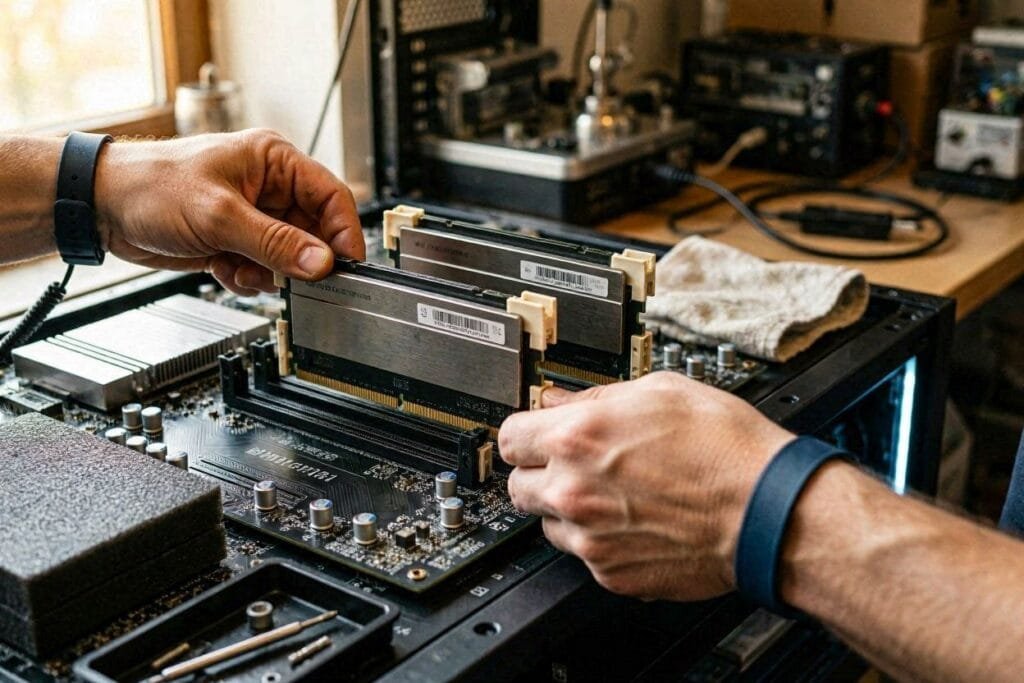
What success looks like: Both retention clips have snapped fully back up against the stick ends. No daylight between the stick and the slot.
Common mistake: Installing RAM in A1 and B1 instead of A2 and B2. The PC boots and runs fine, but dual-channel mode doesn’t activate and you leave 10–15% memory bandwidth on the table.
9: Install the NVMe SSD
Find the M.2 slot — a horizontal slot roughly the size of a stick of gum, usually located between the CPU socket and the first PCIe x16 slot. Most 2026 boards have a heatsink cover over it.
- Remove the heatsink cover by unscrewing it.
- Slide the SSD in at a ~30-degree angle into the M.2 slot.
- Press the drive flat against the board and secure it — older boards use a screw, many 2025–2026 boards use a tool-free push latch.
- Reattach the heatsink cover.
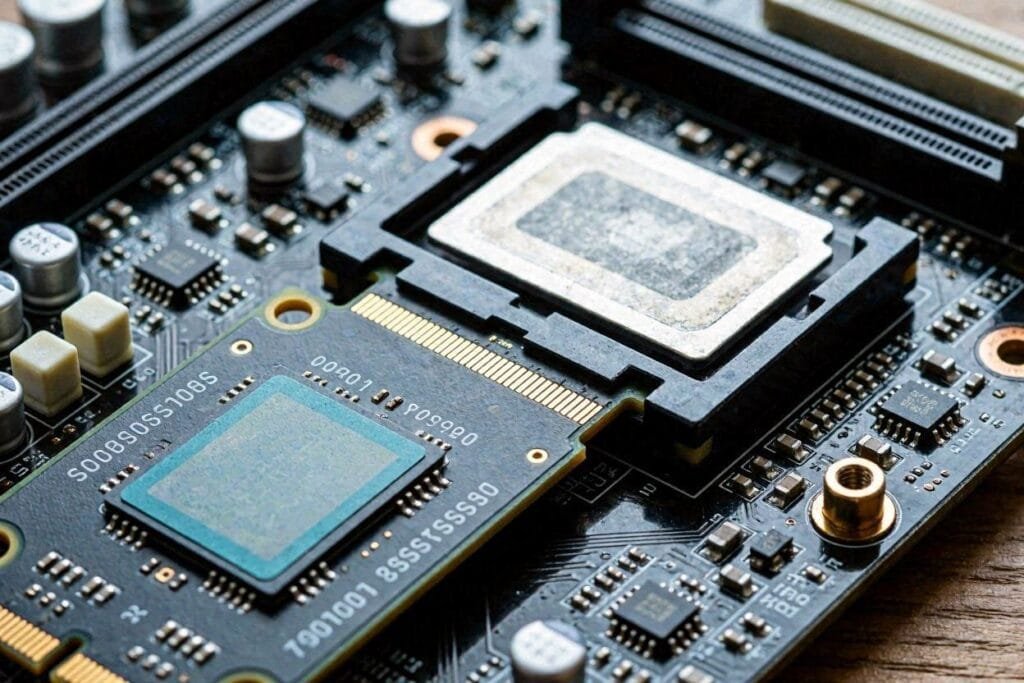
If your board has two M.2 slots, use the top slot closest to the CPU — it connects directly to the CPU’s PCIe lanes for maximum speed. The lower slot typically routes through the chipset, adding marginal latency.
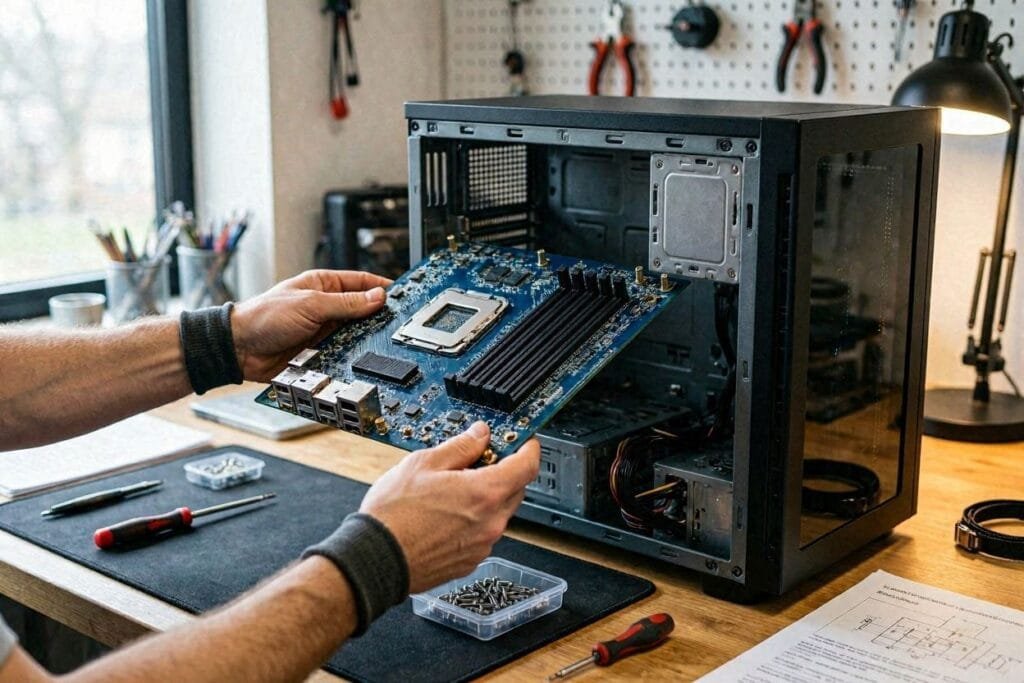
10: Mount the I/O Shield and Motherboard in the Case
- Install the I/O shield — the metal plate with cutouts for ports — into the rectangular opening at the rear of the case. Press from inside until all four edges click. Some 2026 boards have a pre-attached I/O shield; skip this step if so.
- Check that brass standoffs are installed in the correct positions for your motherboard size. Most cases pre-install ATX standoffs. Wrong standoff positions can short the board.
- Lower the motherboard into the case at a slight angle, aligning the I/O ports with the shield cutouts first, then lowering the board onto the standoffs.
- Thread screws in finger-tight first across all positions, then tighten in a cross pattern. Don’t overtighten — you’re threading into brass, not steel.
11: Mount the PSU
- Slide the PSU into its bay — almost always at the bottom-rear of the case.
- Fan orientation: fan down in cases with a bottom ventilation slot (most modern designs); fan up if the floor has no opening.
- Secure with four screws through the rear panel.
- For modular or semi-modular units, only route cables you’ll actually use before starting to manage them.
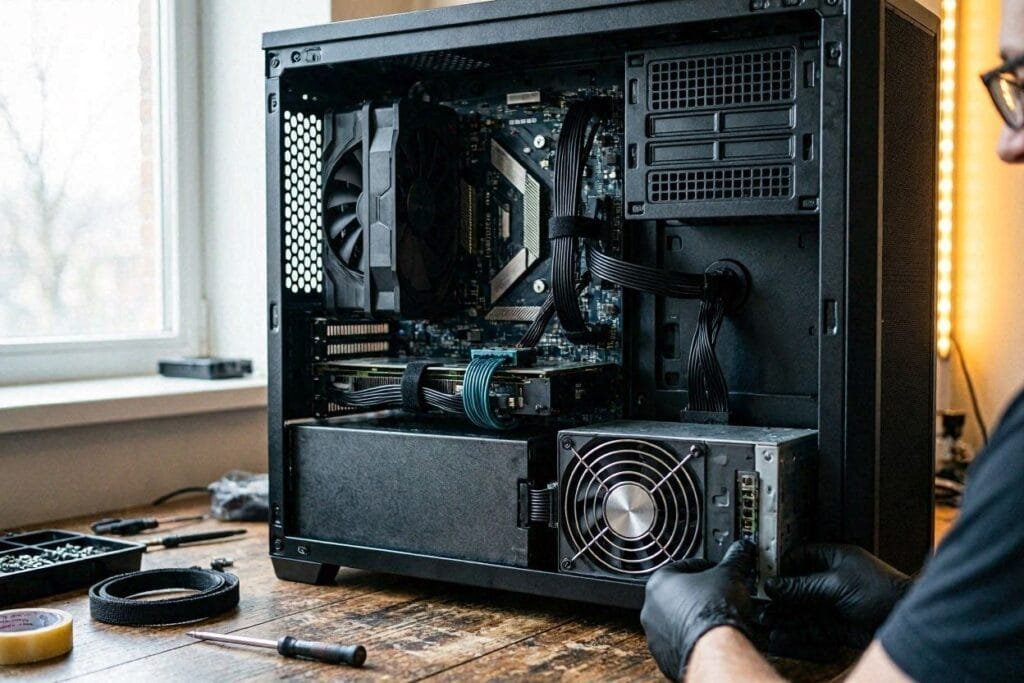
For PSU, I have the Cougar GEX 850w paired with my EVGA 3080 and Ryzen 7 9800 X3D, and it gives the best power to my overall build. Here is a detailed review of my Cougar 850.
12: Install the GPU
- Remove the PCIe slot covers at the rear of the case — the two (or three) metal tabs that align with where your GPU ports will sit.
- Push back the plastic retention clip at the far end of the PCIe x16 slot on the motherboard.
- Hold the GPU with both hands, lower it into the slot, and press down firmly until the retention clip clicks back into place.
- Secure the GPU bracket to the case rear with two screws.
- Connect PCIe power: ATX 3.1 PSUs use the native 12V-2×6 connector (single cable). Older PSUs use 6+2 pin connectors. Never use the PCIe adapter cable unless there is genuinely no alternative.
Note: If you’re working inside a Mini-ITX case, the GPU install order sometimes needs to come before the PSU. Check your case manual—small form factor builds have their own choreography.
13 Step: Connect All Cables
This step is tedious, but good routing now makes future upgrades significantly less painful.
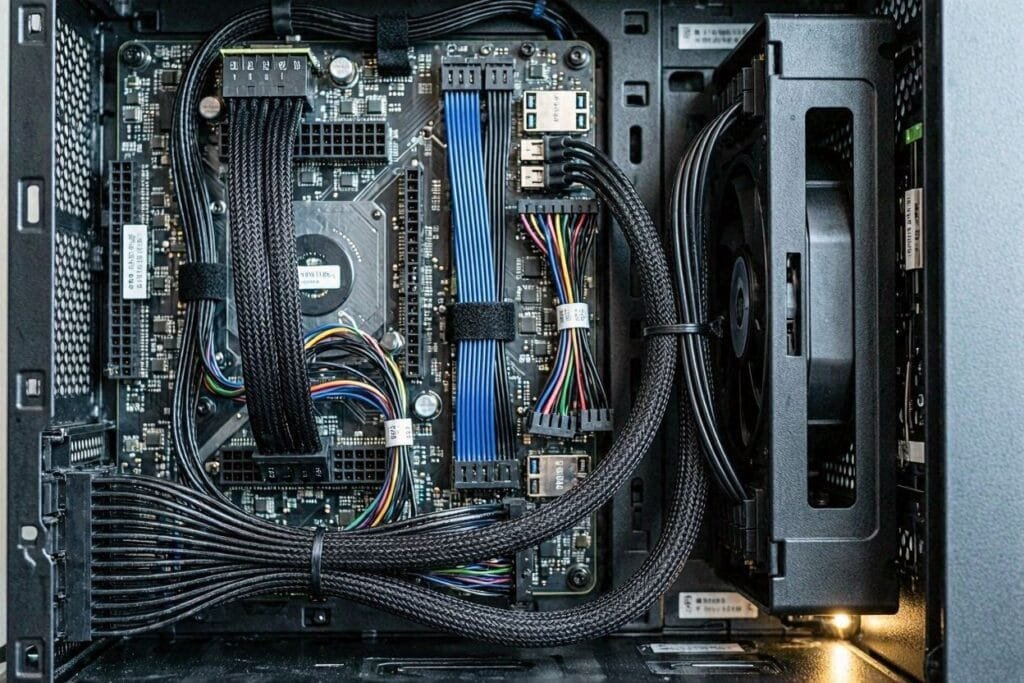
Power connections:
- 24-pin ATX connector → large socket on the right side of the motherboard
- 8-pin (or 4+4 pin) CPU power → top-left corner of the board, labeled CPU_PWR1
- PCIe power → GPU (done in Step 12)
Front panel connectors (the finicky small ones):
- Power switch, reset switch, power LED, HDD LED → JFP1 header on the motherboard
- Front USB 3.0 → large 20-pin USB 3.0 header
- Front USB-C → USB Type-C header (if your case and board both support it)
- Front audio → JAUD1 header (usually near the bottom-left corner of the board)
Pro tip: The JFP1 front panel header pinout is not labeled on the board itself — it’s only in the manual. Open your motherboard manual to the front panel section before you start. Getting the power LED polarity backward just means the LED stays off; the PC still works. Getting the power switch wrong means the PC won’t turn on.
14: First Power-On Test
Before closing up the case, do a quick test boot with the side panel off. If something’s wrong, you want to find out before you’ve bundled every cable into a tidy, inaccessible knot.
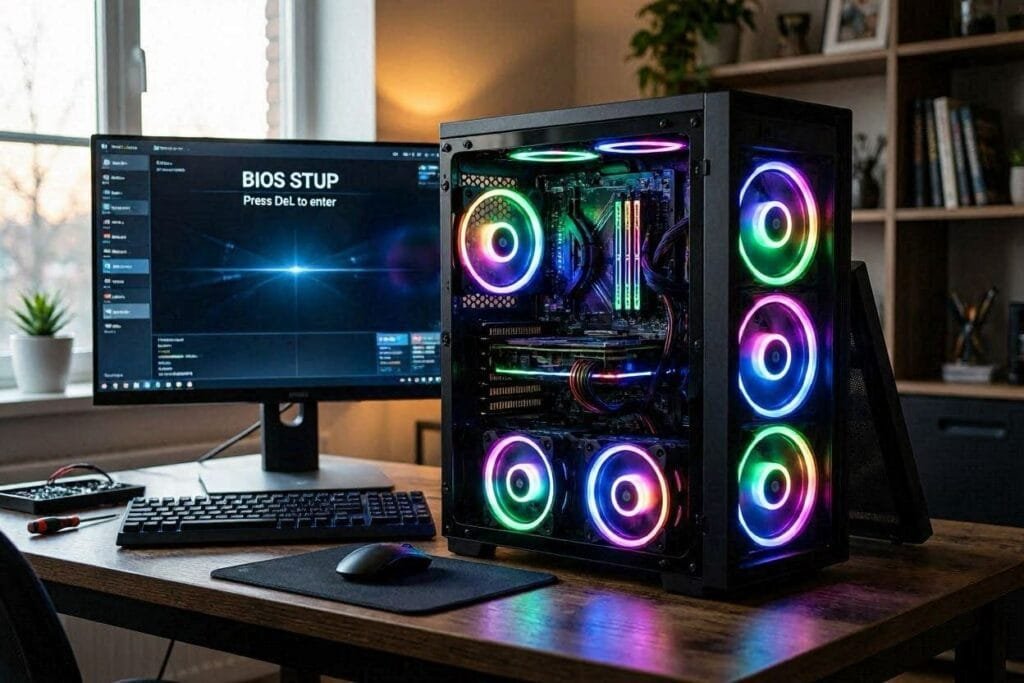
- Connect your monitor, keyboard, and power cable.
- Press the power button.
- What success looks like: Fans spin up, any RGB lights up, and a POST screen or BIOS splash appears within 10–15 seconds.
If nothing happens: Check that the 24-pin and 8-pin CPU power cables are fully seated — these are the two most commonly under-inserted connectors. Also verify the front panel power switch is on the correct JFP1 pins.
If you get a POST code error: Modern motherboards display Q-codes or debug LEDs. Common codes: A2 = storage not found; 00 or C1 = RAM issue. Check your manual.
15: Configure BIOS
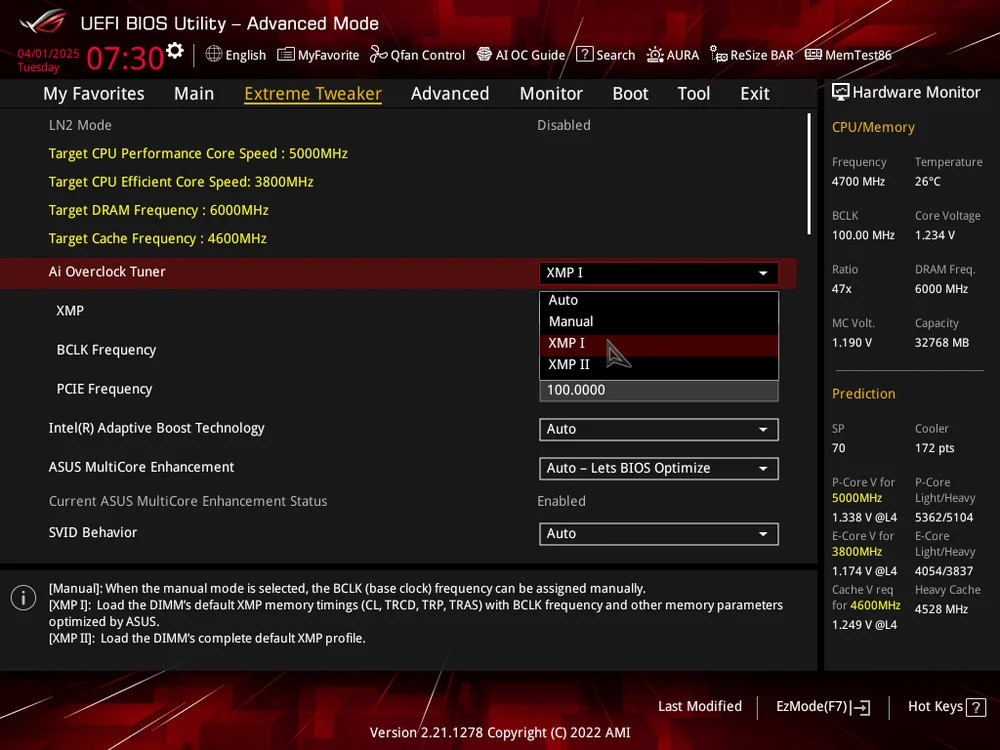
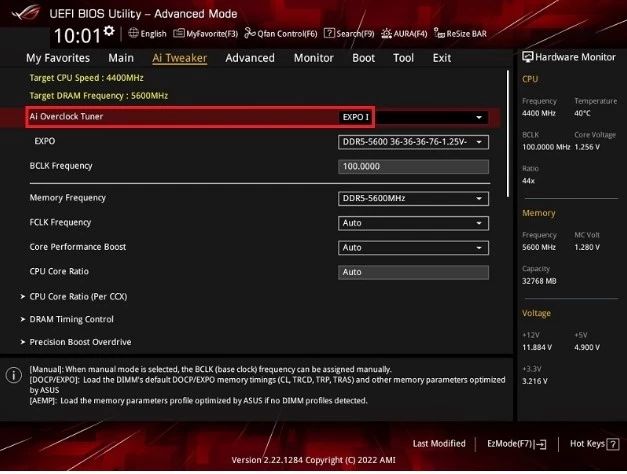
On first boot, press DEL or F2 immediately when the splash screen appears. The board will usually tell you which key to press in the bottom corner of the screen.
Two non-negotiable BIOS settings:
1. Enable XMP (Intel) or EXPO (AMD). Find the AI Overclocking, D.O.C.P., or EXPO section and enable the memory profile. This is a single toggle that tells your system to run your RAM at its rated speed instead of the default 4800MHz base. Without this, DDR5-6000 sticks run at DDR5-4800. One click, meaningful performance gain.
2. Verify hardware detection. BIOS should display your correct CPU model, total RAM capacity, and your SSD. If RAM shows half capacity (e.g., 16GB instead of 32GB), the sticks are in the wrong slots — power off and move them to A2/B2.
3. Set boot priority to USB drive so you can install the OS. You’ll flip this back to your SSD after installation completes.
16: Finish Your Computer with Windows 11 and Drivers
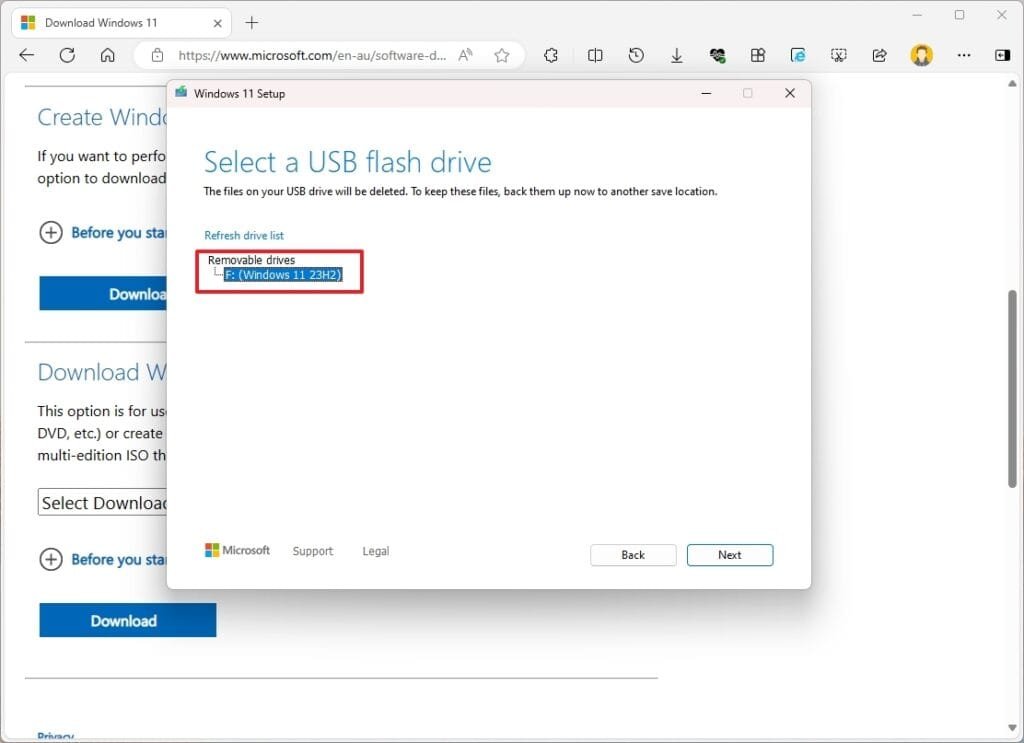
- On a separate device, go to Microsoft’s official site and download the Windows 11 Media Creation Tool. Run it, choose “Create installation media,” and write to your USB drive.
- Boot the PC from USB, follow the installation wizard. The process takes 15–25 minutes.
- After Windows loads for the first time: install GPU drivers immediately before anything else. Download from NVIDIA’s or AMD’s website directly — don’t rely on what Windows installs automatically. The generic drivers Windows pulls are display drivers, not the full performance stack.
- Download chipset drivers from AMD.com or Intel.com and install them as well.
- Run Windows Update twice — the first pass typically triggers a second round of component-specific updates.
Your system is now operational.
How Long Would I Keep This Build if I Were You?
I wouldn’t replace this PC after a fixed number of years. The whole point of building it myself is to have a system that I can upgrade instead of replacing whenever one component starts falling behind.
- For the first few years: I’d keep the system as it is if it continues handling my games and workloads comfortably.
- When performance starts dropping: I’d upgrade the component that is actually holding the system back rather than replacing everything.
- For the CPU: I’d take advantage of the AM5 platform’s upgrade path.
- For RAM: If I started with 16GB, I’d consider moving to 32GB when my workloads require more memory.
- For the GPU: I’d replace it when newer games or higher resolutions demand more graphics performance rather than upgrading simply because a new generation launches.
- Full replacement: I’d only consider building another PC when several major components become outdated at the same time and individual upgrades no longer make financial sense.
Troubleshooting: 5 Things That Commonly Go Wrong
1. PC turns on but there’s no display Most likely cause: monitor cable is plugged into the motherboard’s HDMI/DisplayPort instead of the GPU’s. The GPU outputs sit below the motherboard I/O ports. Unplug and reconnect from the GPU. If the display is still black, reseat the GPU until the PCIe retention clip clicks audibly.
2. PC won’t power on at all Check the 24-pin ATX and 8-pin CPU power connectors — these are the most commonly not-fully-inserted cables. Then verify the front panel power switch connector is on the correct JFP1 header pins. A reversed power LED is harmless; a reversed power switch just means no power response.
3. BIOS shows 16GB RAM instead of 32GB The sticks are in A1 and B1, not A2 and B2. Power off completely, move both sticks one slot over, reboot.
4. CPU idle temperature is above 60°C The cooler isn’t making full contact. This happens when mounting screws are tightened unevenly, creating a tilt. Remount the cooler using the cross-tightening method: top-left, bottom-right, top-right, bottom-left, one quarter turn at a time until snug.
5. Windows setup can’t find the SSD Go into BIOS and check that the M.2 slot is set to NVMe mode, not SATA. Some boards default to SATA compatibility mode and need to be switched manually. The setting is usually in the motherboard’s storage configuration section.
People Also Ask For
For a first-timer, plan on 2–3 hours total. The assembly of physical components takes around 90 minutes; the rest of the time goes to reading instructions, double-checking connections, and configuring BIOS and Windows. Experienced builders often finish full assembly in 45–60 minutes.
Usually no. Most aftermarket coolers ship with pre-applied compound on the base plate — a gray material already on the copper. If it’s there, use it; don’t add more. You’d only need to buy paste separately if your cooler ships without it (some budget air coolers) or if you’re remounting a used cooler.
Yes — and this is one of the strongest arguments for building over buying. AMD’s AM5 platform has confirmed socket support through at least 2027, meaning you can drop in a significantly faster CPU without replacing the motherboard. When you’re ready, our guide on how to upgrade your gaming PC walks through what to upgrade first and what order makes the most sense.
Yes—current platforms (AM5 and LGA1851) only support DDR5, so DDR4 won’t work. If you want to reuse DDR4, you’ll need an older platform like AM4 or LGA1700, but that’s not ideal for a new 2026 build. DDR5 is the better long-term choice for upgrades.
Start with GPU drivers (use DDU in Safe Mode and reinstall from NVIDIA/AMD). If crashes continue, test RAM with MemTest86. If both are fine, check PSU capacity—crashes under load often mean insufficient power. Also ensure XMP/EXPO is enabled in BIOS, as default RAM speeds can cause instability.
What to Do After Your First Boot
Congratulations — you’ve built a computer from scratch. What you have now is a system built to your specification: no bloatware, no binned-down components, no manufacturer markup, and a clear upgrade path that a prebuilt would never offer.
The most common first upgrade after a new build is RAM. If you started with 16GB and want to push to 32GB — or if you want to understand what speed bump actually does anything—our guide on how to upgrade RAM for gaming explains exactly what matters and what doesn’t, including whether timing or speed should drive the buying decision.
Building your first PC tends to be the last time buying a prebuilt seems like the simpler option.
